The Almaden TCP Relay installer can be downloaded directly from the SmartCenter portal. The installer is available for both Microsoft Windows and Linux, allowing administrators to deploy the Relay according to their environment requirements.
Before downloading the installer, ensure that you have administrator access to the SmartCenter portal.
Access
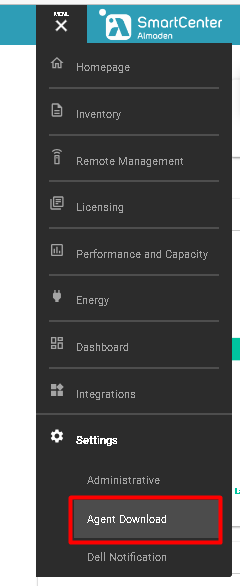
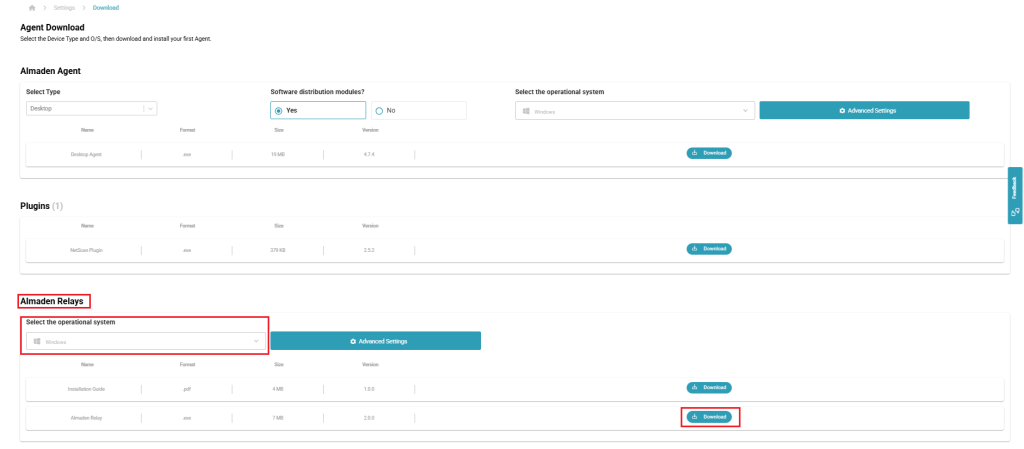
Log in to the SmartCenter portal using the target environment account and navigate to: Collective IQ® ITAM> Menu > Settings > Agent Download
Operating System
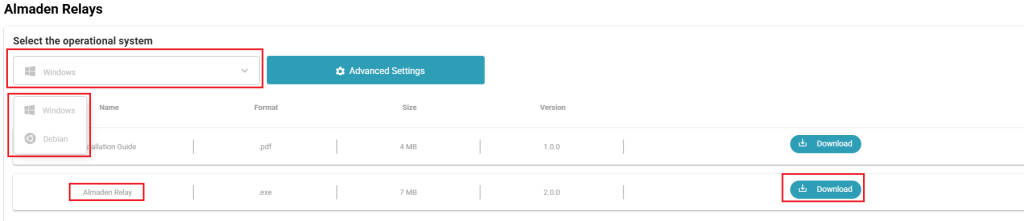
Select the installer that matches the operating system where the Relay will be deployed.
Windows
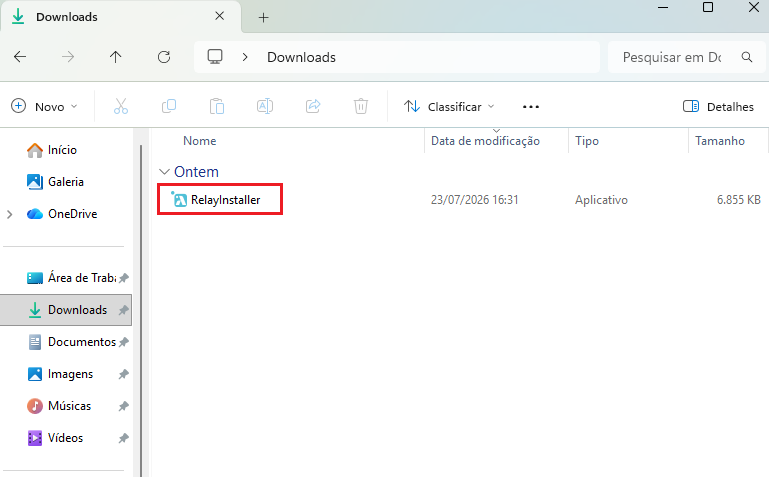
Downloads the Microsoft Windows installer (.exe), which supports both interactive and silent installations.
Linux
Downloads the Debian installation package (.deb) for supported Linux distributions.
Download the Installer
After completing the Relay configuration, review the selected settings and click Download to generate the installation package.
The downloaded installer includes all selected Relay configuration settings, allowing the Relay to be installed using the predefined configuration.
If you modify the Relay configuration before deployment, generate and download a new installation package to ensure the latest configuration is included.
Before Installing
Before starting the installation, gather the following information:
Receiver hostname or IP address.
Receiver communication port. LAD1: lad1-receiver.almaden.app:443 LAD2: lad2-receiver.almaden.app:443
Administrator credentials for the target machine.
Firewall or proxy configuration (if applicable).
TLS certificate and corresponding private key (if TLS communication will be enabled).
The Almaden TCP Relay supports TLS 1.2 and TLS 1.3 for secure communication. The installation package generated by SmartCenter is configured to maintain compatibility with both protocol versions.
If secure communication is enabled, ensure that the operating system, network infrastructure, and any firewalls or proxy servers in the communication path support TLS 1.2 or TLS 1.3. A valid TLS certificate and its corresponding private key are required to establish encrypted connections.
Having this information available before installation helps ensure a faster and smoother deployment process.
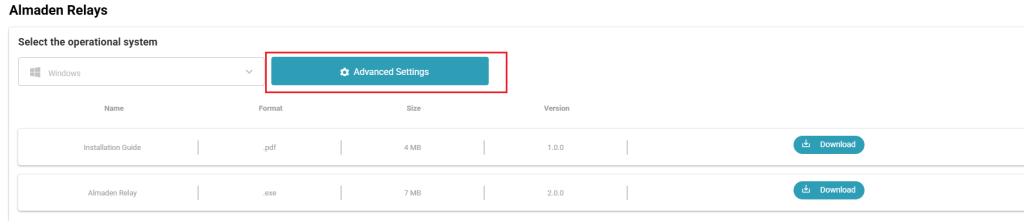
Advanced Settings
Click Advanced Settings to access the Relay configuration options.
This section contains the parameters used to configure the Relay before downloading the installation package, including communication ports, firewall settings, and other advanced deployment options.
For most environments, the default values are sufficient. Only modify these settings if your organization’s deployment requires specific customization.
Note: Detailed information about each advanced configuration option is provided in the following sections of this guide.
Installer Contents
Both installers include the following components:
Almaden TCP Relay – Core service responsible for forwarding communication between Almaden Agents and the Receiver.
Almaden TCP Relay UI – Local web interface used to monitor Relay activity, active connections, traffic statistics, and service logs.
No additional components need to be downloaded separately.
Relay Configuration
Before downloading the installer, configure the basic Relay settings according to your environment. These settings will be included in the installation package and automatically applied during the installation process.
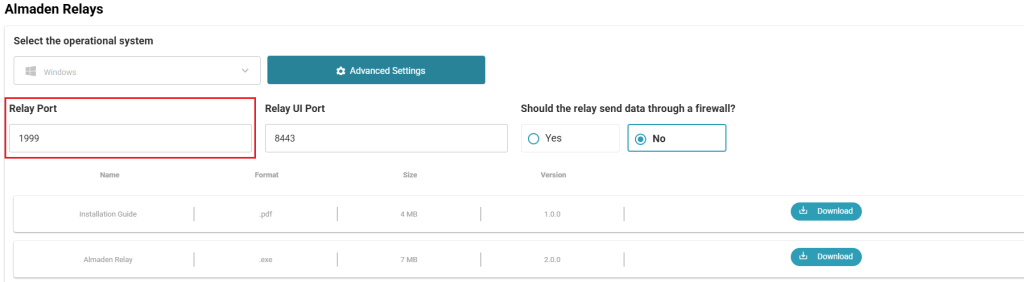
Relay Port
The Relay Port specifies the TCP port used by the Almaden TCP Relay to accept incoming connections from Almaden Agents.
Agents configured to communicate through the Relay establish their connection using this port. After receiving data from the Agents, the Relay forwards it to the configured Almaden Receiver.
The default value is 1999, which is suitable for most deployments. Change this port only if required by your organization’s network or security policies.
Ensure that the selected port is available on the target machine, is not being used by another application, and is allowed by the local firewall. Client devices configured to use the Relay must also be able to reach this port.
Note: If the Relay Port is changed from the default value, all Almaden Agents configured to communicate with this Relay must be updated to use the new port.
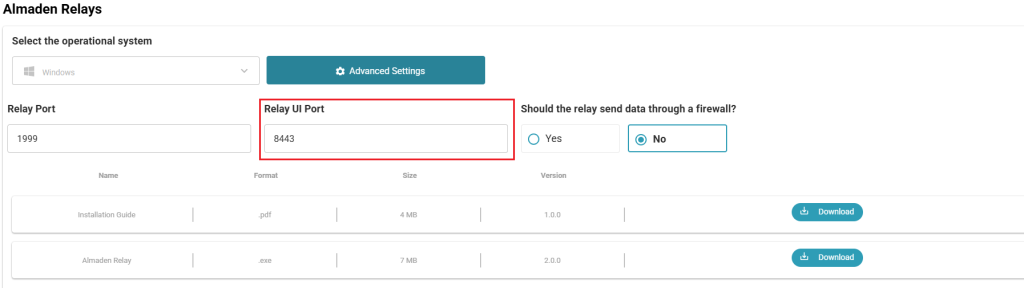
Relay UI Port
The Relay UI Portspecifies the TCP port used by the Almaden TCP Relay Web Interface.
This port is used exclusively for administrative access to the Relay Dashboard and is not used for communication between Almaden Agents and the Relay.
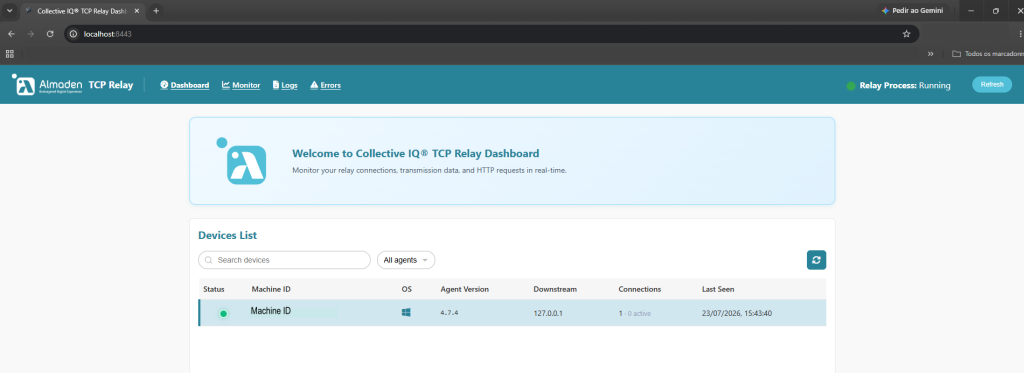
After installation, administrators can access the Relay Dashboard through the web interface to monitor the Relay status, review active connections, analyze traffic statistics, and view service logs.
The default value is 8443, which is suitable for most deployments. Change this port only if required by your organization’s network or security policies, or if the default port is already in use.
Choose a port that is available on the target machine and ensure that it is not being used by another application.
Note: If administrators will access the Relay Dashboard from another computer, ensure that the selected port is allowed by the local firewall and any network security devices between the administrator’s workstation and the Relay server.
Web Interface Access – Relay UI Port
After verifying that both Relay services are running, open a web browser and access the Relay Dashboard using the configured Relay UI Port.
The web interface can be accessed using any of the following addresses, depending on where the administrator is connecting from:
Local access (same server):
http://localhost:<Relay_UI_Port>
or
http://127.0.0.1:<Relay_UI_Port>
Note:localhost and 127.0.0.1 can only be used when accessing the Relay Dashboard directly from the localhost.
Firewall Configuration
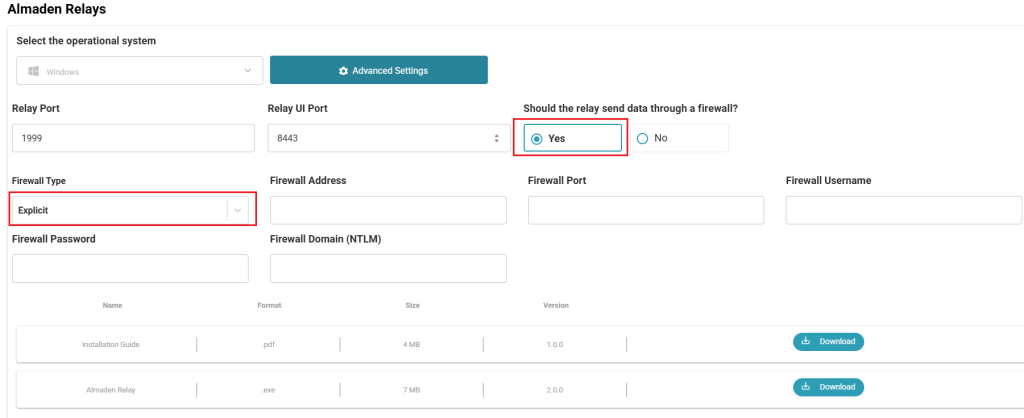
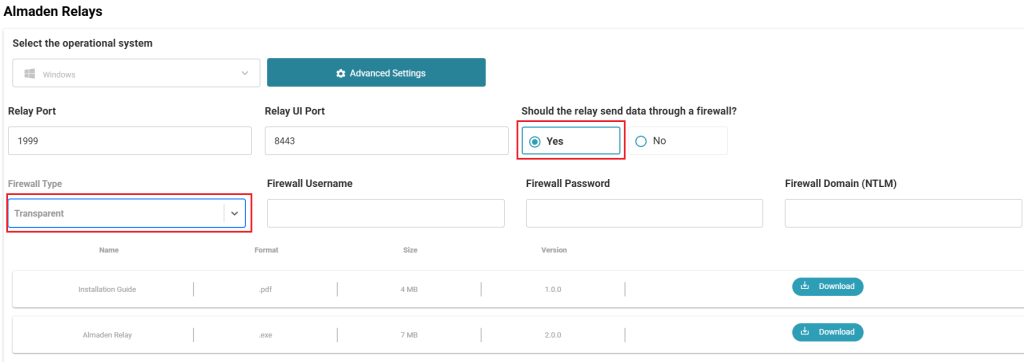
If your organization requires outbound traffic to pass through a firewall or proxy server, enable this option during the Relay configuration. Otherwise, leave the option disabled.
When Yes is selected, additional fields become available to configure the connection settings required for the Relay to communicate with the Almaden Receiver.
If the Relay has direct access to the Receiver, select No and no additional firewall configuration is required.
Additional configuration fields are displayed only when Yes is selected.
Firewall Type – Explicit
The Firewall Type determines how the Almaden TCP Relay communicates with the firewall or proxy server.
Select Explicit when the Relay must connect to a proxy server by using its network address and listening port. In this mode, all outbound traffic is forwarded through the configured proxy before reaching the Almaden Receiver.
After selecting Explicit, complete the remaining firewall configuration fields, including the proxy address, port, and authentication credentials if required by your environment.
Note: Choose the firewall type that matches your network infrastructure. If you are unsure which option to use, contact your network administrator before proceeding.
Firewall Type – Transparent
The Transparent firewall type is used when the network infrastructure transparently intercepts and forwards outbound traffic without requiring the Relay to connect to a specific proxy server.
In this mode, the Relay establishes its outbound connection normally, while the network firewall or proxy automatically redirects the traffic to its destination. No proxy server address or listening port needs to be configured on the Relay.
Select Transparent only if your network environment uses a transparent firewall or proxy and no explicit proxy configuration is required.
Note: If your organization requires the Relay to connect through a proxy server by specifying its address and port, select Explicit instead.
Next Step
After downloading the appropriate installer, continue with the installation guide for your operating system:
Cookies are small text files that can be used by websites to make a user's experience more efficient. The law states that we can store cookies on your device if they are strictly necessary for the operation of this site. For all other types of cookies we need your permission. This site uses different types of cookies. Some cookies are placed by third party services that appear on our pages.
Do you really wish to opt-out?
Cookie Settings
Cookies are small text files that can be used by websites to make a user's experience more efficient. The law states that we can store cookies on your device if they are strictly necessary for the operation of this site. For all other types of cookies we need your permission. This site uses different types of cookies. Some cookies are placed by third party services that appear on our pages.