
Agent Update Process
Introduction
This document describes the agent update process for the application and is intended for users and technicians responsible for maintaining the environment. The update procedure is performed manually and requires technician intervention, either directly on the target machine or by distributing the executable package (.exe) using remote software distribution tools. The guidelines presented here aim to ensure that the update is executed correctly, preserving existing configurations and ensuring proper agent operation after installation.
Objective
The objective of this document is to clearly and consistently guide the agent update process, detailing the prerequisites, required precautions, and validations to be performed before and after executing the update package. By following this procedure, the technician can ensure that the previous version is correctly replaced, that all add-ons and plugins are installed in the new version, and that the agent continues to communicate properly with the CIQ ITAM / DEX platform, ensuring data integrity and consolidation in the portal.
Prerequisites
Before starting the update process, verify the following:
- Administrative privileges on the target machine;
- Internet connectivity for communication with the CIQ ITAM / DEX portal;
Update Procedure
1. Validation of Current Settings
Before downloading the new version, it is essential to validate the current settings of the running agent to ensure that the new agent is downloaded with the correct configuration.
Locate the agent according to the Windows environment:
- Desktop Agent:
C:\Program Files (x86)\Automatos\Desktop Agent\adacontrol.exe - Server Agent:
C:\Program Files (x86)\Automatos\Automatos Server Agent\asacontrol.exe
Open the corresponding executable and, from the menu bar, select Configuration and click Agent.
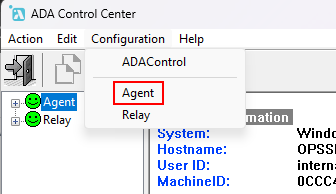
Carefully review all information displayed on this screen, as it is required to properly fill in the advanced configuration options during the agent download process.
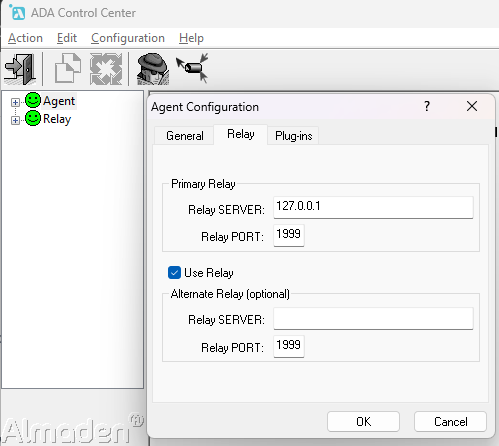
If Primary Relay is set to 127.0.0.1, it means that the agent is sending data directly to the cloud.
If it is set to an address such as 10.5.0.100, it indicates that the data is being routed through a central relay.
To download the updated agent configured to use a central relay, edit the Advanced Settings during the agent download process and specify the appropriate relay address.
2. Downloading the Updated Agent
After validating the settings:
- CIQ ITAM> Menu> Settings> Agent Download
- Download the new agent version;
- Ensure that the package matches the agent type (Desktop or Server) and the previously validated configuration.
3. Executing the Update Package
- Run the
DesktopAgent.exe or ServerAgent.exefile as Administrator; - The installer runs in silent mode and does not require additional parameters;
- During execution, the previous agent version is automatically uninstalled;
- All add-ons and plugins are installed together with the new version.
- The update process takes approximately 30 seconds on average.
This same procedure can be performed using remote software distribution tools, provided the execution occurs with administrative privileges.
Post-Update Validations
1. Installed Version Verification
Open the Windows Programs and Features panel by running appwiz.cpl and verify that:
- The agent version has been updated;
- The associated add-ons and plugins are also at the correct version.

2. Agent Operation Validation
Open the agent again according to the installed type:
- Desktop Agent:
C:\Program Files (x86)\Automatos\Desktop Agent\adacontrol.exe - Server Agent:
C:\Program Files (x86)\Automatos\Automatos Server Agent\asacontrol.exe
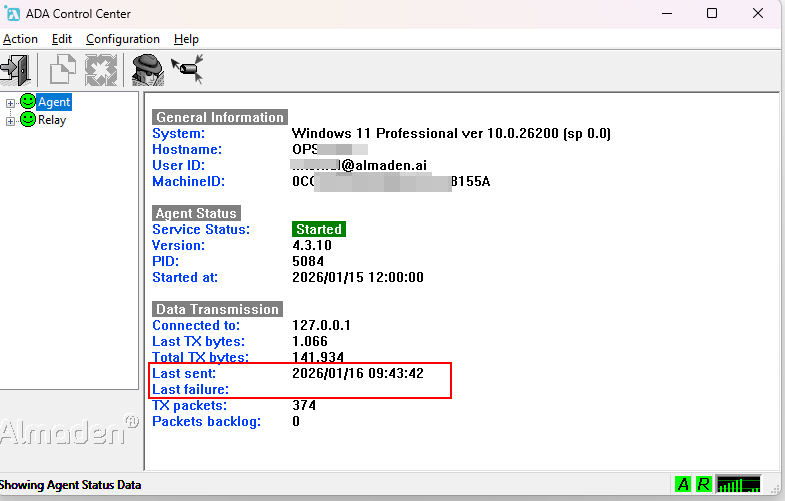
Verify the communication information:
- Last Sent: indicates the date and time of the last data submission to the CIQ ITAM / DEX cloud;
- Last Failure: is displayed only if a communication failure has occurred. If it is blank, the agent is operating correctly.
3. Data Consolidation in the Portal
After the update:
- Allow up to 1 hour for the data to be consolidated in the CIQ ITAM portal;
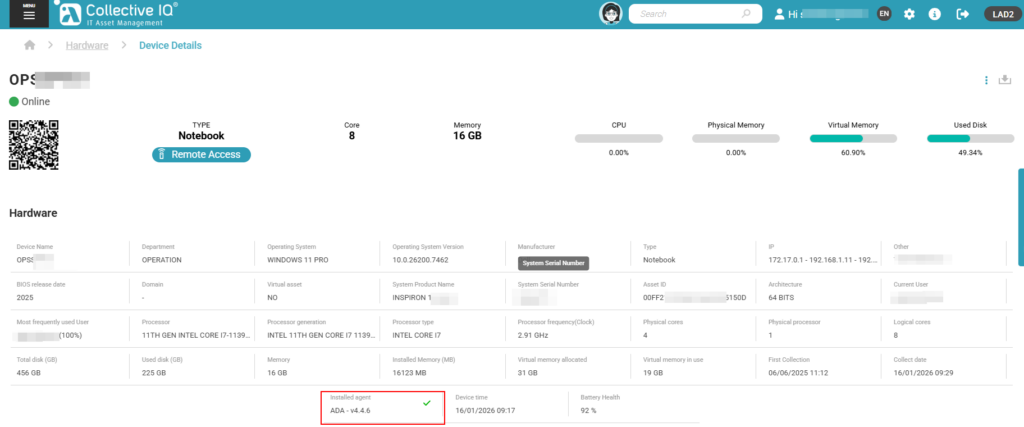
- Access the CIQ ITAM portal and open the device record;
- Confirm that the AGENT VERSION displayed matches the updated version.
Notes and Best Practices
- Always validate agent settings before downloading a new version;
- Whenever possible, perform updates outside peak hours;
- Use approved remote software distribution tools to ensure consistency during mass updates;
- If communication issues occur after the update, review the agent settings and the machine’s network connectivity.
Process Summary Flow
- Validate the running agent configuration;
- Download the agent with the correct settings;
- Run the update package as Administrator;
- Confirm the update via
appwiz.cpl; - Validate communication (Last Sent / Last Failure);
- Confirm the agent version in the CIQ ITAM portal.
