
WAN – Agent distribution tasks
Introduction
The ITAM agent update feature allows centralized, simplified, and secure “Desktop Agent” updates using different transmission methods according to the environment architecture and requirements.
With this feature, it is possible to define:
- The target department for devices after the update;
- The agent communication/transmission method;
- Scheduling and time restrictions;
- Additional geolocation and network share collection settings.
Available transmission methods:
- Direct to Cloud
Agents communicate directly with Almaden cloud infrastructure. - Central Relays
Agents use previously configured relays in the environment by specifying relay IP addresses or hostnames. - Central Relay + Local (Cloud)
Agents use the configured central relay and, in case of transmission failure, automatically attempt direct cloud communication.
Requirements
Minimum Agent Version
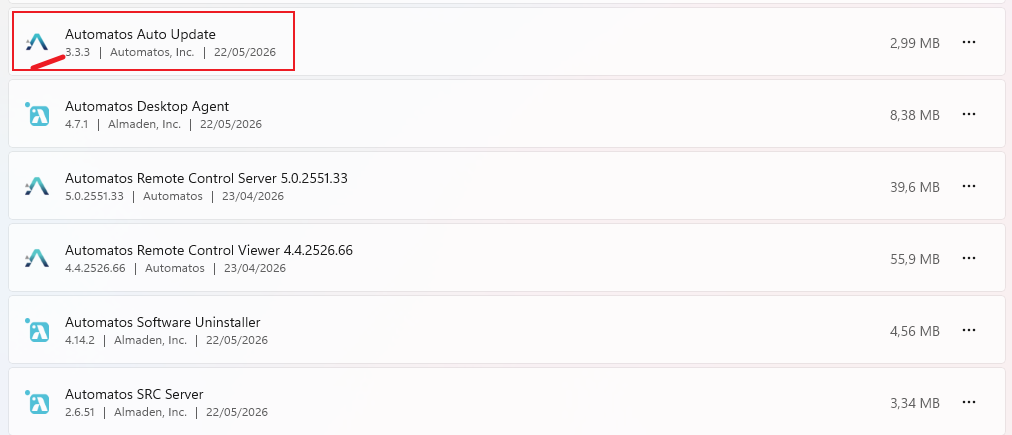
A version of the agent containing the remote distribution modules must already be installed:
- Auto Update version 3.3.3 or higher.
Firewall Requirements
Allow outbound HTTPS communication to:
Env. LAD1: lad1-smartcenter.almaden.app
Env. LAD2: lad2-smartcenter.almaden.app
Port: 443
Supported Systems
- Microsoft Windows clients only (10 or higher).
Creating a task – step by step
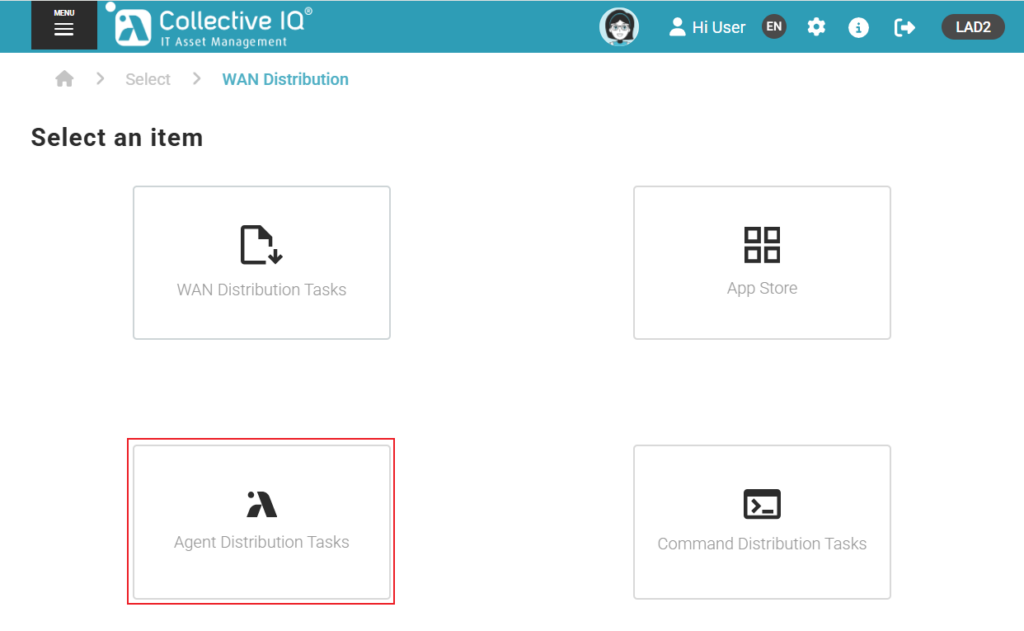
Accessing the Feature
Menu > Remote Management > Wan Distribution > Agent Distribution Tasks
Creating a New Distribution
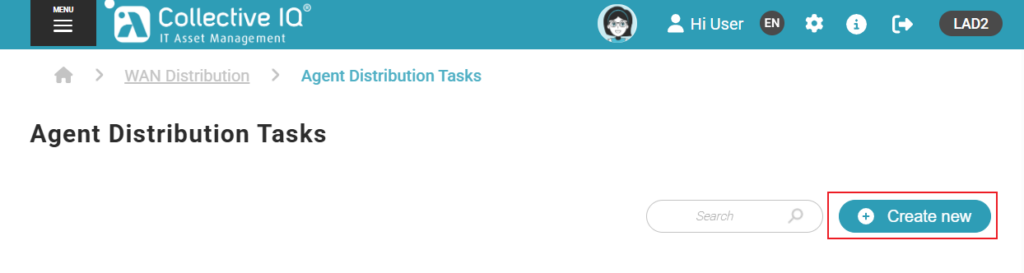
Click: Create new
Task Configuration
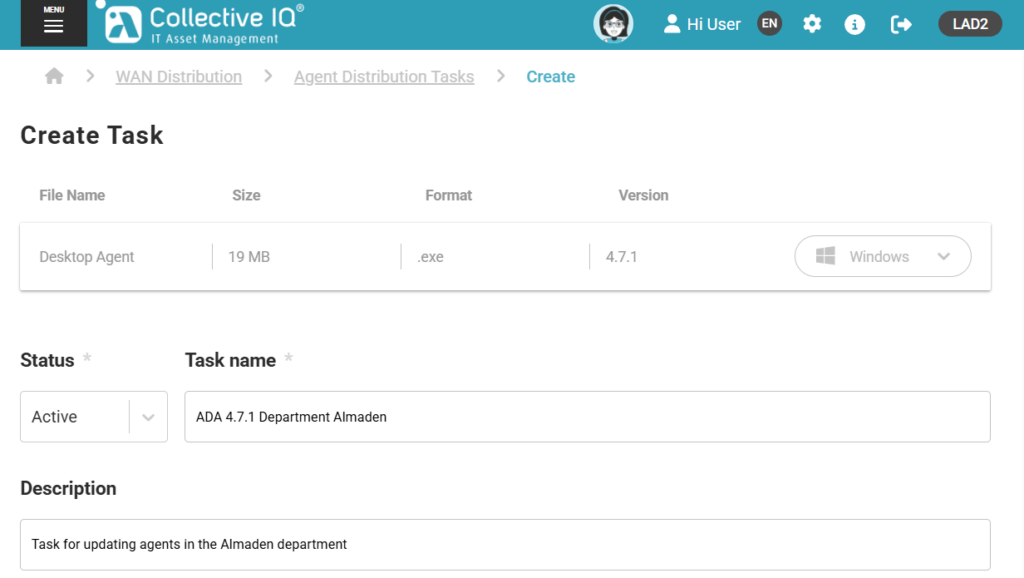
Task Status
Define the initial distribution status:
- Active
Starts the task immediately after saving. - Inactive
Saves the task without starting the distribution, allowing activation later.
Description
Provide a clear and objective description that helps identify the purpose or necessity of the update.
Examples:
- Agent update to a new corporate version;
- Communication method change;
- Specific module corrections.
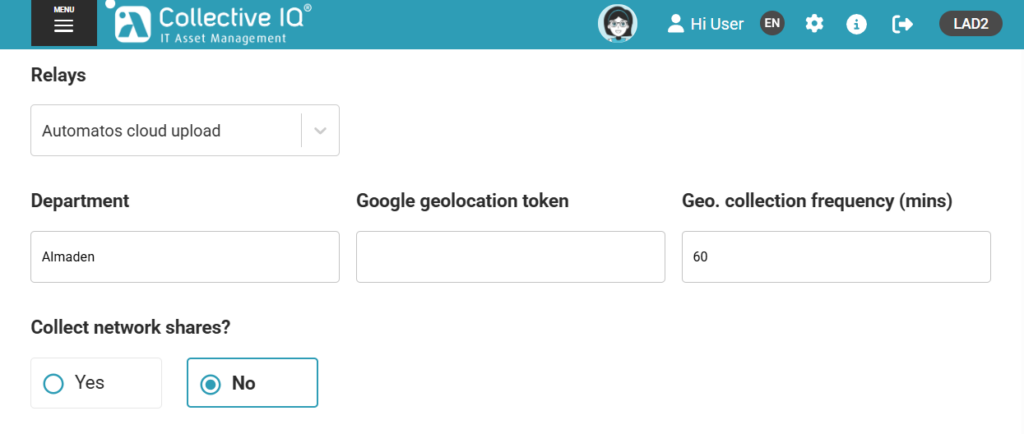
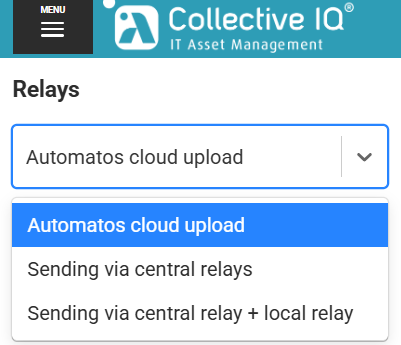
Relays – Available Methods
Define the transmission method used by the agents.
Direct to Cloud
Devices will communicate directly with Almaden cloud infrastructure.
Central Relays
Uses relays previously configured in the environment through IP addresses or hostnames.
Central Relay + Local (Cloud)
Devices will use the configured central relay and, in case of failure, will attempt direct cloud communication.
Target Department
Define the department to which devices will be assigned after receiving the update.
Google Geolocation Token
If you have a Google Geolocation token, enter it in the corresponding field.
Otherwise:
- Leave the field blank;
- The system will use Almaden’s default geolocation methods described in the complementary documentation.
Geo. Collection Frequency (mins)
This parameter only takes effect if a Google Geolocation Token has been configured.
If no token is used, this field does not need to be changed.
Collect Network Shares?
Allows the agent to collect information about public folders and network shares.
Refer to the complementary documentation for more details about this functionality.
Selecting Devices
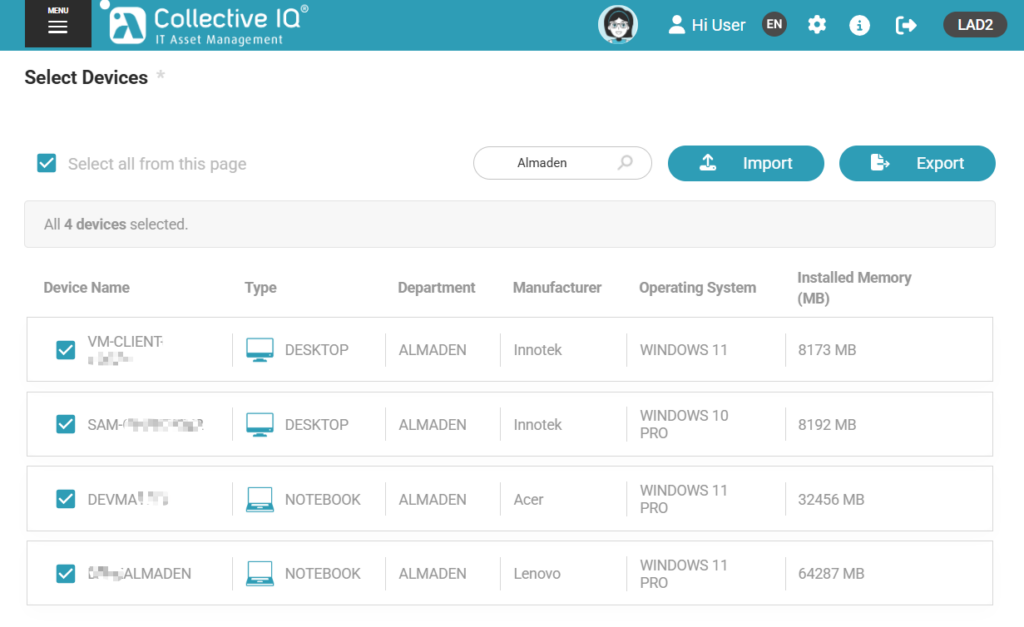
If you want to keep devices in their current department:
- Search for the department name;
- Select all desired devices.
Distribution Scheduling
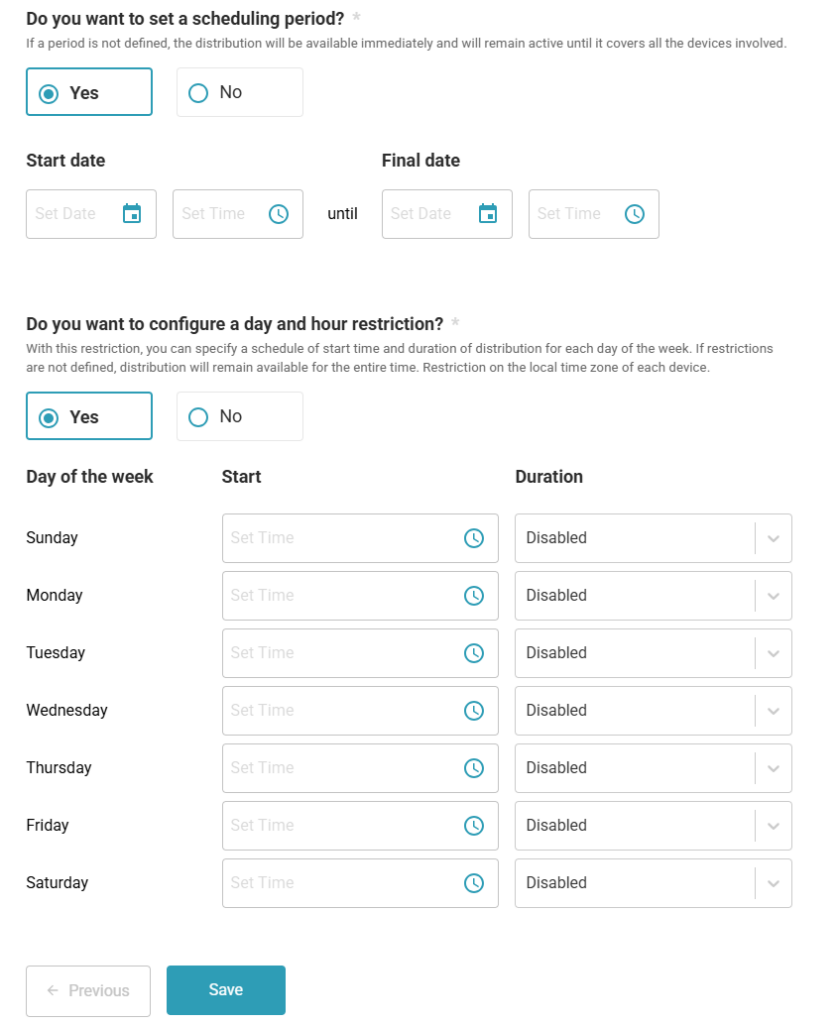
Do you want to set a scheduling period?
If no period is defined:
- The distribution will become immediately available;
- It will remain active until all involved devices are reached.
When selecting Yes:
Define:
- Start date and time;
- End date and time;
During this period, the task will attempt to reach the selected devices.
Day and Time Restrictions
Do you want to configure a day and hour restriction?
This setting allows you to define:
- Specific days of the week;
- Start time;
- Distribution window duration in hours.
If no restrictions are configured:
- The distribution will remain available throughout the defined period.
Restrictions follow each device’s local time zone.
Saving the Task
After completing the configuration:
- Click save to create the distribution task.
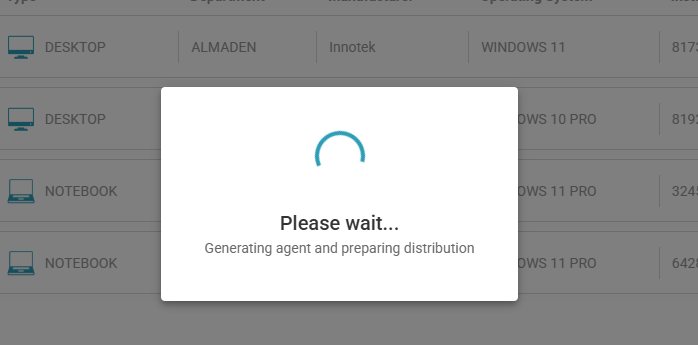
Distribution Monitoring
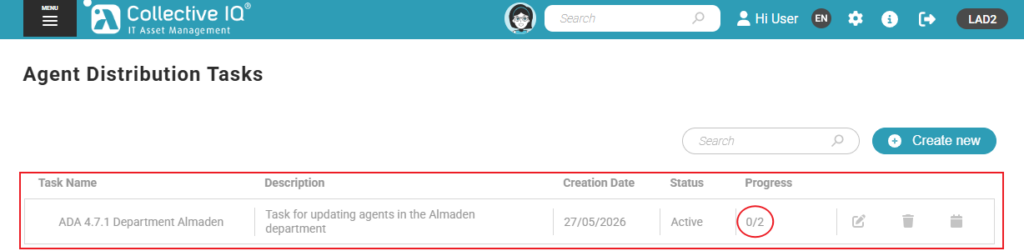
Access: Menu > Remote Management > Wan Distribution > Agent Distribution Tasks
The created task will be listed with its main information.
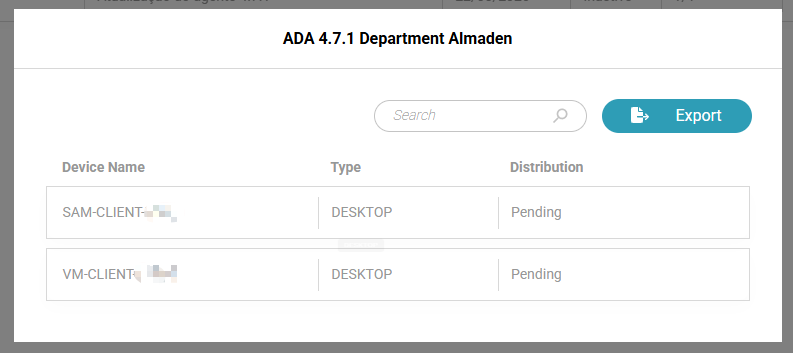
Progress View
By clicking the task progress:
- A list will be displayed containing:
- Device name;
- Distribution type;
- Date and time the device received the update.
It is also possible to:
- Export the data to a CSV file.
Actions
The action buttons allow administrators to manage the created distribution task.
Available actions:
- Edit
Allows modification of the task configuration, including status, description, relay settings, departments, scheduling, and selected devices. - Delete
Permanently removes the distribution task from the environment. - Schedule
Allows configuring or modifying the task execution period, including scheduling windows and day/hour restrictions.
