
Create Form
Creating Forms with Customized Data
These fields can be used to record any type of complementary information about the assets, such as asset number, installation location, equipment owner, contract validity, preventive maintenance dates, among others.
Forms are directly linked to devices or departments, providing a consolidated view of technical and operational data in one place. In addition, this information can be integrated into reports and exported for analysis.
This feature offers full flexibility in data collection, promoting richer, more detailed management aligned with your organization’s internal processes.
Menu> Inventory> Custom data> Create Form
Click the button related to the field to create the options.
Field – Text
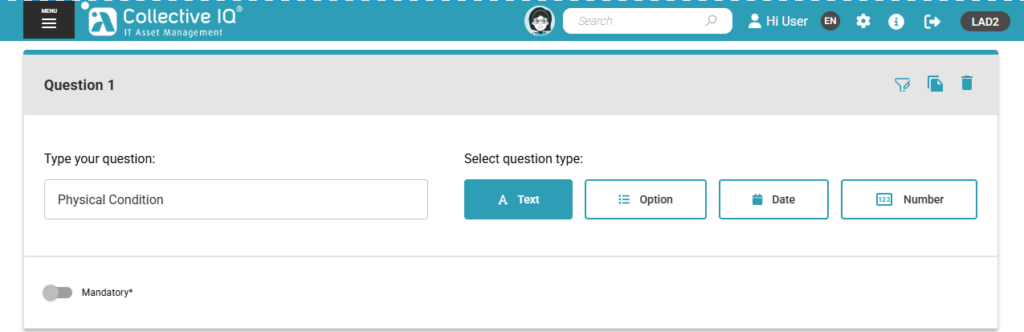
The “text” field allows the entry of any character, phrase, or number.
Note: Enable the “Mandatory” option to make this response required.
Field – Option
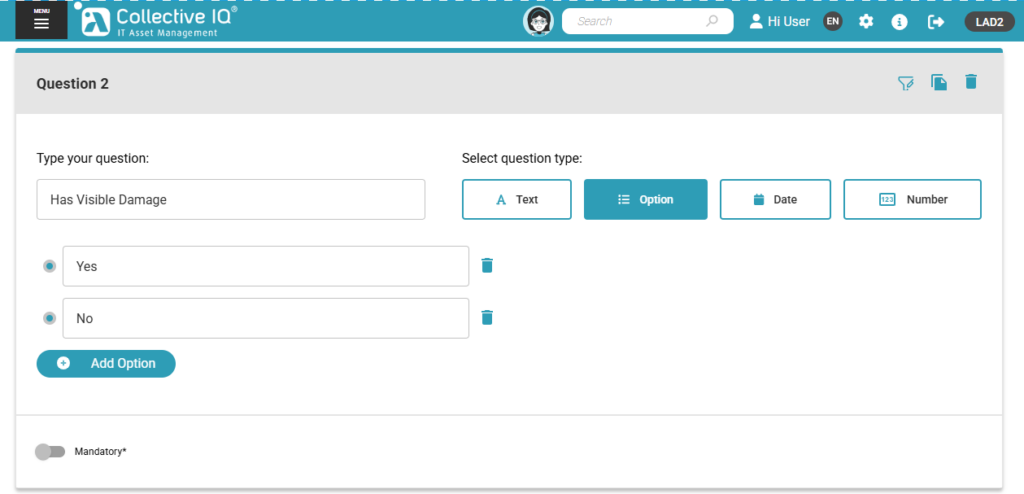
The “option” field allows only a single selection, such as “yes” or “no” in the example above.
Note: Enable the “Mandatory” option to make this response required.
Field – Date
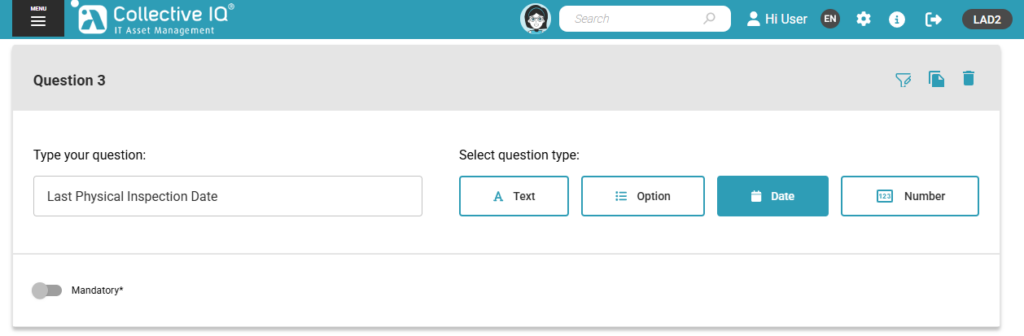
The “date” field is formatted as DD/MM/YYYY and does not accept any other type of input.
Note: Enable the “Mandatory” option to make this response required.
Field – Number
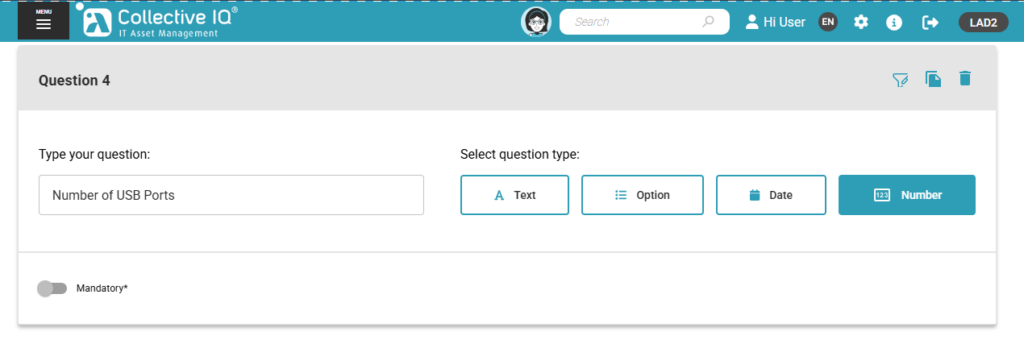
The “Number” field accepts only numeric characters.
Note: Enable the “Mandatory” option to make this response required.
Save form
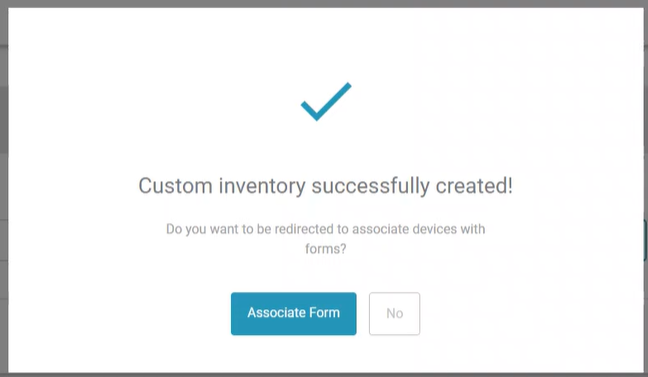
When saving the form, a popup will appear asking if you want to associate devices with it.
Proceed to “Associate Form“.
