
Custom Data
Custom Data
Personalize Your Inventory Information
The Custom Data feature lets you add extra, specific information to your assets beyond what the system automatically collects. This can include fields like asset tag number, equipment custodian, physical location, or any other relevant data for your management needs.
This functionality is crucial for tailoring the inventory to your company’s unique requirements, making control more comprehensive and aligned with internal processes.
With Custom Data, you can integrate technical and administrative information, simplifying reporting, audits, and strategic decision-making based on precise, contextualized data.
The available field types are Option, Text, Date, and Number, allowing you to customize the form as desired by adding as many fields as needed.
Menu> Inventory> Custom Data
Custom Data Flow – Step by Step
- Create the form
Define the custom fields according to the information you need to collect (e.g., text, date, number, or yes/no). - Associate the form
Link the form to specific devices or departments so it becomes available for use within the selected scope. - Fill in or import data
Complete the form manually for each asset or import data in bulk to speed up the process and ensure consistency. - Store and manage data
The information is saved centrally and can be updated at any time as changes occur. - Generate reports
Use the collected data to create reports, apply filters, and gain insights to support asset management decisions.
Note: Multiple forms can be associated with the same devices or departments, enabling different types of data to be managed simultaneously.
Actions
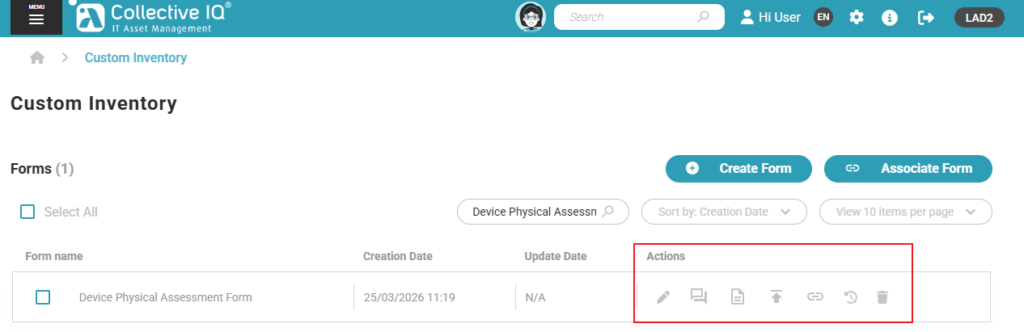
Form Action Buttons – Overview
- Edit
Allows you to modify the form questions.
Note: Deleting a question will also permanently remove all existing answers related to it, with no recovery option. - Edit Answers
Enables you to fill out or update the form for the associated devices. - Report
Generates reports based on the responses collected from each associated device. - Import
Imports data from a .CSV file to populate the form automatically. - Link
Allows you to associate or remove the form from specific devices or departments. - Change History
Displays the history of changes made to the form questions, helping track modifications over time. - Delete
Permanently deletes the form and all its associated data.
