Installation – Agents
Mobile – Android
Step-by-step – ProMDM Fort app setup (Android)
Install
- Open the Play Store on the Android device.
- In the search field, look for ProMDM Fort and select the app from the results.
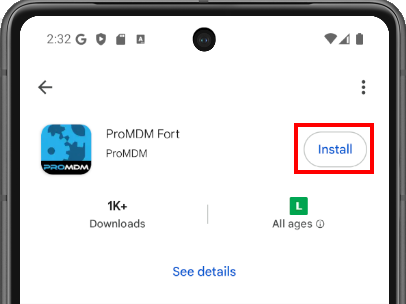
- Tap Install and wait for the installation to complete.
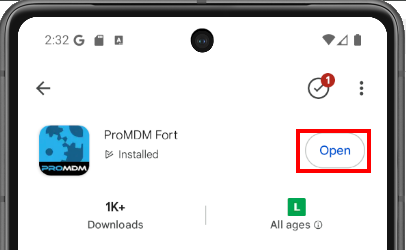
- After installation, tap Open to launch the app.
Creating the Work Profile
- In the ProMDM Fort app, tap Create / Delete Work Profile.
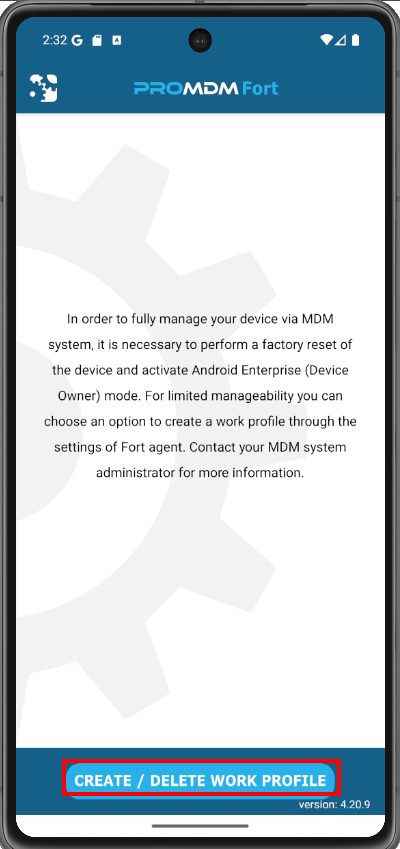
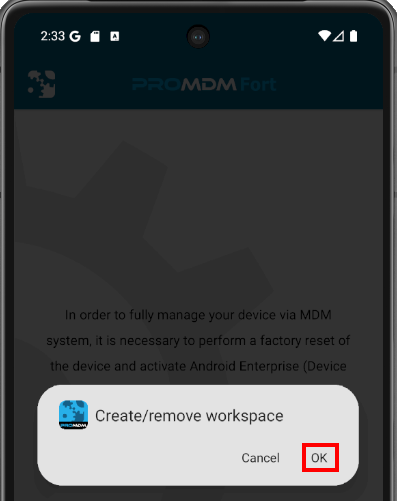
- In Create/remove Workspace, tap OK.
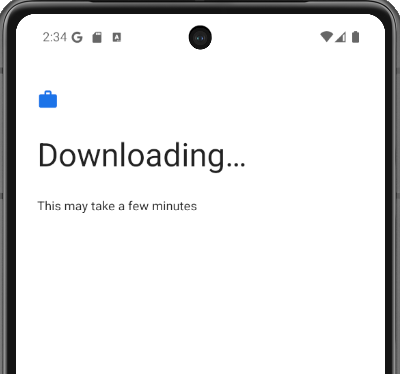
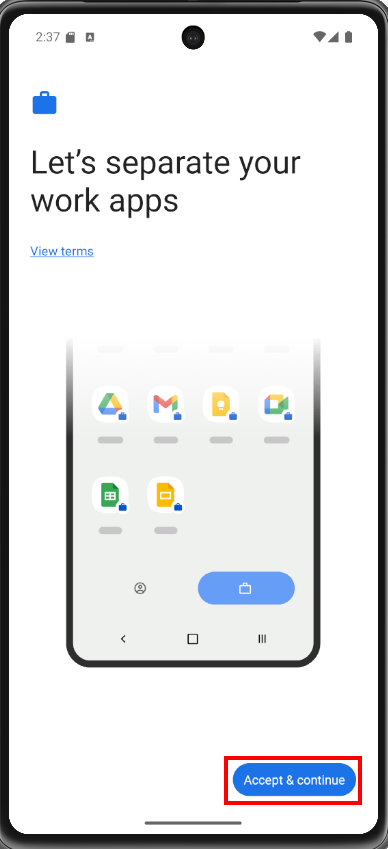
- To create a work profile, tap Accept & Continue.
Accessing the app in the Work profile
- Open the Android app list.
- A new tab called Work will be displayed.
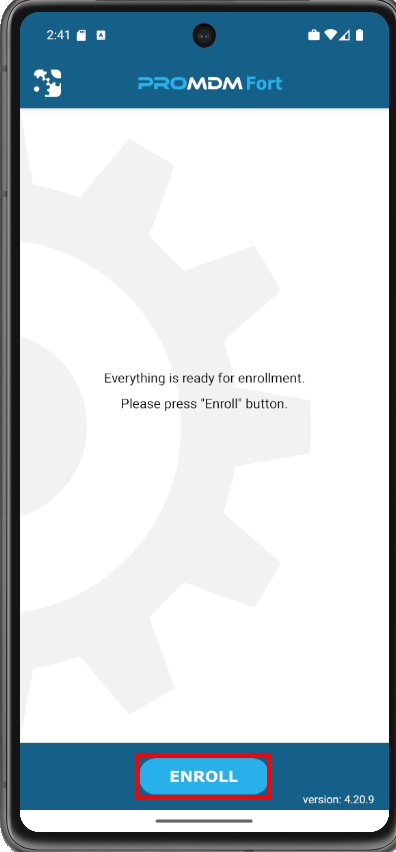
- Select the Work tab and look for the ProMDM Fort app (work folder icon).
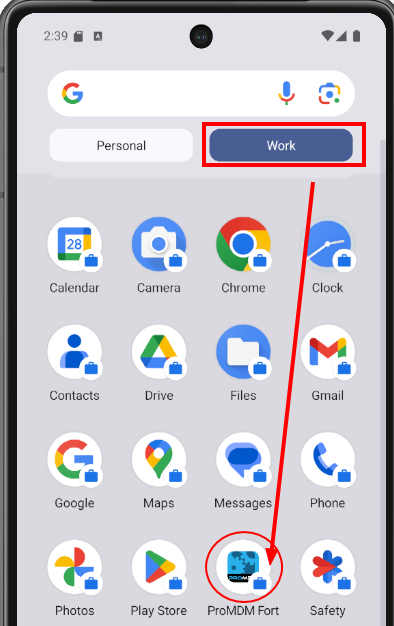
- Open the app and tap ENROLL.
Configuration methods
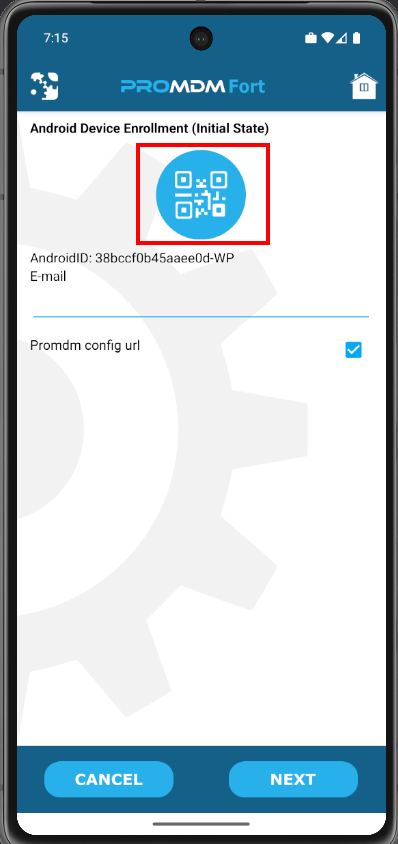
- Use the QR code below to continue with the configuration:
- Click the QR code image to open the camera.
- Scan the QR code to complete the setup of your device.
- After completing this step, tap Next to proceed.