
Intune Windows – Deploy Automatos Remote Control Client / Server
Intune Windows – Deploy Almaden Remote Control Client / Server
For easier deployment of Almaden Remote Control to multiple computers, you can use one of the many different deployment tools available.
Note: If you have customized Automatos Remote Control that you wish to deploy, change the naming of files and paths accordingly to your customization.
To deploy Almaden Remote Control to Windows computers please follow the following guide.
Step 1
Download the Automatos Remote Control Client from the link below:
Type: EXE
You can request the deployment package "Automatos Remote Control Server" through one of the following channels:
- Almaden Support Portal: https://support.almaden.ai/WSS/Login?ReturnUrl=%2fwss%2f
- Email: suporte@almaden.ai
Note: Convert the .exe package to .msi using MSI Wrapper.
Step 2
Transform the downloaded .exe into an .intunewin file. Check this official guide from Microsoft on how to do this.
Step 3
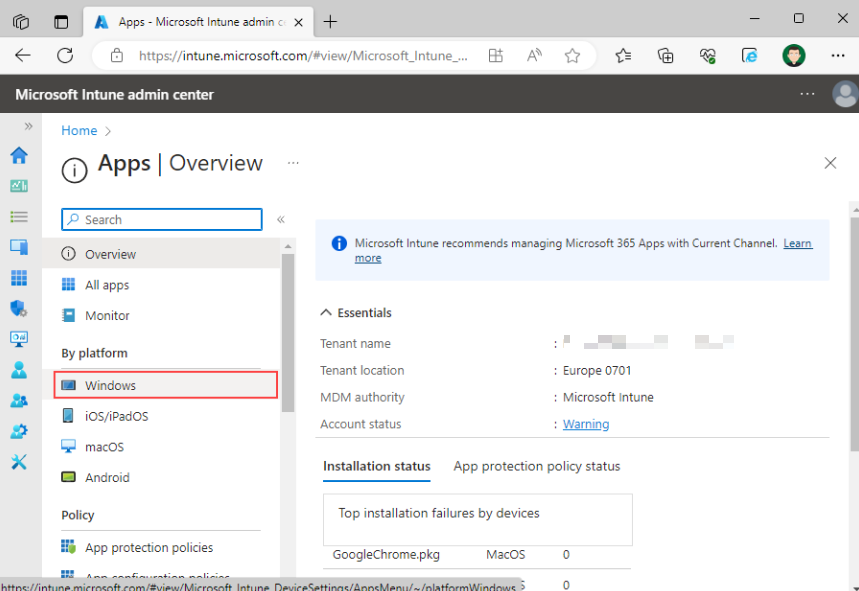
Open Microsoft Intune, select “Apps” from the left menu and click on “Windows” under “By platform”.
Step 4
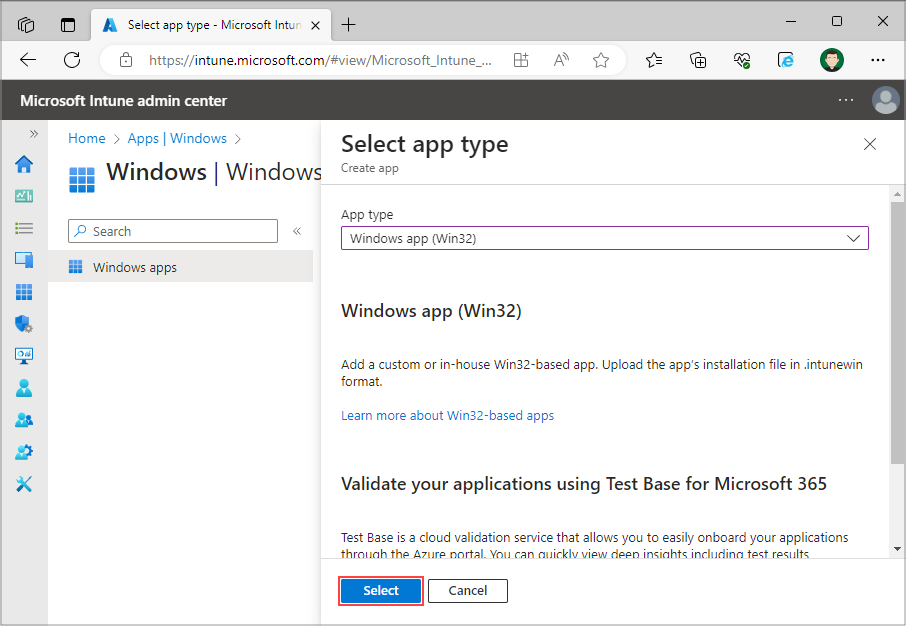
Select “Add” on the top of the page, set App type to “Windows app (Win32)” and click “Select” on bottom right of the page.
Step 5
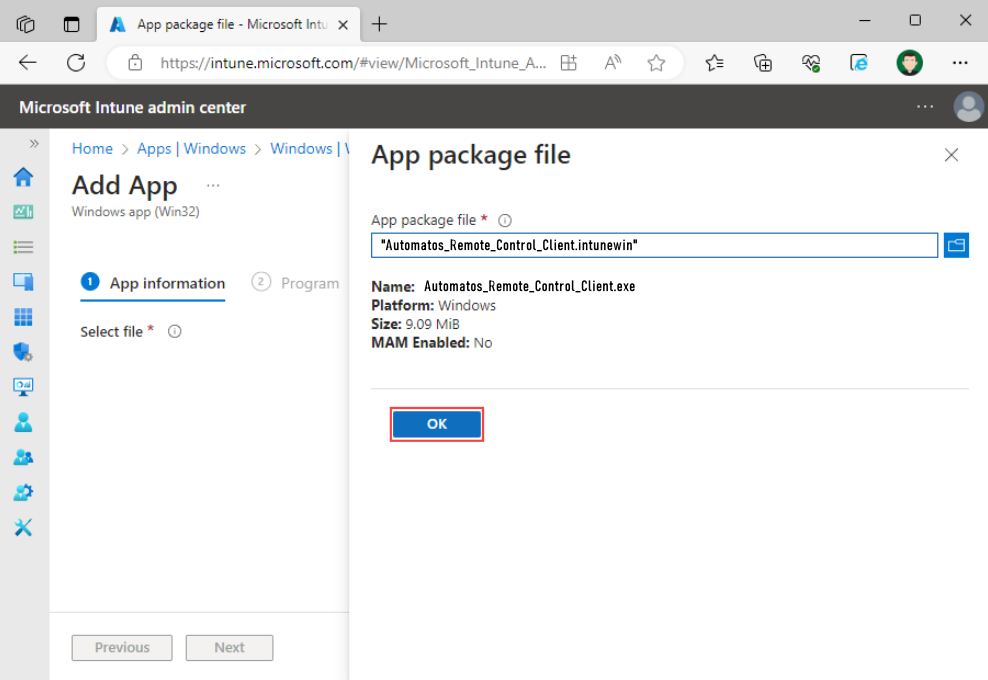
Upload the .intunewin file that you have created in step 3 by clicking “Select app package file” and select “Ok”.
Step 6
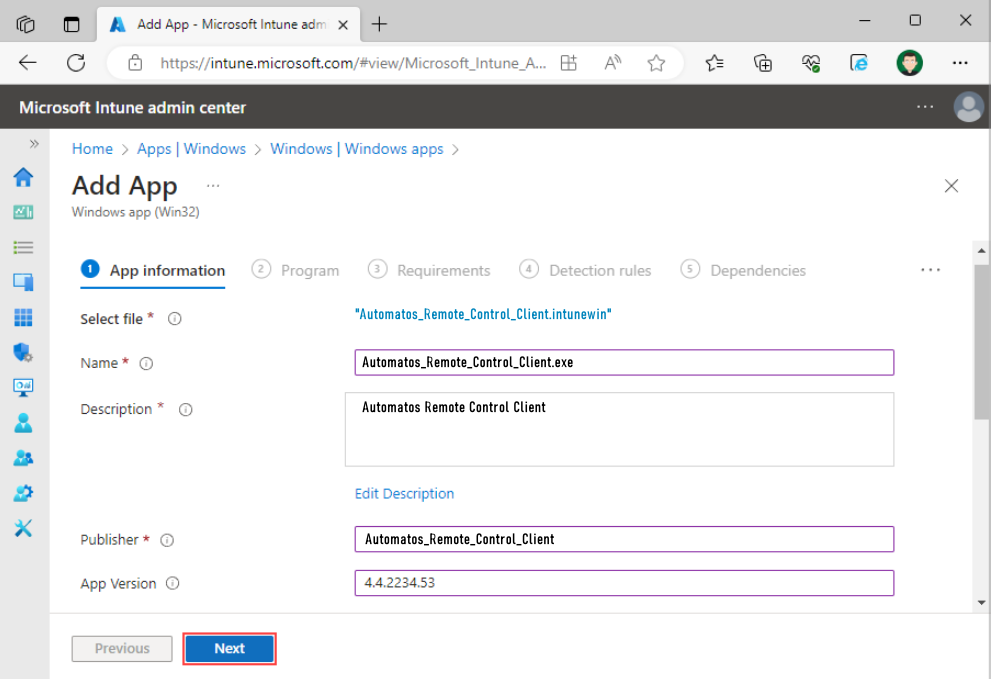
On the “App information” page fill out the required fields:
- Name – Enter the name of the .exe file that was downloaded. For example, if you’ve downloaded Automatos Remote Control Client.exe, you will enter “Automatos Remote Control Client”.
- Description – Enter a short description regarding the file.
- Publisher – “Automatos Remote Control Client”
- App Version – Enter the version of the Automatos Remote Control Client application that you have downloaded. For example, if you have downloaded Automatos Remote Control Client.exe, you will enter “4.4.2234.53”.
Optionally, you can fill out the remaining input fields and proceed to the next page by clicking “Next”.
Step 7
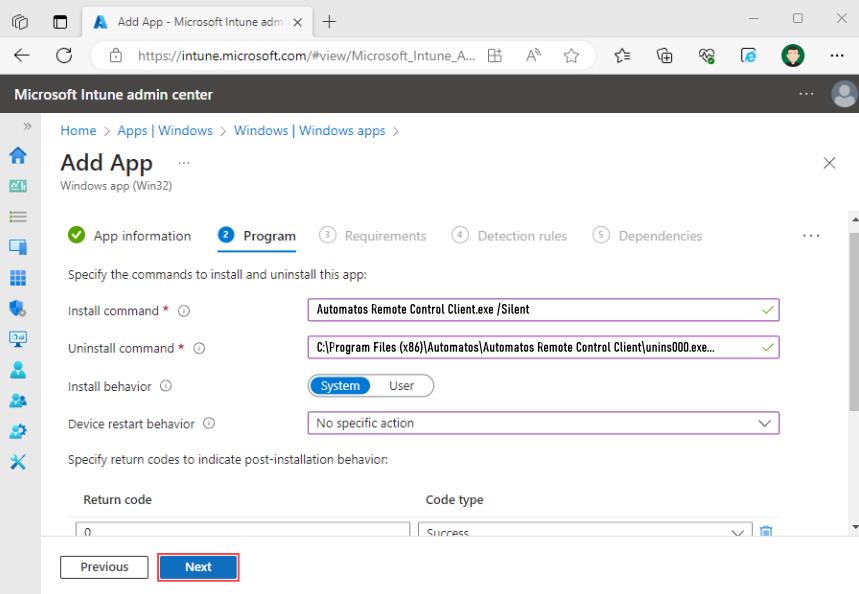
On the “Program” page fill out the required fields:
- Install command – Enter the file name of the file that you have downloaded in Step 2 with additional arguments “/VERYSILENT /SILENT”. For example, if you have downloaded Almaden Remote Control4_4_2234_53, you will need to enter “Automatos Remote Control Client.exe /VERYSILENT /SILENT”.
- Uninstall command – “C:\Program Files (x86)\Automatos\Automatos Remote Control Client\unins000.exe /VERYSILENT /SILENT /SUPPRESSMSGBOXES”
- Install behavior – System
- Device restart behavior – No specific action
After you have filled out the required fields, select “Next”.
Step 8
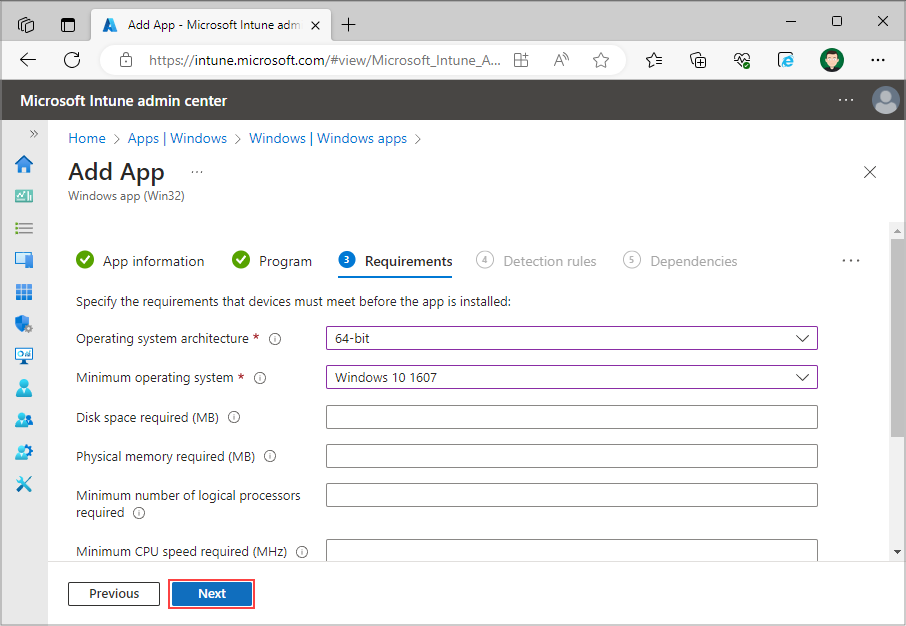
On the “Requirements” page set the Operating system architecture and Minimum operating system for your deployment. Additionally you can fill out other input fields. Then proceed to the next page by clicking “Next”.
Step 9
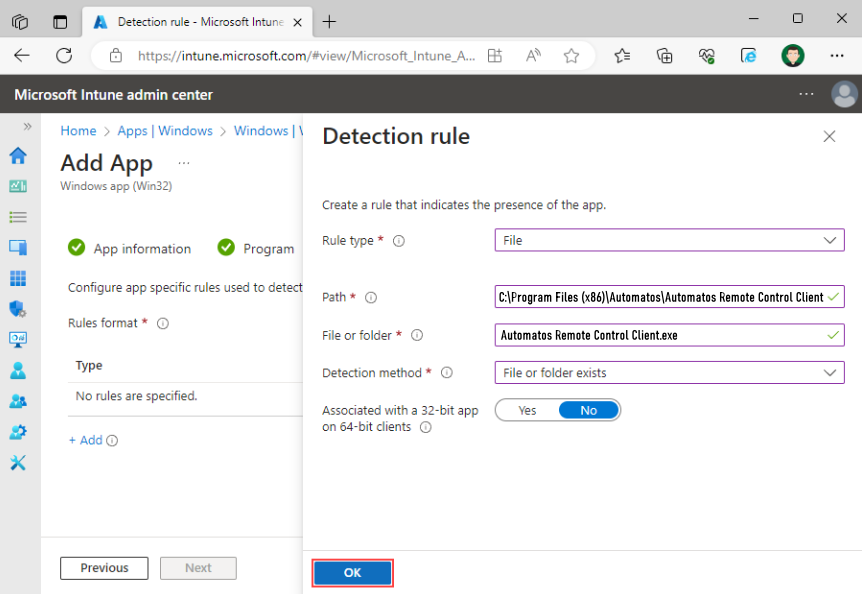
On the “Detection rules” page select “Manually configure detection rules”. Select “Add” and set these settings on the right side that opens up:
- Rule type – File
- Path –
"C:\Program Files (x86)\Automatos\Automatos Remote Control Client" - File or folder –
“Automatos Remote Control Client.exe” - Detection method – File or folder exists
- Associated with a 32-bit app on 64-bit clients – No
Select “Ok” to proceed and select “Next” to go to the next page.
Step 10
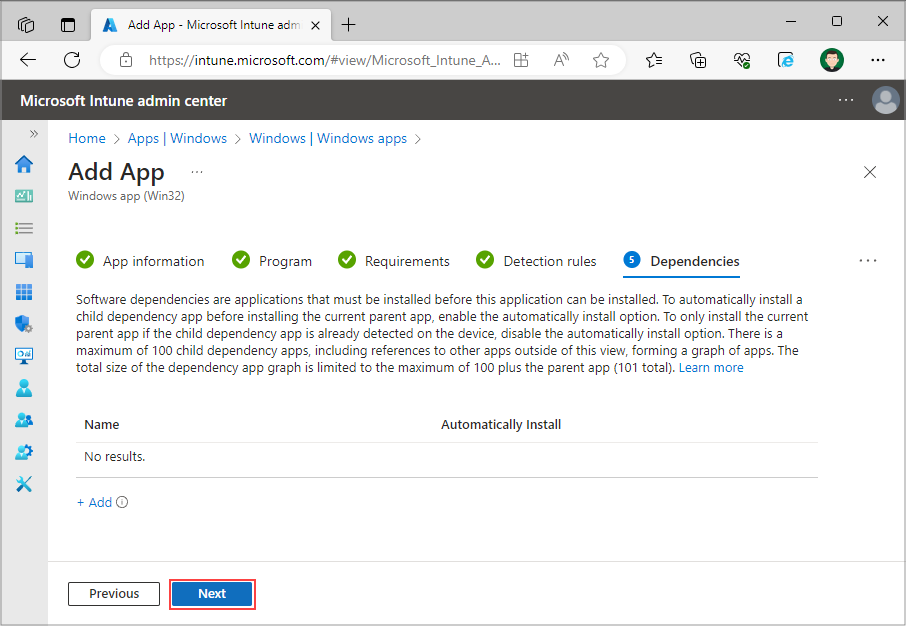
Leave the “Dependencies” page as it is and proceed to the next page.
Step 11
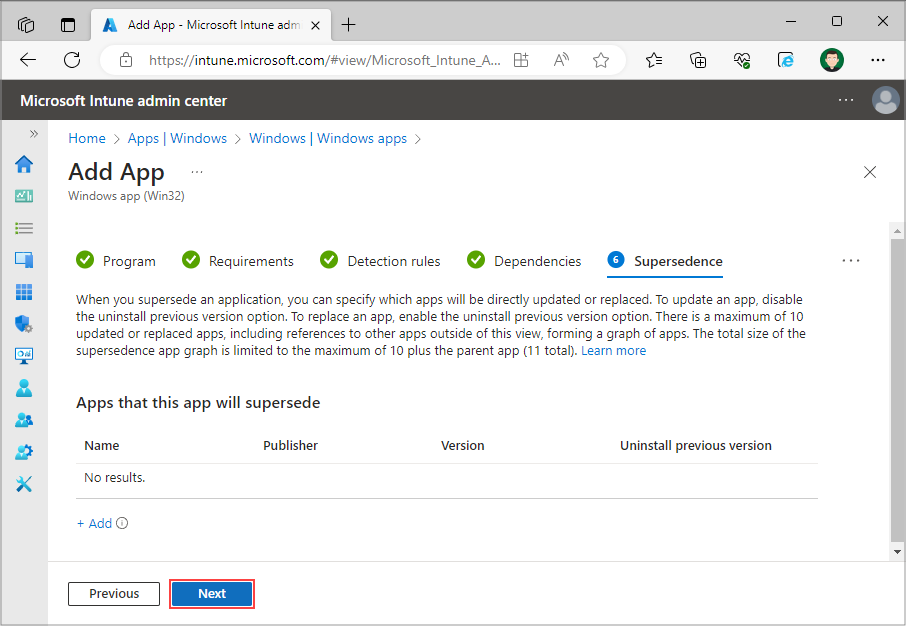
Leave the “Supersedence” page as it is and proceed to the next page.
Step 12
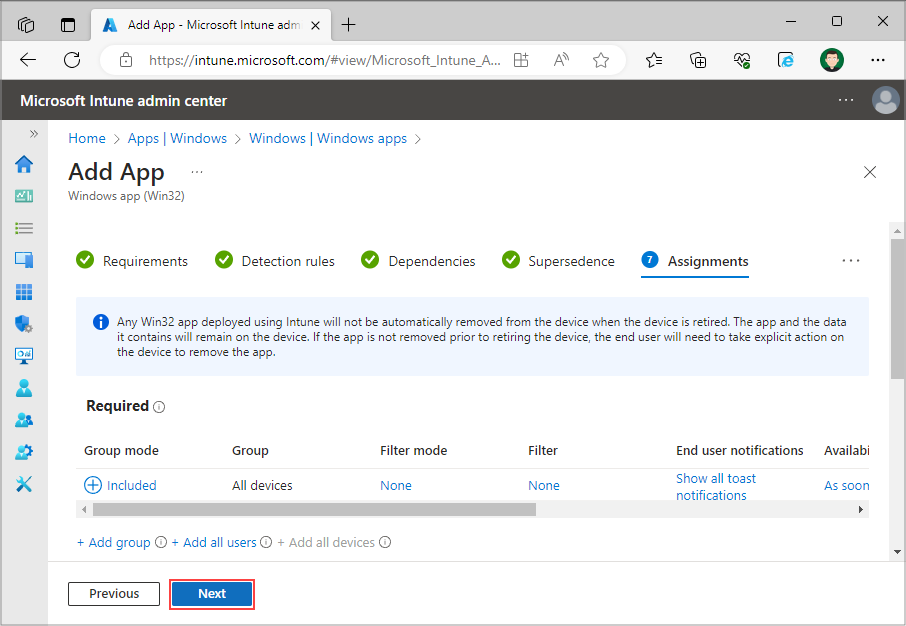
Under the “Assignments” page, set the groups, users, or devices for which you want to deploy Almaden Remote Control. Select “Next”.
Step 13
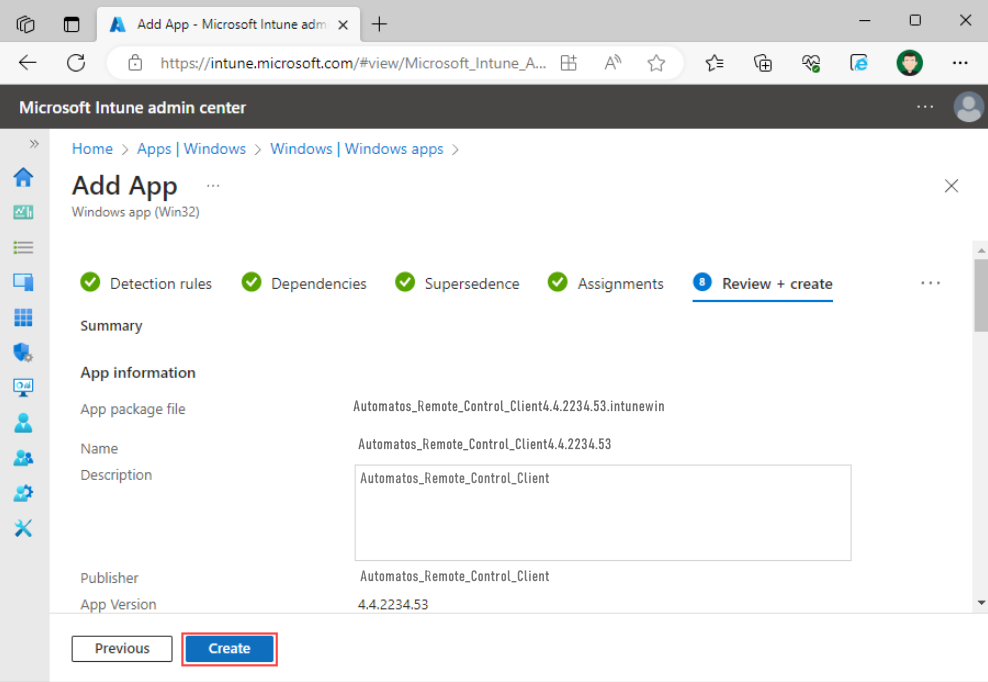
Review and create Almaden Remote Control deployment configuration.
Step 14
Script will be executed automatically on the devices that were assigned in step 12.
Step 15
You have successfully deployed “Automatos Remote Control Client” to a Windows computer using Microsoft Intune.
