
Deploy GPO – Automatos Remote Control Client / Server
Deploy GPO – Automatos Remote Control Client / Server
For easier deployment of Automatos Remote Control to multiple computers, you can use one of the many available deployment tools.
Note: If you have customized Almaden Remote Control and wish to deploy your customized version, update the file names and installation paths accordingly.
To deploy the Automatos Remote Control Client or Server on Windows computers, please follow the steps outlined in this guide.
Note: To obtain the Automatos Remote Control Server package, please contact our support team.
- Almaden Support Portal: https://support.almaden.ai/WSS/Login?ReturnUrl=%2fwss%2f
- Email: suporte@almaden.ai
Step 1
Download the Automatos Remote Control Client from the link below:
Step 2
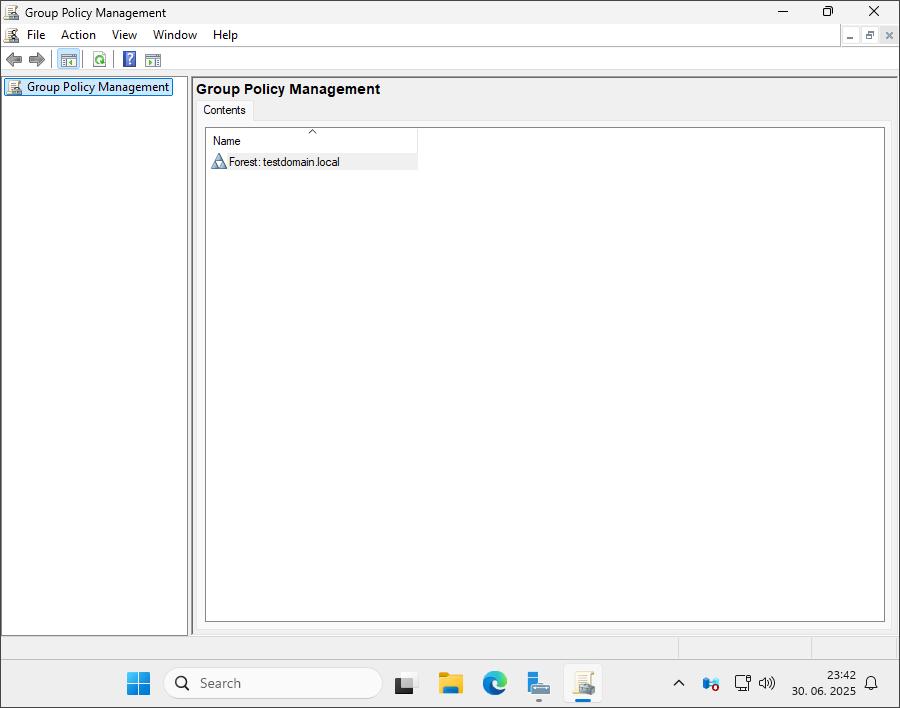
Open ‘Group Policy Management’
Step 3
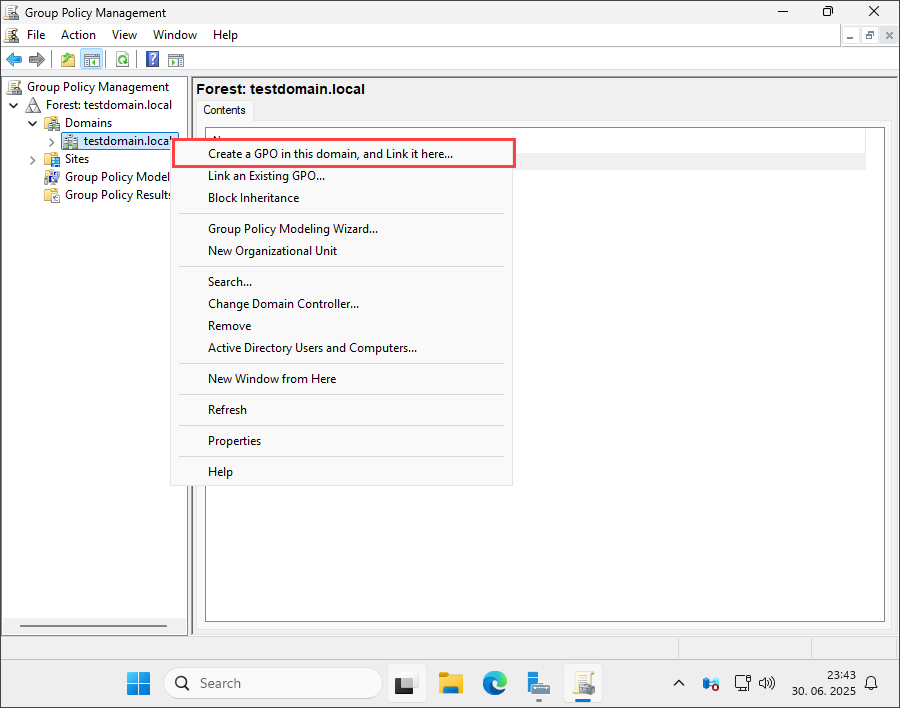
Right-click on your domain and select ‘Create a GPO in this domain, and Link it here…’
Step 4
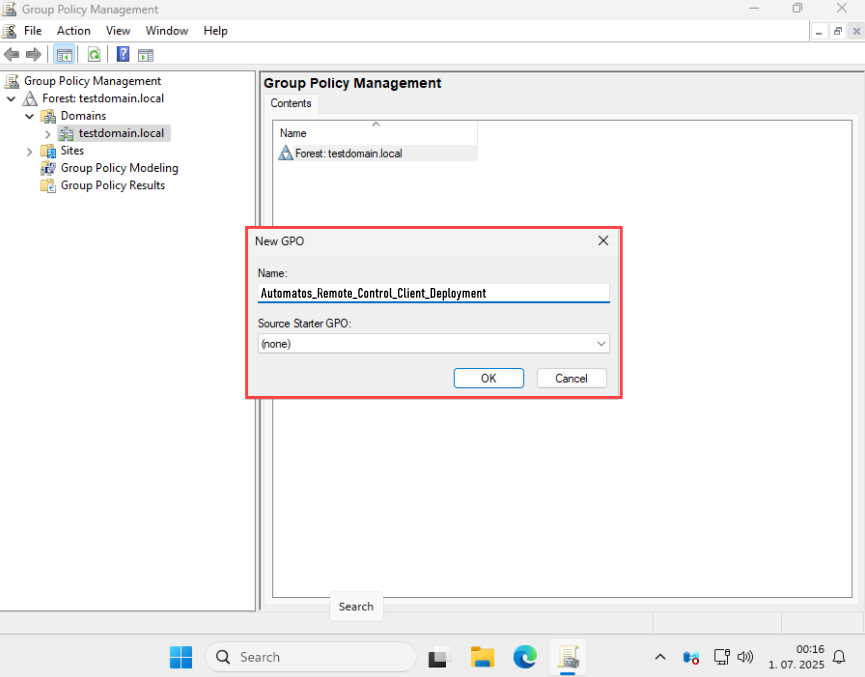
Name your new GPO (example: Automatos_Remote_Control_Client_Deployment) and click ‘OK’
Step 5
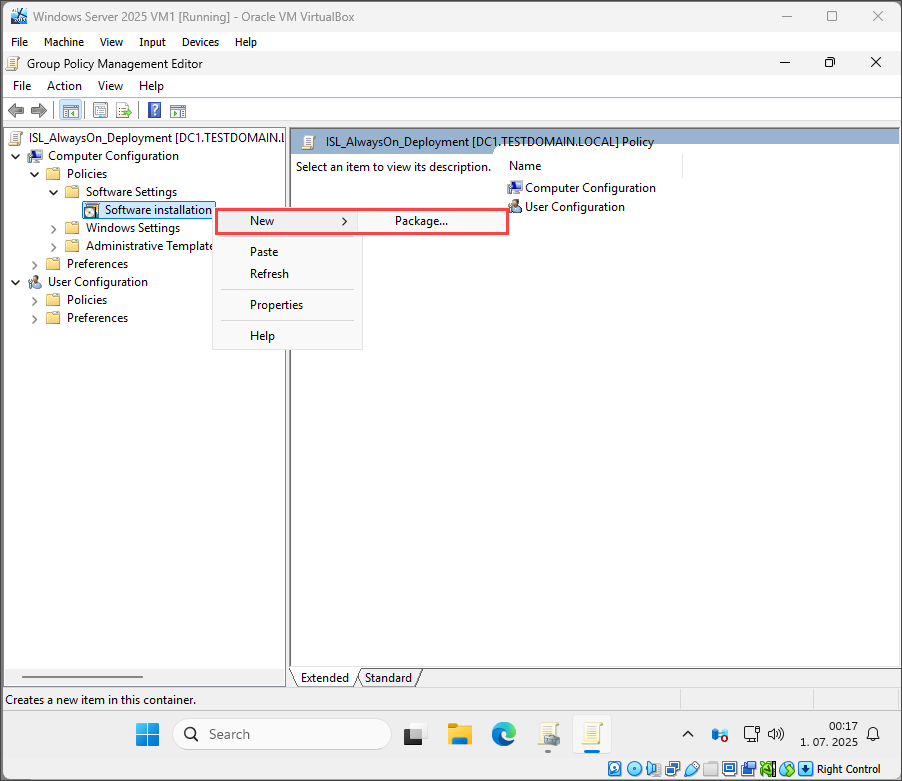
Right click on your GPO and select ‘Edit’. Navigate to Computer Configuration -> Policies -> Software Settings -> Software Installation. Right click on Software Installation and select New -> ‘Package…‘
Step 6
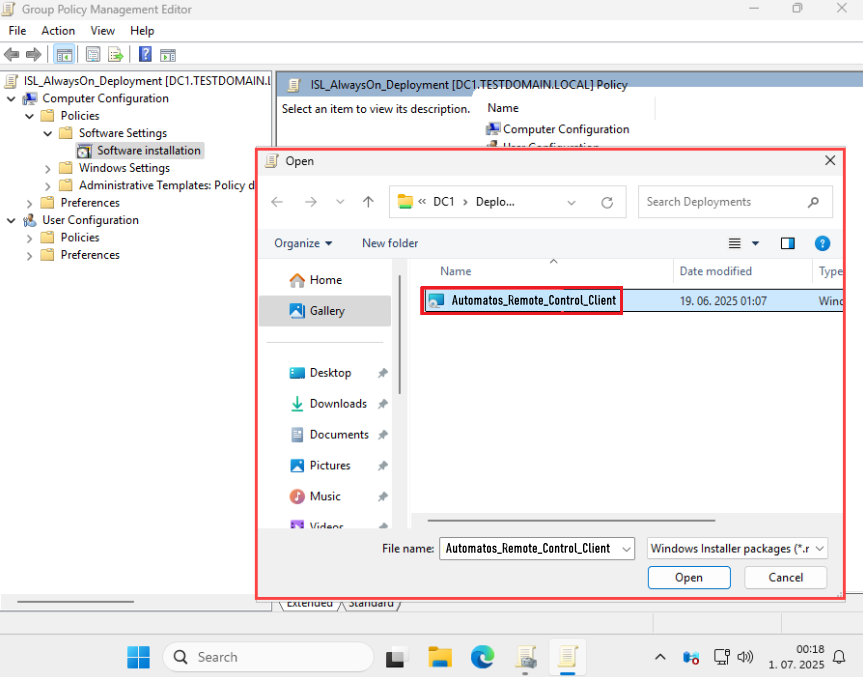
Select the Automatos_Remote_Control_Client file from the network shared location. You can also specify the entire path. In our example, the path is “DC1/Deployments/Automatos_Remote_Control_Client”. Click ‘Open’.
Step 7
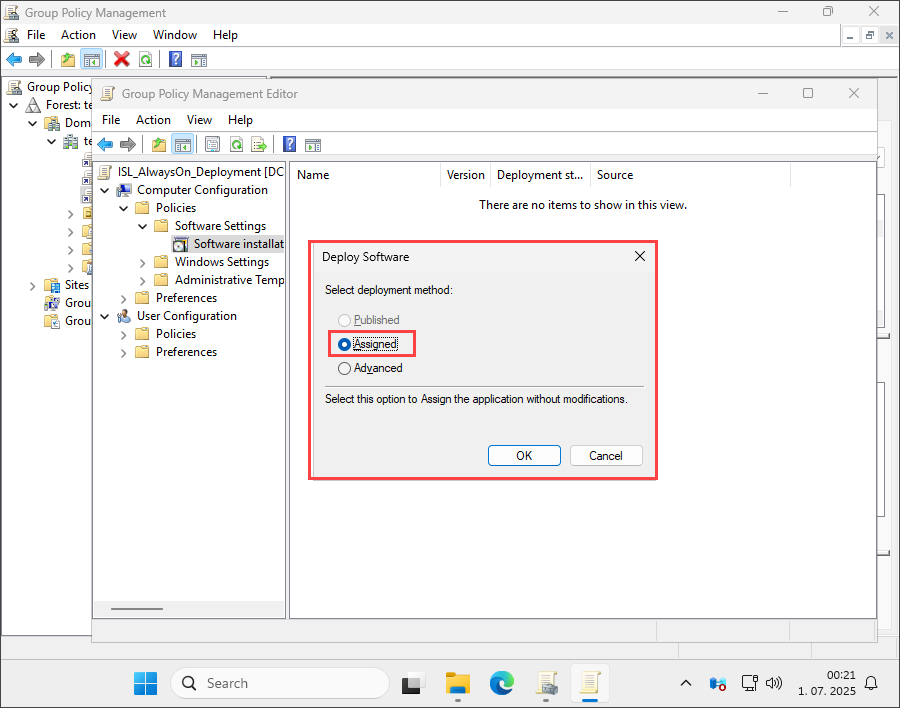
Select ‘Assigned’ and click ‘Ok’. The group policy should now be created for the software to auto install on boot. You can test and verify the installation by running the command “gpupdate /force” on an end device, and then restarting it.
