
Convert “.exe” Installer to “.msi” Package
Convert “.exe” Installer to “.msi” Package
Certain deployment tools (e.g. deploying using GPO) require the usage of .msi packages to be able to deploy the desired application on remote computers.
For such cases, it’s possible to wrap the generated .exe file into a .msi package. A 3rd party tool capable of wrapping an .exe into a .msi is needed.
You are able to use your desired MSI wrapping tool to achieve this result. In the example below, we will be using the MSI wrapper tool from EXEMSI: https://www.exemsi.com
Note: Some wrapper tools may add certain keywords to elements of the wrapped application (e.g. name of application, publisher, …) when they are used as freeware – to avoid this, please check the MSI wrapper’s documentation on possible unwanted additions.
Step 1
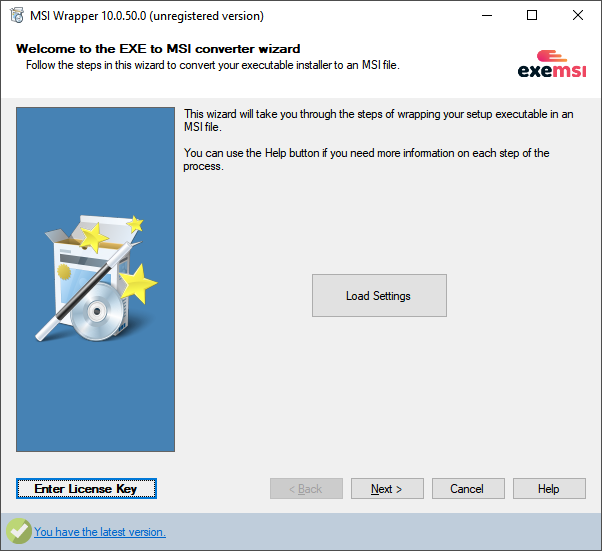
Run the “MSI Wrapper” and click “Next” to begin the process.
Step 2
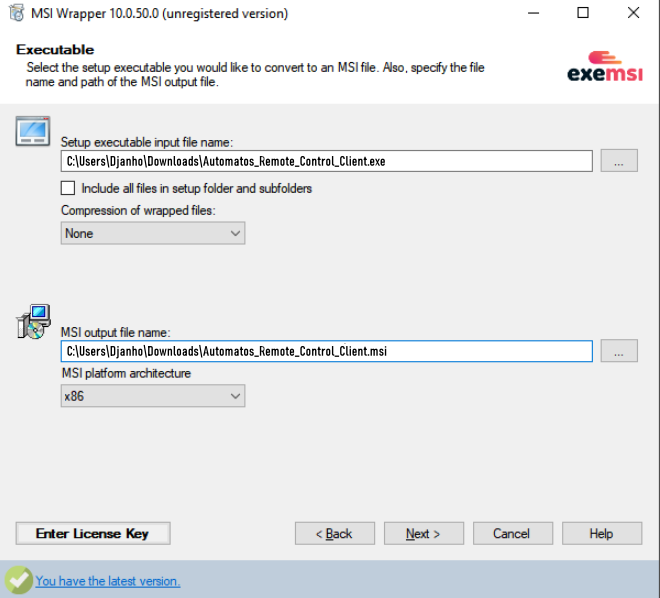
In the “Executable” section, follow this steps:
- From “Setup Executable Input File Name” choose “your custom Automatos_Remote_Control_Client executable”
- From “MSI output file name” choose the “folder” for the .msi package
- Click “Next“
Step 3
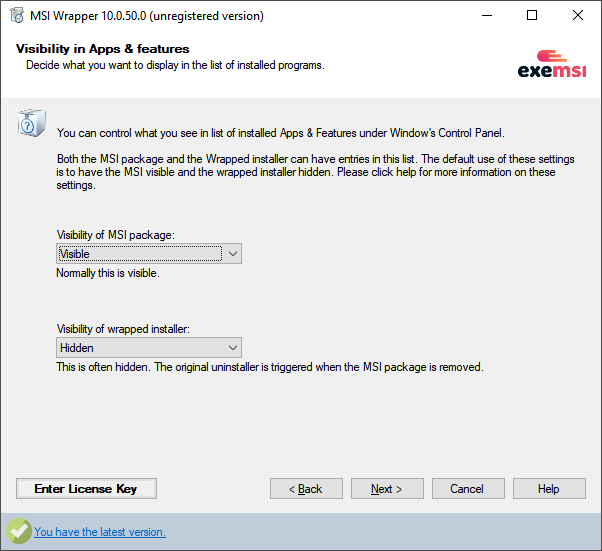
Click “Next” (skip “Visibility in Apps & features“).
Step 4
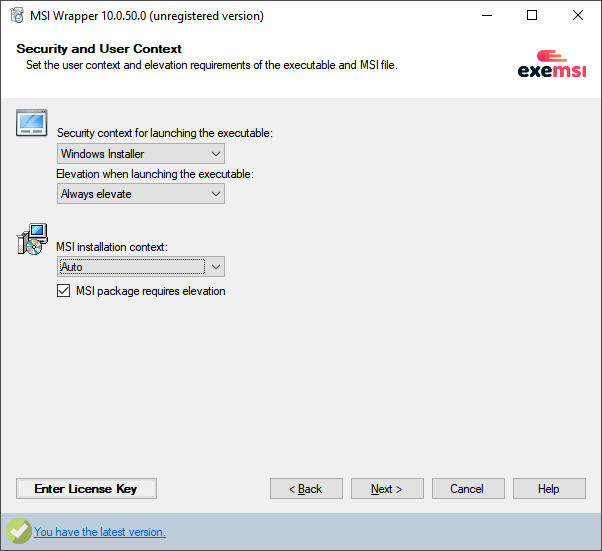
In the “Security and User Context” section, follow this steps:
- Select Security context for launching the executable: “Windows Installer”
- Select Elevation when launching the executable: “Always elevate”
- Select MSI Installation context: “Auto”
- Check MSI package requires elevation: “Ticked”
- Click “Next“
Step 5
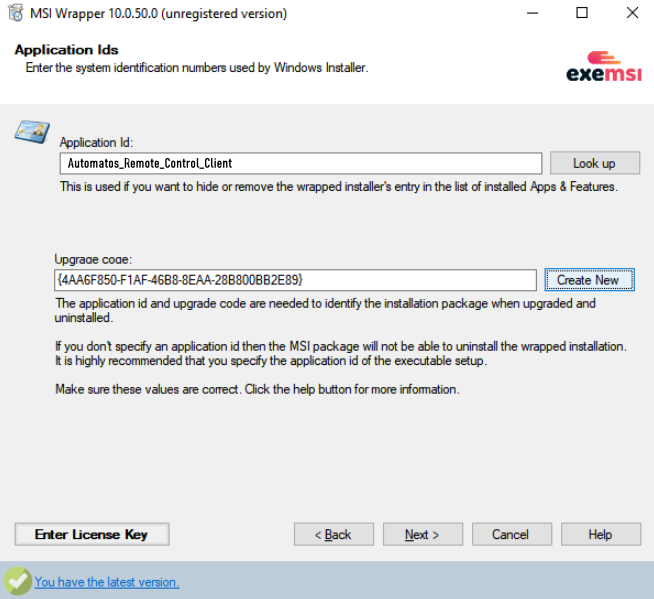
In the “Application Ids” section, follow this steps:
- Enter “ISL AlwaysOn_is1” in the “Application Id” input field.
- Click “Create New” button in the “Upgrade Code”
- Click “Next“.
Step 6
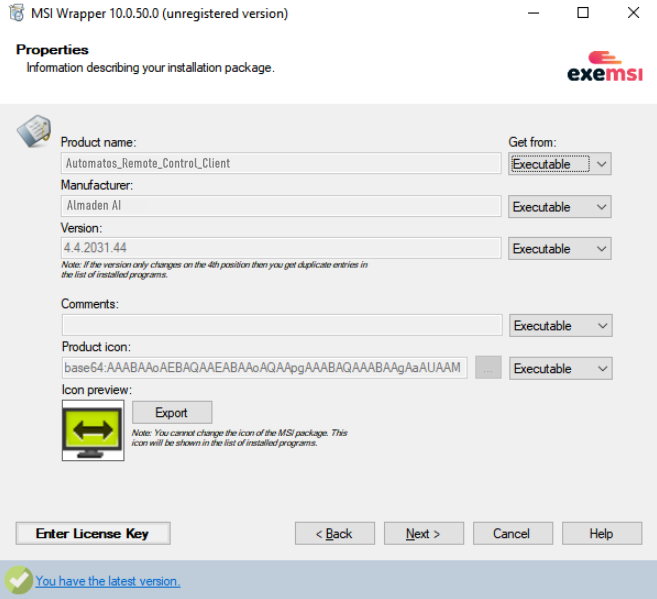
Click “Next” (skip “Properties“).
Step 7
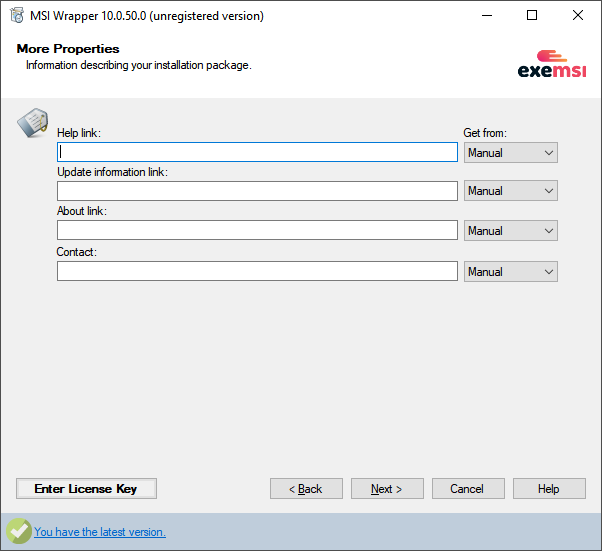
Click “Next” (skip “More Properties“).
Step 8
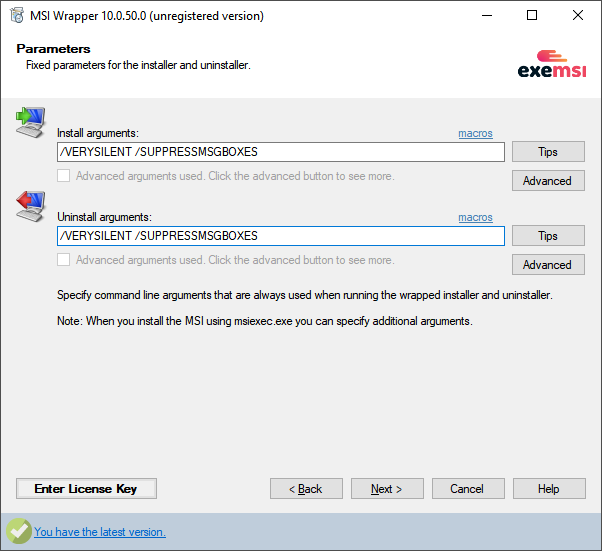
In the “Parameters ” section, follow this steps:
- Enter “/VERYSILENT /SUPPRESSMSGBOXES” in the “Install Arguments” input field.
- Enter ” /VERYSILENT /SUPPRESSMSGBOXES” in the “Uninstall Arguments” input field.
- Click “Next“.
Step 9
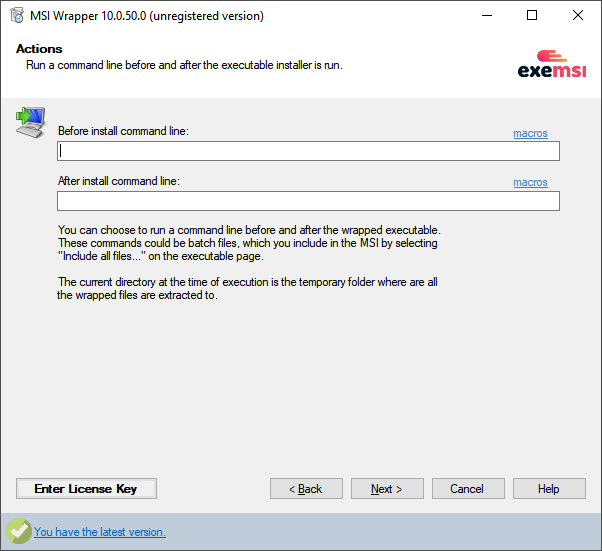
Click “Next” (skip “Actions“).
Step 10
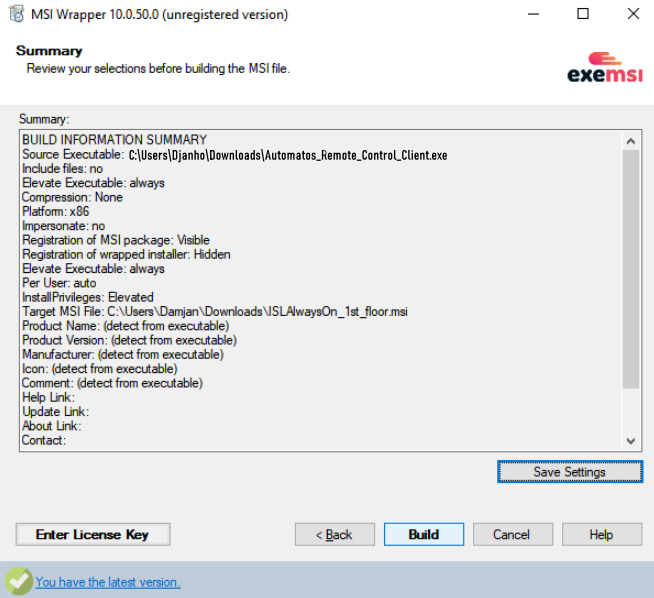
Click “Build” to start building the package.
Step 11
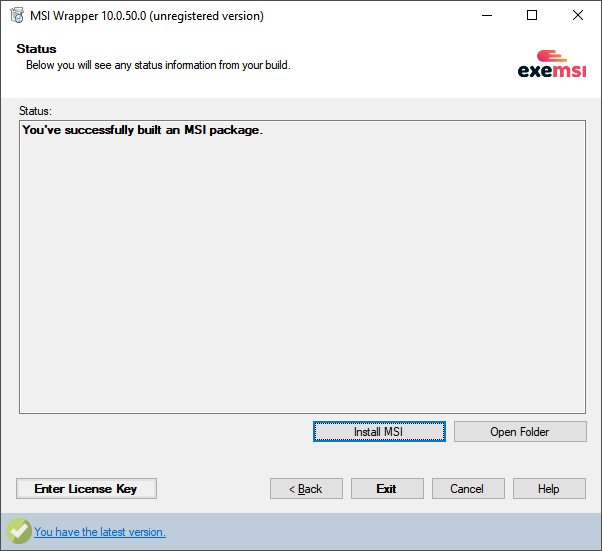
Click “Open Folder” to open the folder where the .msi package was placed.
Step 12
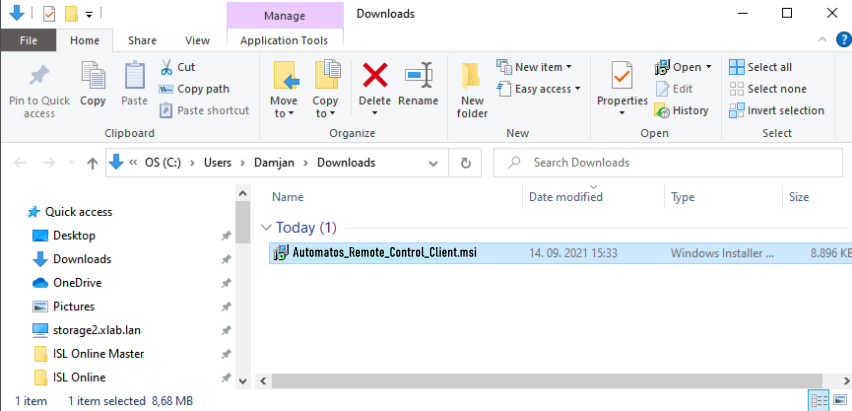
The .msi package is ready for deployment.
