
Intune MacOS – Deploy Almaden Remote Control Server
Intune MacOS – Deploy Almaden Remote Control Server
For easier deployment of Almaden Remote Control Server to multiple computers, you can use one of the many different deployment tools available. In this guide, we will show you how to deployAlmaden Remote Control Server on macOS computers via Microsoft Intune.
“Automatos Remote Control Server” can be deployed to macOS computers using a shell script. Before deploying the script, ensure that the following prerequisites are met:
- Devices are running macOS 11.0 or later.
- Devices are managed by Microsoft Intune.
- Rosetta is installed and functioning correctly on the device.
- Devices have a direct Internet connection. Connections through a proxy are not supported.
- Shell scripts begin with
#!and specify a valid interpreter, such as#!/bin/shor#!/usr/bin/env zsh. - The required command-line interpreter is installed on the target device.
After confirming that all prerequisites are satisfied, you can proceed with the deployment.
Note: If Rosetta is not installed on the target macOS device, the deployment will fail. You can include a function in the deployment script to automatically install Rosetta before continuing with the installation.
Step 1
Before proceeding, you must obtain the Almaden Remote Control Server deployment package that contains the silent installer URL.
If you do not have the required deployment package or need assistance generating the silent installer URL, please contact the Almaden Support team to obtain the appropriate Almaden Remote Control Server deployment package. This package is required before continuing with the deployment process.
You can request the deployment package through one of the following channels:
- Almaden Support Portal: https://support.almaden.ai/WSS/Login?ReturnUrl=%2fwss%2f
- Email: suporte@almaden.ai
Step 2
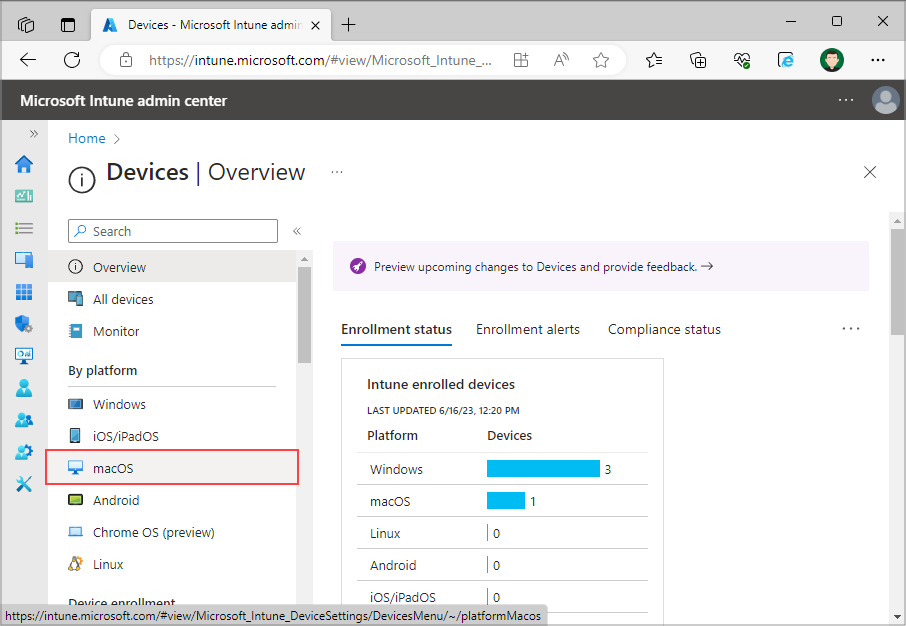
Once you receive the .msi package from our support team, go to Microsoft Intune, select Devices from the left-hand menu, and click “macOS” under the “By platform” section.
Step 3
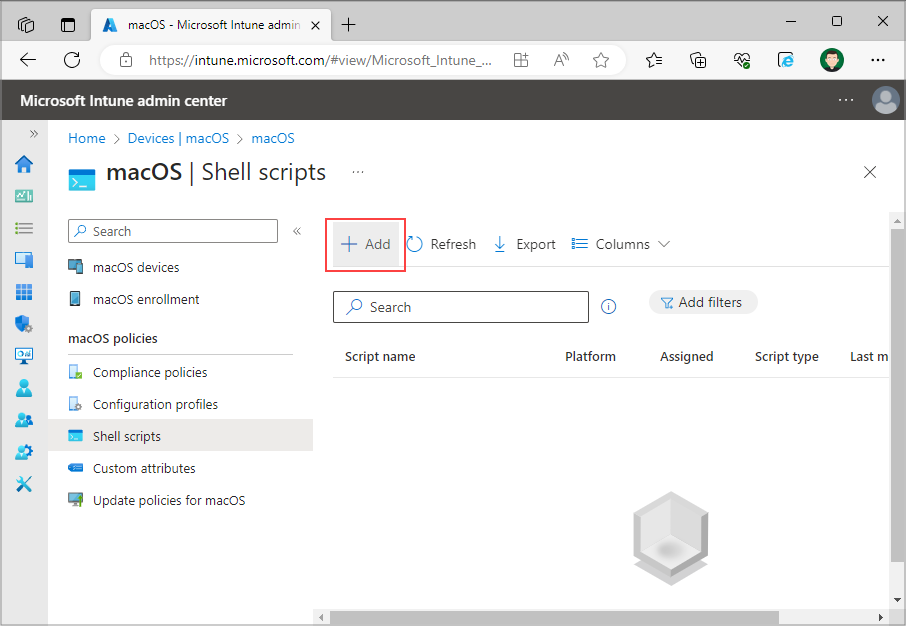
On the following page select “Shell scripts” under “macOS policies” and click on “Add button” in order to add new script.
Step 4
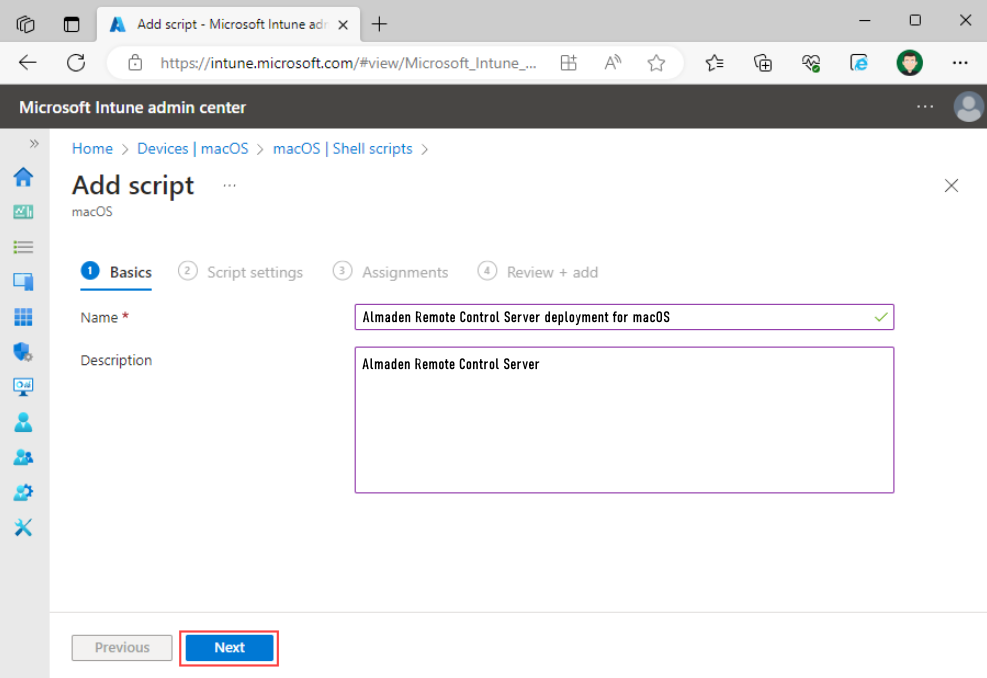
Add a name for your script, a description and then proceed to the next page.
Step 5
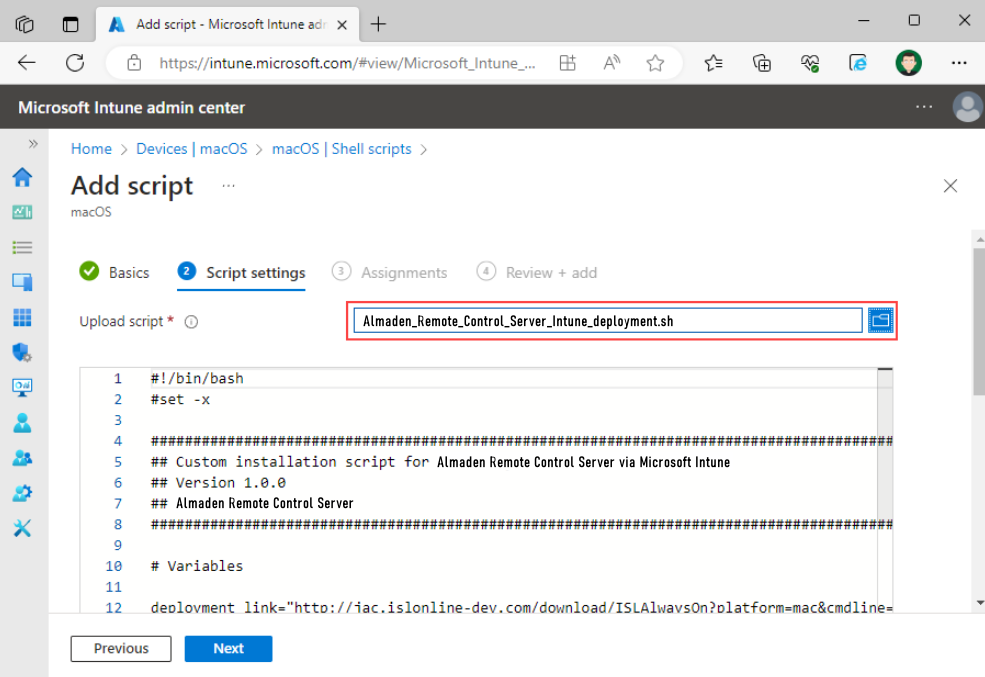
Click on “Select a file” and upload your adjusted script.
Step 6
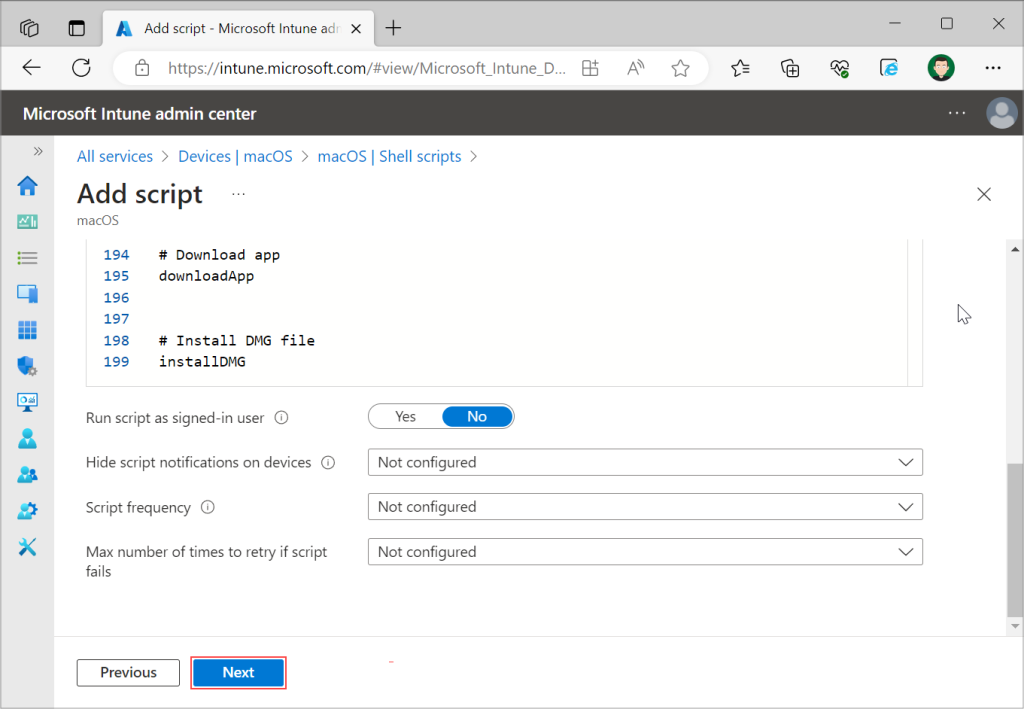
Under the script adjust the deployment setting and select “Next”.
Note: Set setting “Run script as signed-in user” as no. The script is supposed to be executed as root on the macOS device.
Step 7
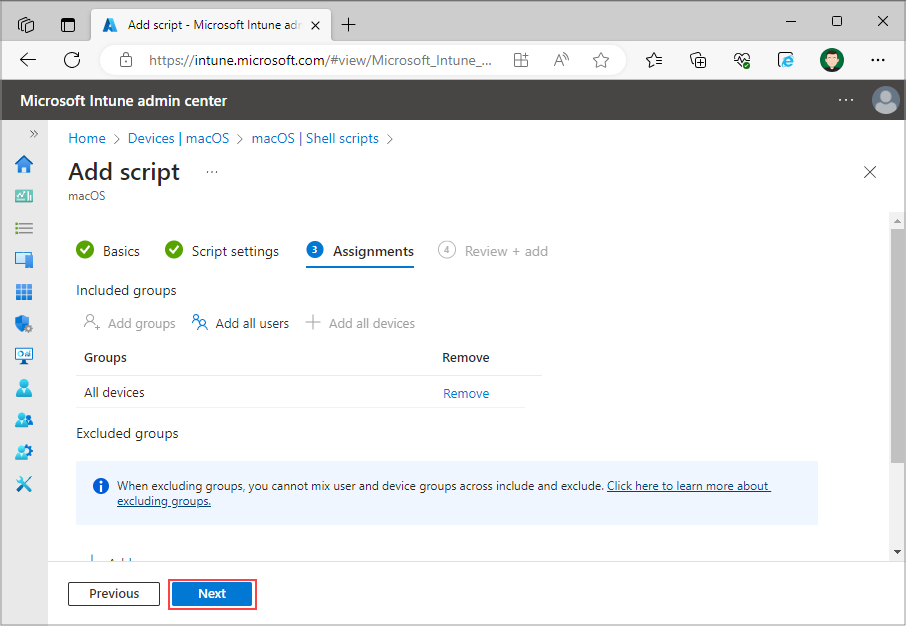
On “Assignments” page assign the script to the groups, users or devices on which you want to deploy the script and select “Next”.
Step 8
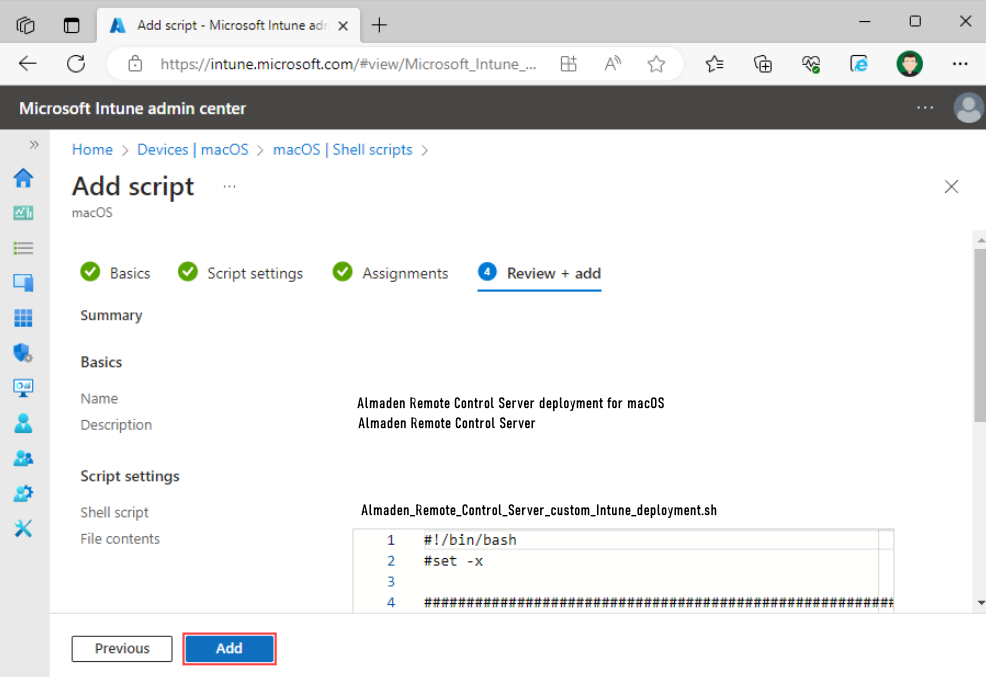
Review and add the deployment script by selecting “Add”.
Step 9
Script will be executed automatically on the devices that were assigned in step 7.
