
Configuration – ASU
ASU – Automatos Software Uninstaller
Overview
ASU (Automatos Software Uninstaller) is a tool developed by Automatos to help with standardized and silent software removal in corporate environments.
It is designed to:
- Remove installed programs using the uninstall methods recommended by the vendors themselves.
- Be used in a centralized way, through a remote repository accessed by devices that have the Automatos agent installed.
Requirements and compatibility
ASU is available for:
- Microsoft Windows 10 or later
It is intended for corporate environments where you want to:
- Standardize software removal.
Installation structure
Download
Download the agent and, during the installation, make sure you select “YES” for the option “Software distribution modules?”
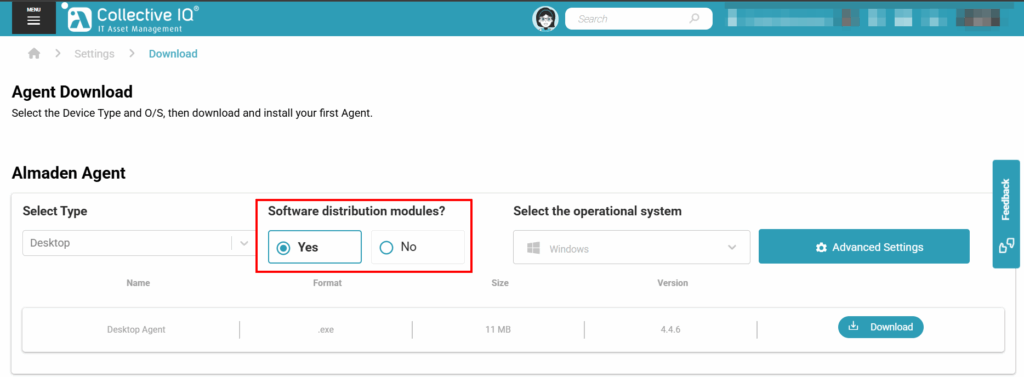
After the agent is installed, the “Automatos Software Uninstaller” (ASU) module will be added automatically.

ASU installation directory
By default, ASU is installed in:
C:\Program Files (x86)\Automatos\Software UninstallerRemote Blacklist Path
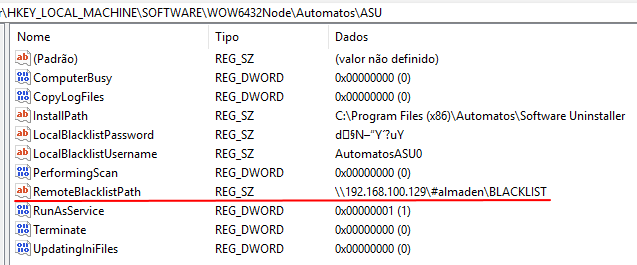
The location of the remote blacklist, where the configuration files must be stored, is defined in the Windows Registry:
HKEY_LOCAL_MACHINE\SOFTWARE\WOW6432Node\Automatos\ASU
Value: RemoteBlacklistPath
Set this value to the path of your centralized blacklist repository (for example, a shared or replicated folder that all agents can access).
Blacklist files
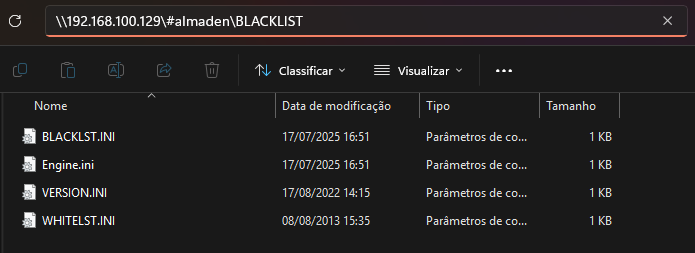
Download the configuration files HERE and place them in your configured RemoteBlacklistPath.
The ASU uses three main files:WHITELST.ini, BLACKLST.ini, Engine.ini
Files
BLACKLST.ini
The BLACKLST.ini file must be configured using the exact Display Name of the software, exactly as shown in Programs and Features / Installed apps in Windows.
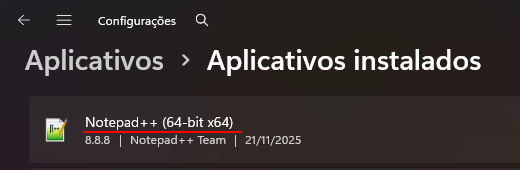

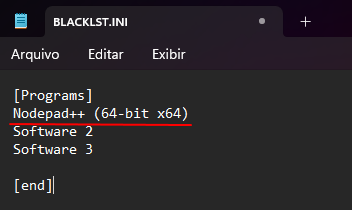
⚠️ Note: The software you want to uninstall must have uninstall parameters defined either in UninstallString or QuietUninstallString.
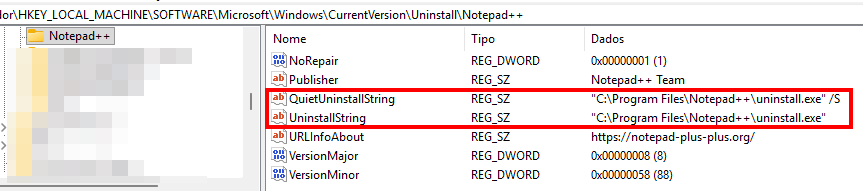
ASU checks the following registry keys for installed applications:
HKEY_LOCAL_MACHINE\SOFTWARE\Microsoft\Windows\CurrentVersion\Uninstall HKEY_LOCAL_MACHINE\SOFTWARE\WOW6432Node\Microsoft\Windows\CurrentVersion\Uninstall
If the application is listed there and its DisplayName matches an entry in BLACKLST.ini, ASU will attempt to uninstall it using the available command line.
Engine.ini
The Engine.ini file is responsible for defining which uninstall method should be used.
It identifies the uninstaller executable and executes the correct silent parameter for it.
For example, in the snippet below, there is already an uninstall “engine” configured for:
uninstall.exe /SThis means that whenever ASU detects uninstall.exe as the uninstaller, it will try to run it with /S silently.
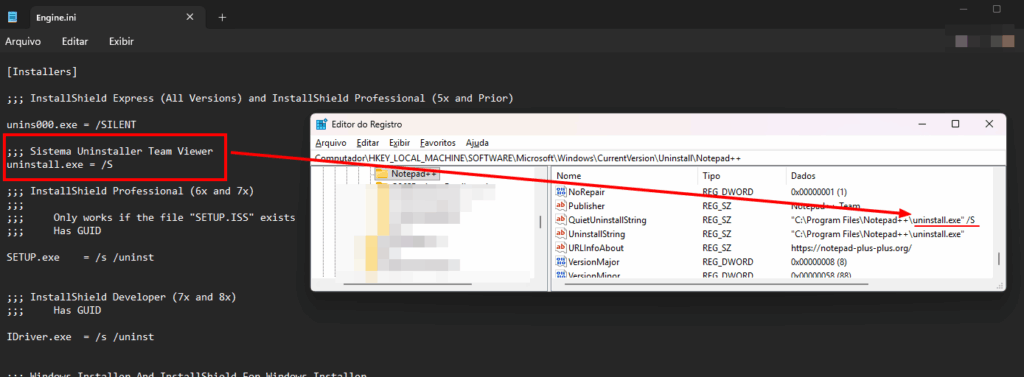
🔧 Note:
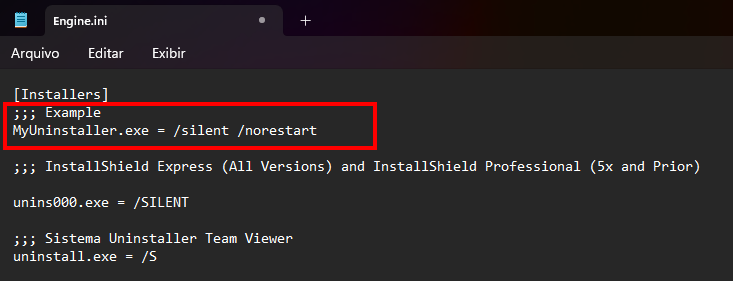
If the software you want to uninstall is not mapped in Engine.ini, simply add a new line with the uninstaller executable and the appropriate parameters.
Example:
MyUninstaller.exe = /silent /norestart
WHITELST.ini
The WHITELST.ini file defines exception hosts that must not be affected by software removals.
[HOST001 @ programs]
NOTEPAD++ (64-BIT X64)

[HOST002 @ programs]
7-Zip 25.01 (x64)
Any device whose hostname is listed in WHITELST.ini will be ignored by ASU, even if it has software present in BLACKLST.ini.
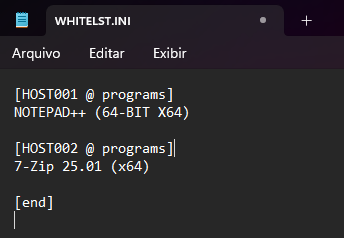
- The software “Notepad++ (64-bit x64)” will not be uninstalled from HOST001.
- The software “7-Zip 25.01 (x64)” will not be uninstalled from HOST002.
How the uninstallation process works
ASU executes its routines every time a user logs on or logs off.
For each device:
If the software:
- is present on the machine,
- has uninstall parameters defined in
UninstallStringorQuietUninstallString, and - the hostname is not listed in
WHITELST.ini,
Engine.ini.
ASU checks the installed applications in the registry paths mentioned above.
It compares the installed DisplayName with the entries in BLACKLST.ini.
Important alerts when adding software to the Blacklist
Because the ASU runs automatically on devices that read the RemoteBlacklistPath, any software added to the blacklist will be silently uninstalled on all computers that receive this configuration – except those explicitly listed in WHITELST.ini.
For this reason, some precautions are essential:
1. Always validate the Display Name before adding
- Make sure the Display Name added to
BLACKLST.iniis exactly the same as shown in:- Control Panel → Programs and Features, or
- Settings → Apps → Installed apps.
- Avoid generic or ambiguous names that might match unwanted software.
2. Confirm that the software is safe to uninstall globally
- Before adding a software to the global blacklist, ask:
- “Can this be removed from all machines in this environment?”
- Critical or shared tools (VPN clients, security agents, backup tools, office suites, line-of-business apps) must be evaluated carefully.
3. Test in a controlled group first
- Before rolling out to the entire environment, consider:
- Creating a pilot group (a small OU, group of machines, or lab environment).
- Applying the new blacklist entries only to that group initially (for example, using a separate RemoteBlacklistPath).
- Validate:
- If the uninstall works as expected.
- If there are no side effects (dependencies, integrations, services that break, etc.).
4. Check uninstall parameters and Engine.ini mapping
- Verify that the software has valid parameters in:
UninstallStringorQuietUninstallString
- Confirm that the uninstaller executable (e.g.,
uninstall.exe,msiexec.exe,unins000.exe, etc.) is properly mapped inEngine.iniwith the correct silent parameters.
5. Use WHITELST.ini proactively
- Before activating a new blacklist entry, identify:
- Servers.
- VIP or critical users.
- Special-purpose machines (monitoring, kiosks, specific departments).
- Add their hostnames to
WHITELST.iniin advance if they must keep that software installed.
6. Communicate the change to stakeholders
- Inform:
- IT support / help desk.
- Application owners.
- Security / governance, if applicable.
- Document:
- Which software will be removed.
- From which groups or environments.
- From which date the rule will be active.
7. Keep a change log of blacklist updates
- Maintain a simple log or change history with:
- Date of change.
- Software added/removed to/from
BLACKLST.ini. - Reason for the change.
- Who approved / requested it.
8. Be especially careful with broad or generic software names
- Tools like “Client”, “Agent”, “Service”, “Updater”, etc., can exist in many vendors’ products.
- Prefer using:
- The full name.
- Optionally, additional checks (version, vendor) in future evolutions of the process or tooling.
If you need any help configuring ASU or building your blacklist, please contact our support team.
