
AlmaIQ Integration Google Cloud
AlmaIQ Overview
AlmaIQ is an intelligent virtual concierge designed to live where employees already work: inside Google Chat.
It is an artificial intelligence layer built on top of the Collective IQ® DEX (Digital Employee Experience) data platform, allowing employees and IT teams to talk directly to environment data using natural language.
Through a simple chat conversation, AlmaIQ can:
- Understand questions about the hardware of the device (performance, capacity, health, bottlenecks)
- Check installed software and versions
- Provide insights about business applications (status, usage, incidents, dependencies)
- Analyze aspects of collaboration (usage and quality of tools such as Google Chat)
- Present and explain DEX scores (digital employee experience indicators and trends)
Beyond raw data, AlmaIQ combines:
- Device and experience data from Collective IQ DEX®
- Organizational knowledge from AlmaKnowledge, where IT teams can add articles, procedures, documents, and URLs
AlmaIQ has a clear focus on operational and contextual support:
helping employees understand their devices, applications, and processes, and guiding them toward the best way to solve problems or use other tools when appropriate.
It can enhance simpler answers with extra details, perform translations, and answer in the requester’s language, always grounded in the organization’s data and knowledge.
Integration Prerequisites
To use AlmaIQ in Google Chat, the following requirements must be met:
- A Google Cloud administrator must perform the integration
- The AlmaAI® integration must be configured in Collective IQ® DEX
- Access to Google Cloud Console with permission to create projects and manage APIs
📍 CIQ DEX navigation path:
Collective IQ DEX > Administrative Settings > Integrations > AlmaAI®
AlmaIQ Integration in Google Cloud
Part 1 — Google Cloud Project Setup
1. Access Google Cloud Console
Log in to the Google Cloud Console using an administrative account:
https://console.cloud.google.com/
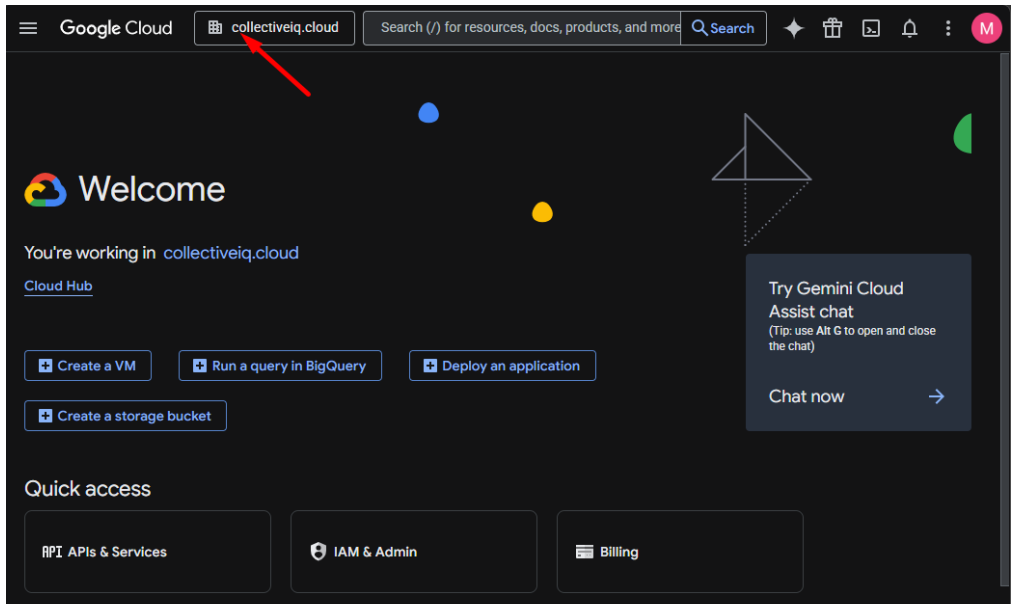
2. Create a New Project
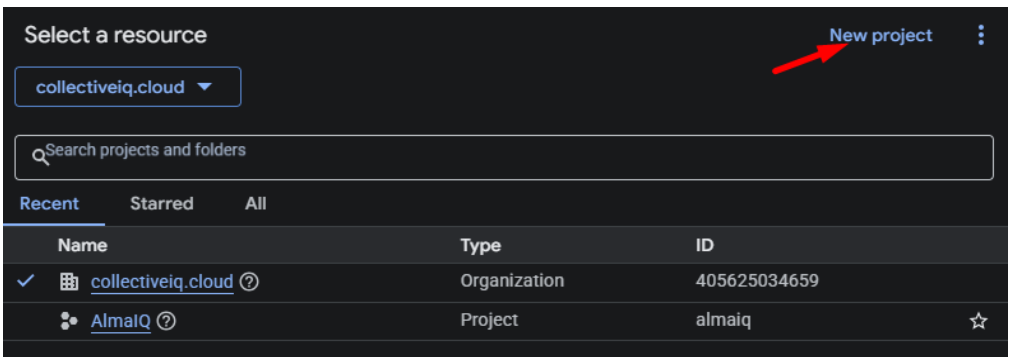
On the home screen, click the project selector at the top of the page to open the project list.
Click New Project to begin creating a new project.
3. Configure the Project
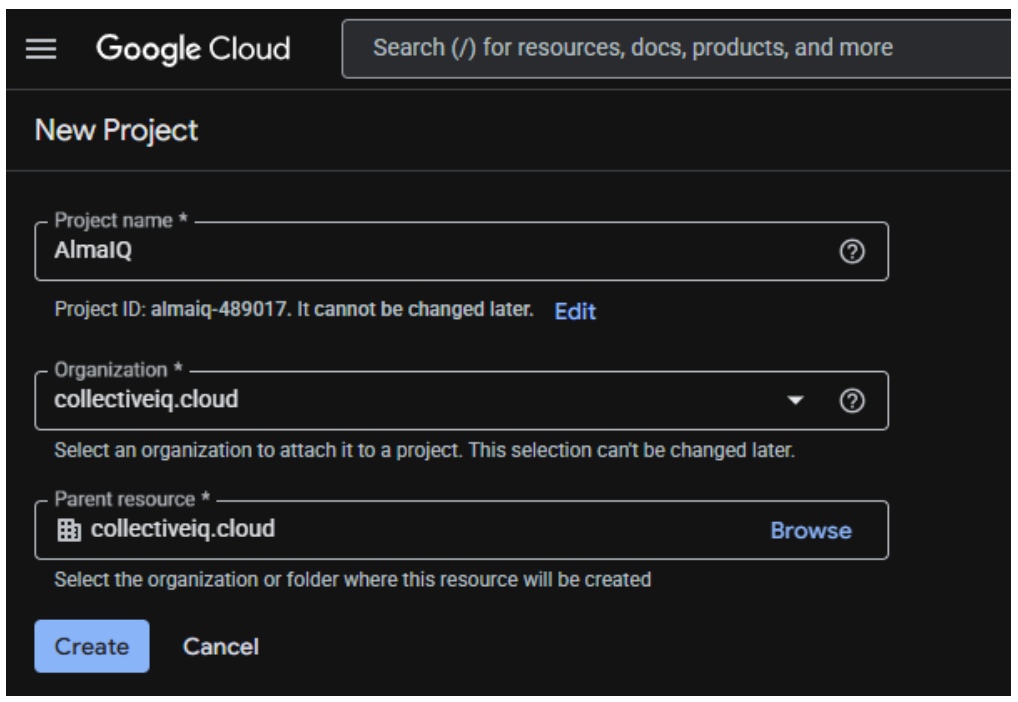
On the project creation screen, configure the following:
- Project Name: AlmaIQ
- Organization: Select your organization
Click Create to complete the process.
Part 2 — Enable the Google Chat API
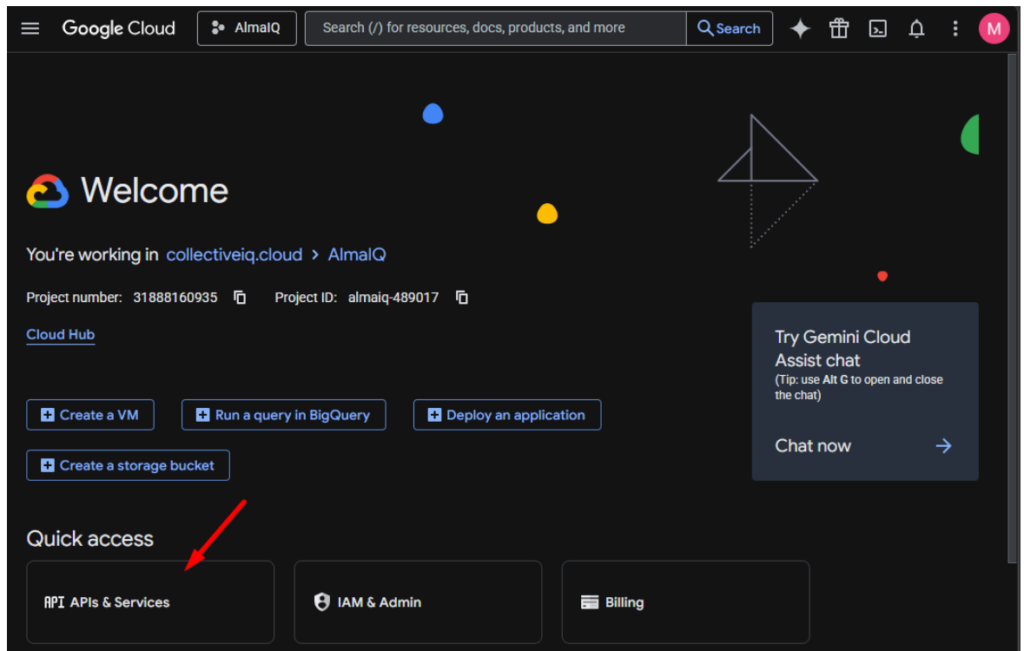
4. Navigate to APIs & Services
After the project is created, click APIs & Services in the left-hand navigation menu.
5. Enable APIs
Click + Enable APIs and services at the top of the page.
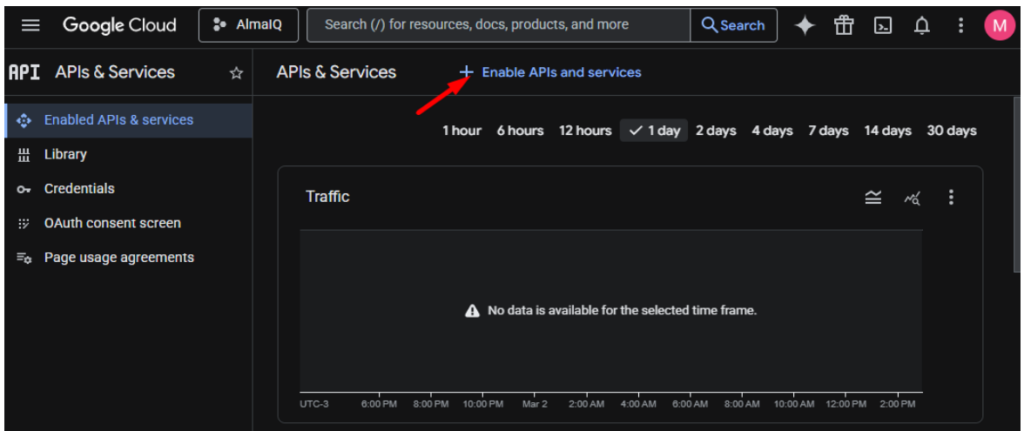
6. Find and Enable Google Chat API
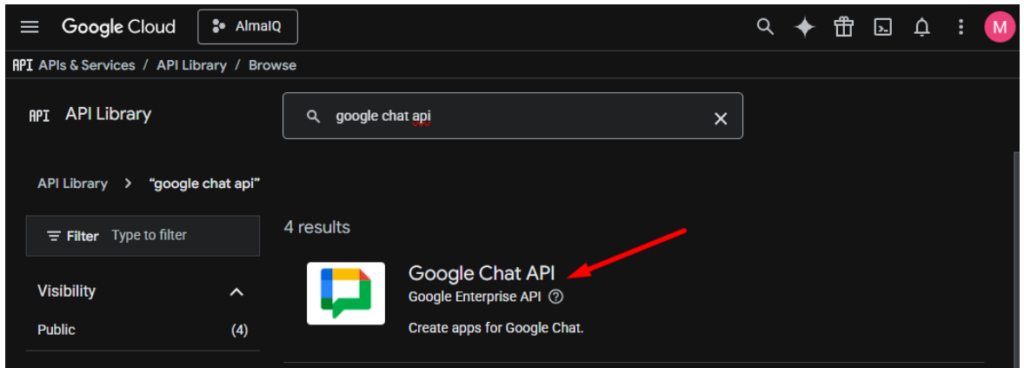
In the API Library search bar, type Google Chat and select Google Chat API from the results.
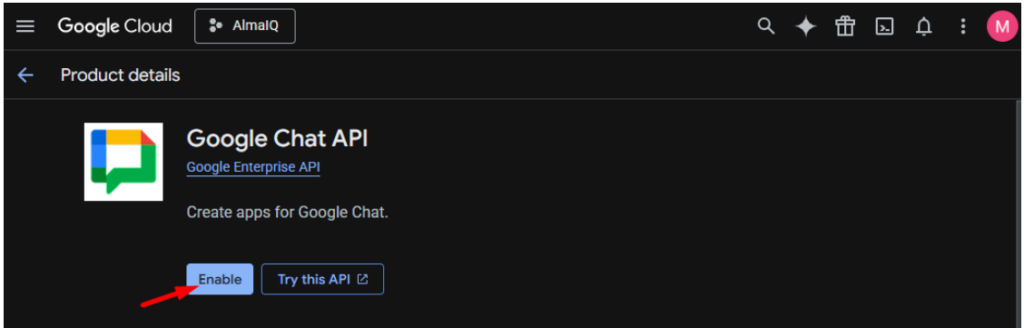
Click Enable.
7. Configure the Chat App
After enabling the API, click Configuration.
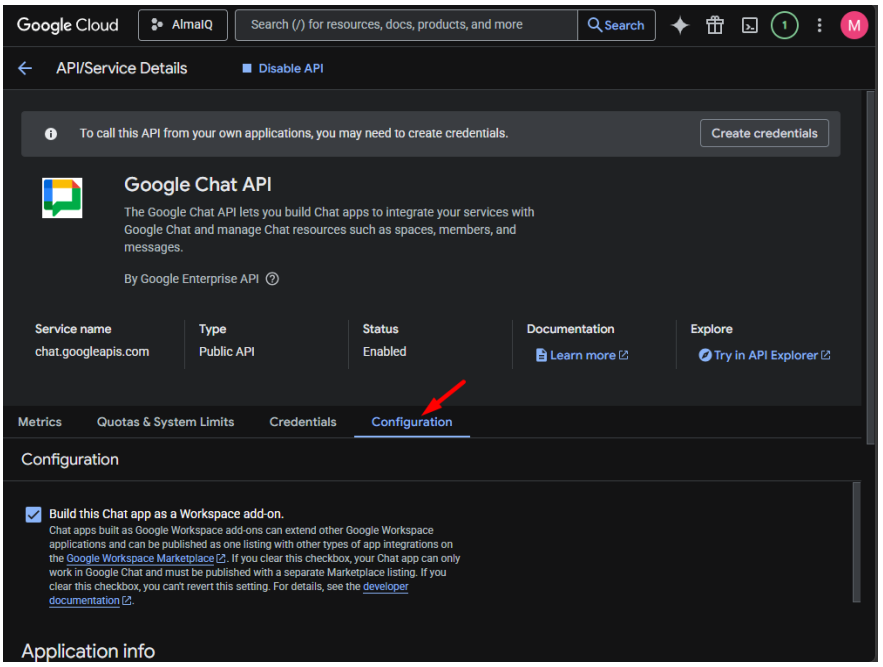
Fill in the configuration form as follows:
Application Info
- App Name: AlmaIQ
- Avatar URL: https://i.ibb.co/Cy9fBbf/Frame-256.png
- Description: AlmaIQ automates your communication
Interactive Features
- Enable Interactive features (keep enabled)
Functionality
- Enable: Join Spaces and group conversations
Connection Settings
- Select: HTTP endpoint URL
Triggers
- Use a common HTTP endpoint URL for all triggers
- HTTP Endpoint URL:
LAD1: https://lad1-ciq.almaden.app/api/almaconcierge/Google/message/{customer_id}
LAD2: https://lad2-ciq.almaden.app/api/almaconcierge/Google/message/{customer_id} - Uncheck: Make this Chat app available to specific people and groups
- Check: Log errors to Logging
📌 Note: Replace {customer_id} with your actual Customer ID.
Contact AlmaIQ Support if needed.
Part 3 — Create a Service Account
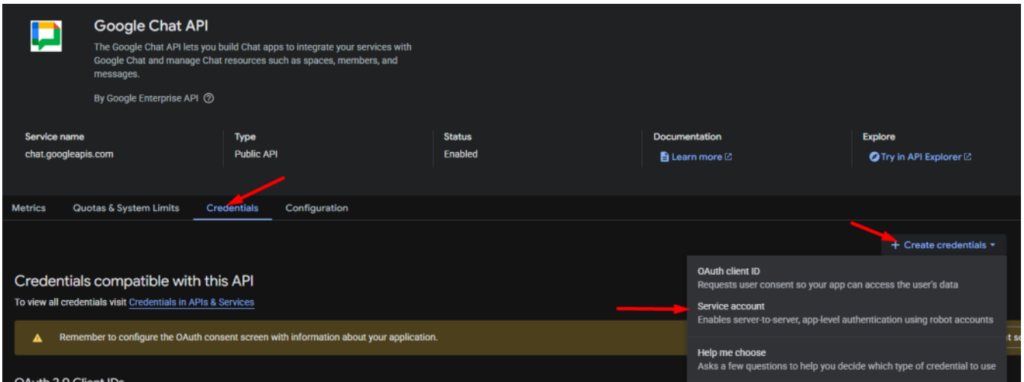
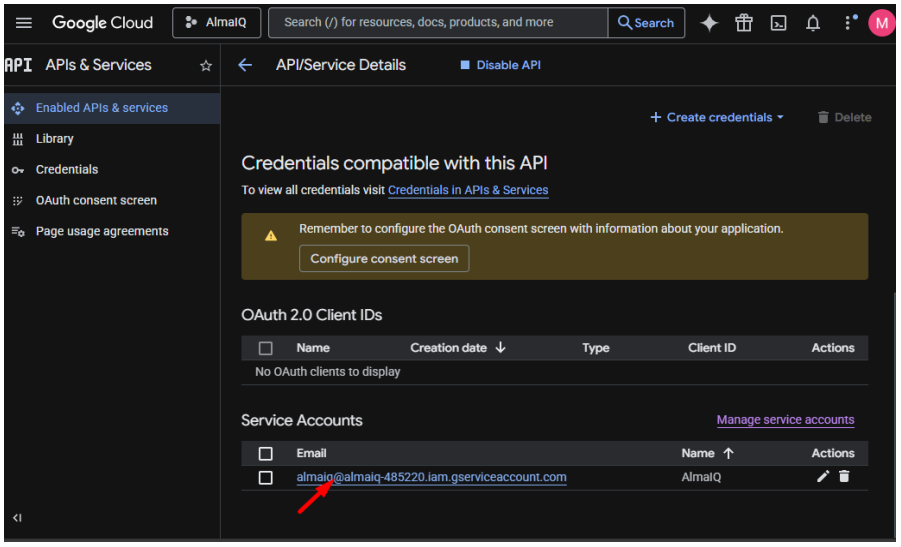
8. Open the Credentials Tab
In APIs & Services, click Credentials.
Click + Create credentials and select Service account.
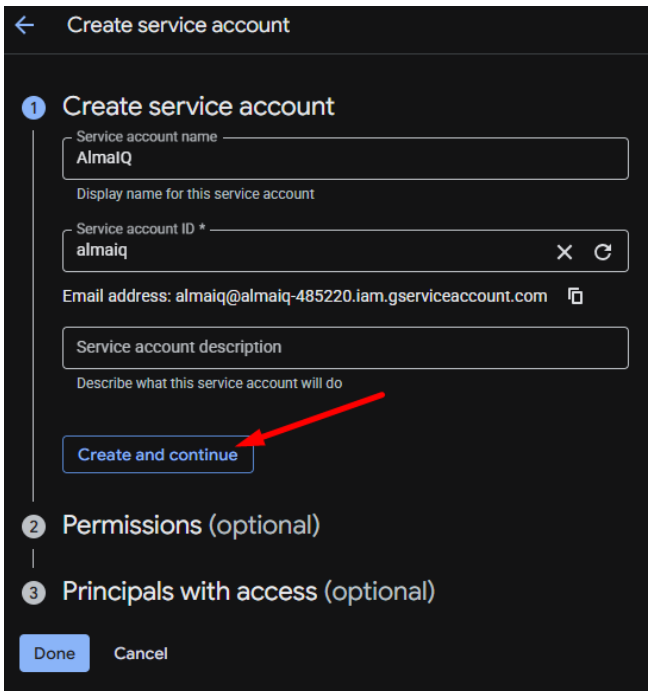
9. Set Up the Service Account
Enter:
- Service account name: AlmaIQ
Click Create and continue.
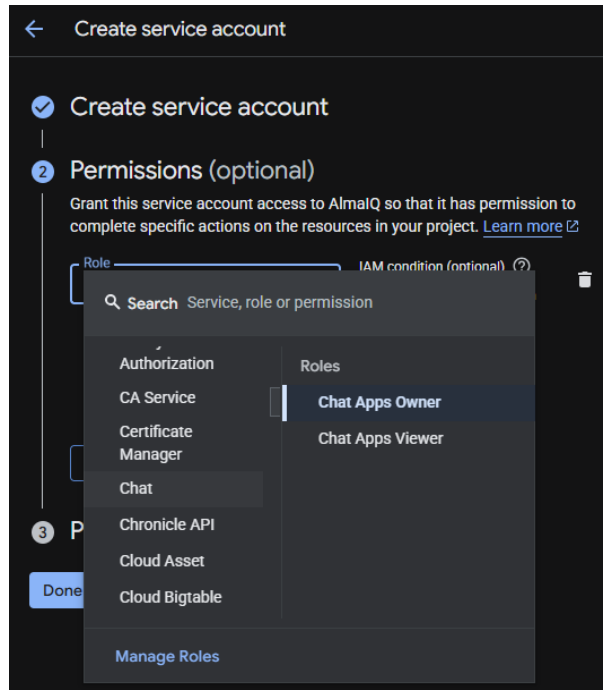
10. Assign Permissions
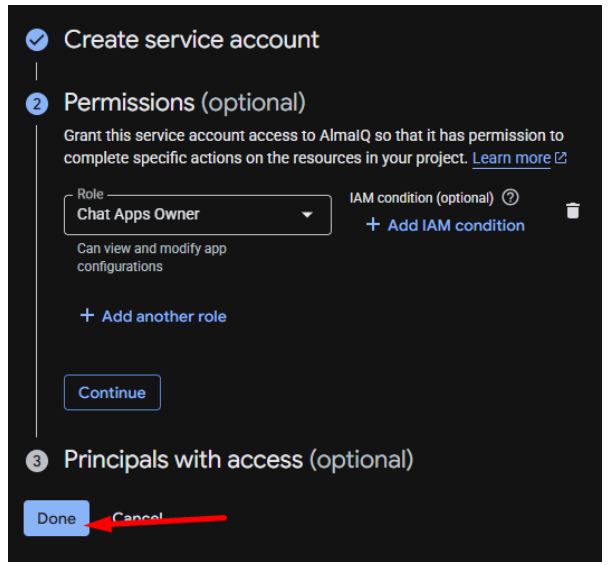
Assign the following role:
- Category: Chat
- Role: Chat Apps Owner
Click Done.
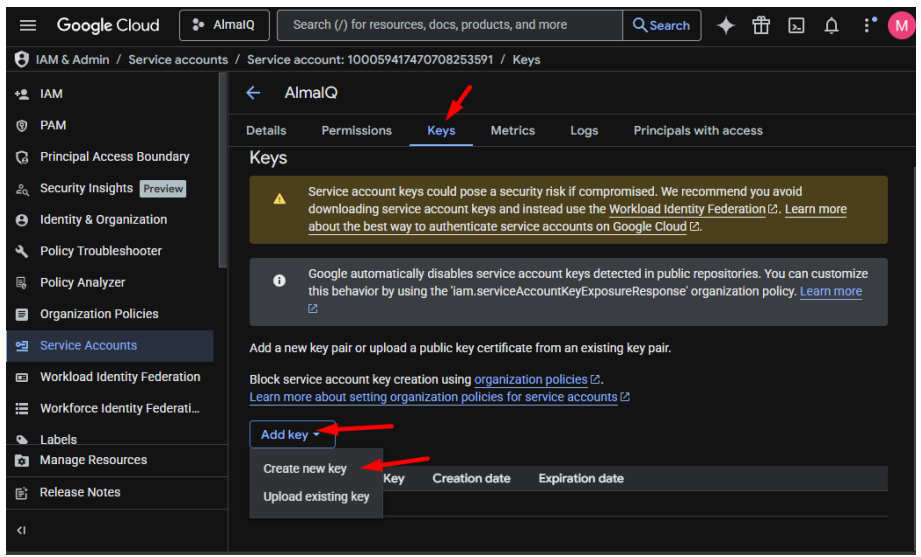
11. Generate a JSON Key
Open the created service account.
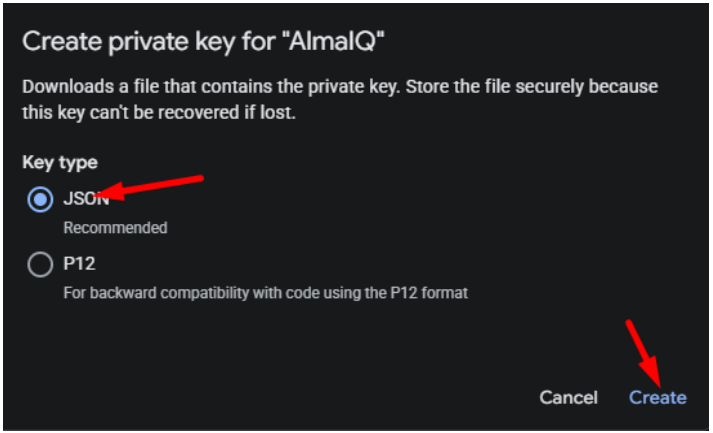
Go to the Keys tab → click Add Key → Create new key.
Select JSON and click Create.
A .json file will be downloaded.
📌 Note: Keep this file “.json” — it will be required for CIQ DEX integration.
Part 4 — Retrieve the Google Cloud Customer ID
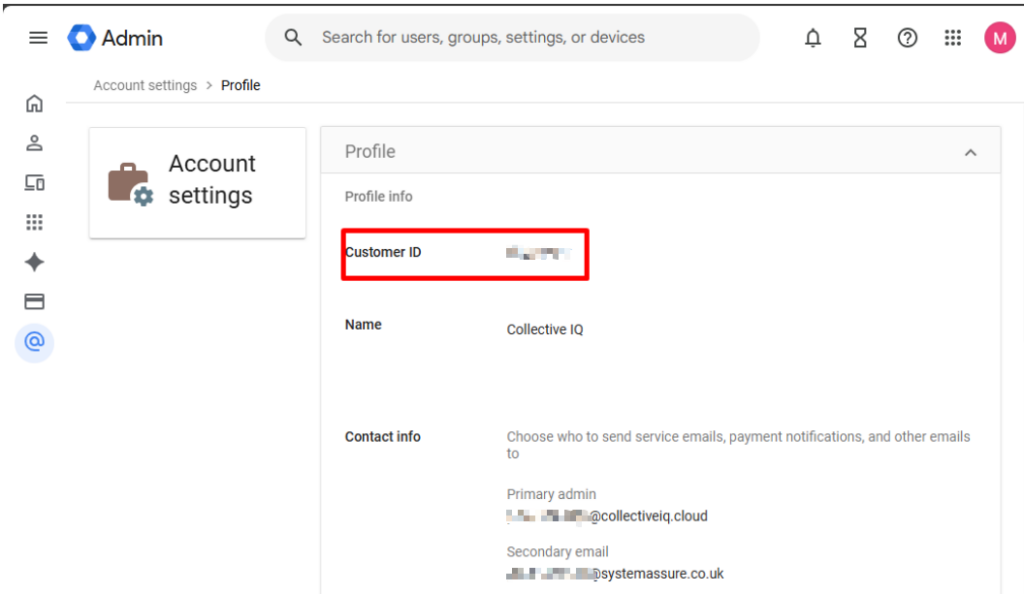
To locate your Customer ID:
- Access: https://admin.google.com/
- Navigate to:
Account → Account Settings → Profile - Copy the Customer ID
Part 5 — Upload Credentials to CIQ DEX
In the CIQ DEX platform, navigate to:
Admin Settings → Integrations → AlmaAI® → Google Chat
On this screen:
- Enter your Customer ID
- Upload the
.jsonfile generated in Step 11
📌 Note: If this screen is not available, contact AlmaIQ Support.
📷 Insert image – CIQ DEX Google Integration
Part 6 — Publish the Application
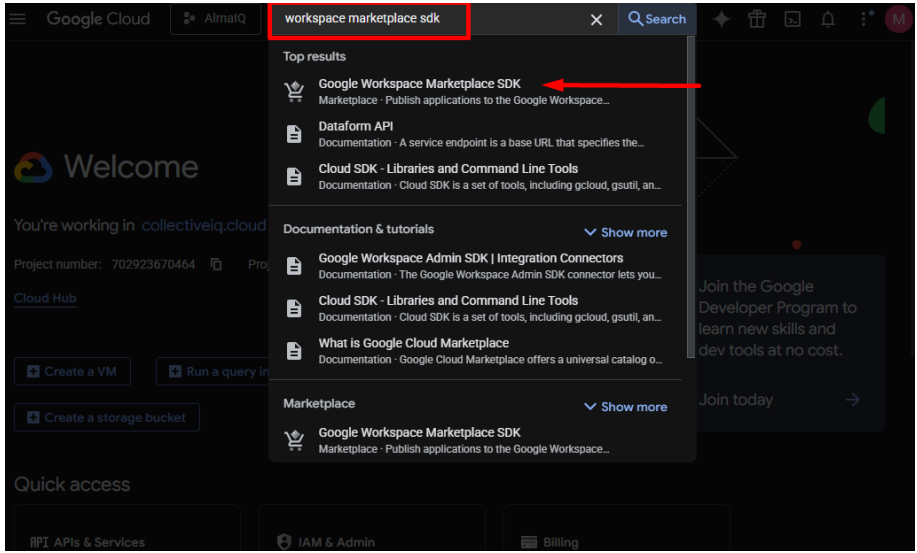
12. Open Google Workspace Marketplace SDK
In Google Cloud Console, search for:
Workspace Marketplace SDK
Click the result.
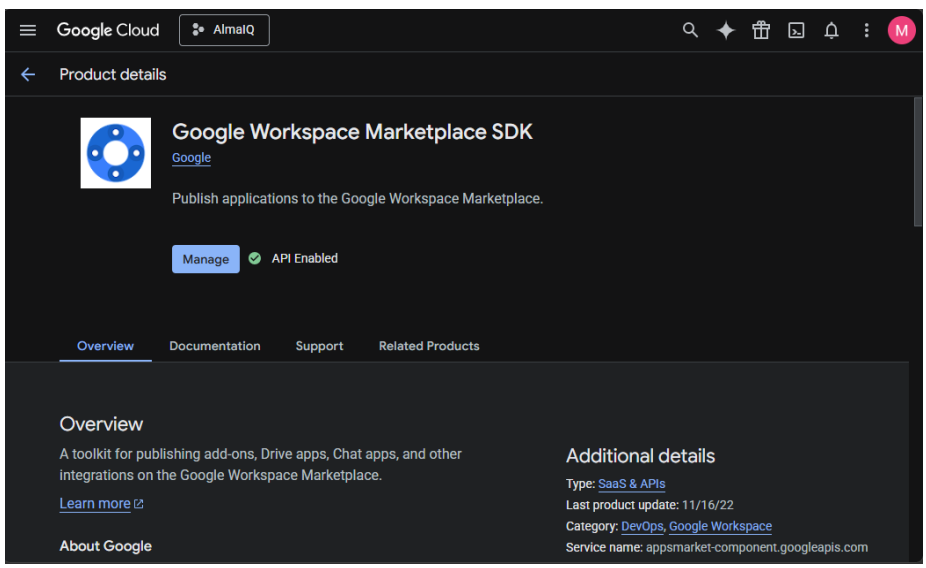
13. Access App Configuration
Click Manage and go to App Configuration.
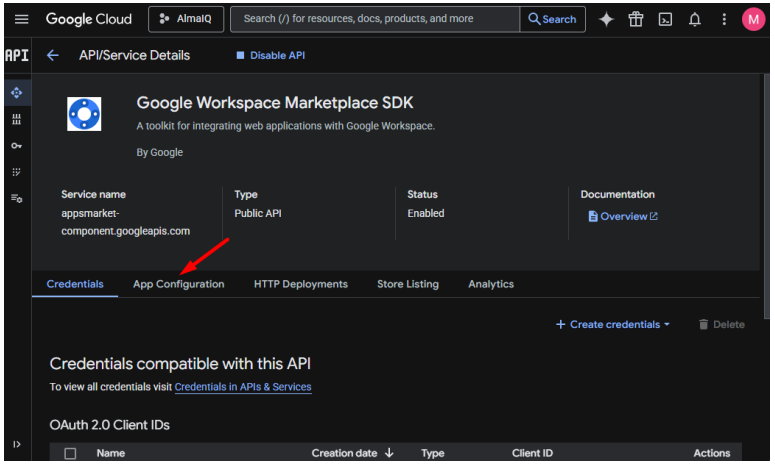
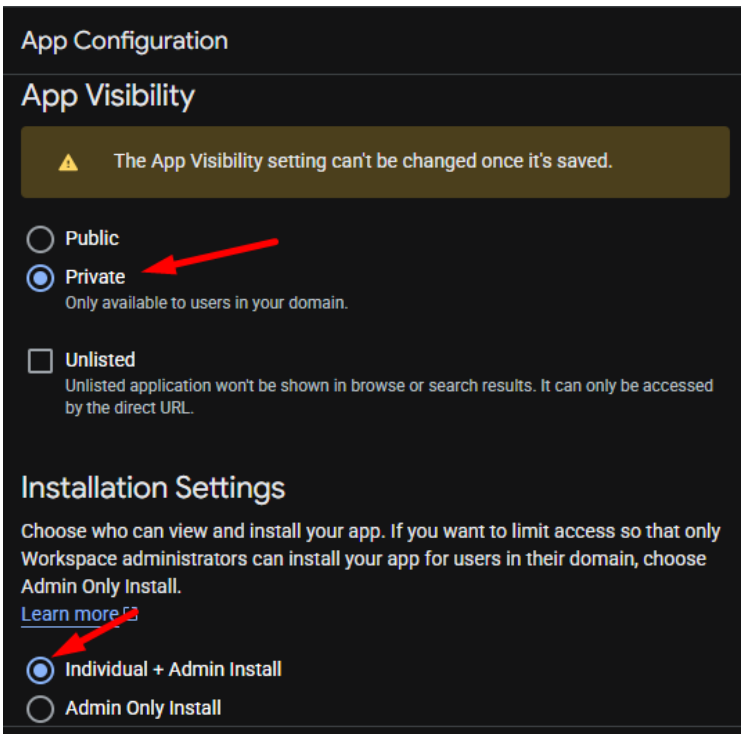
14. Fill In Configuration Details
Complete the configuration fields as shown in the reference screenshots.
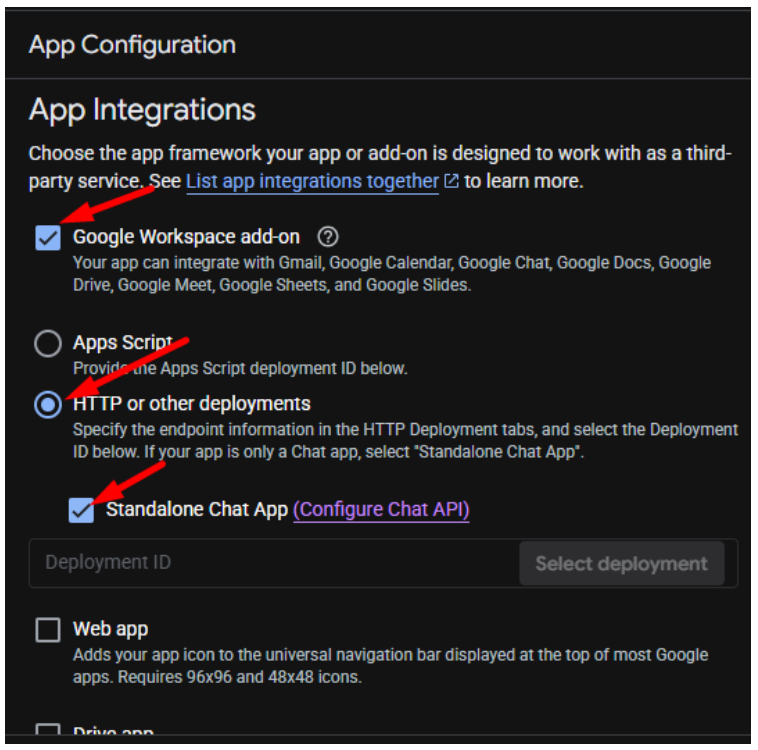
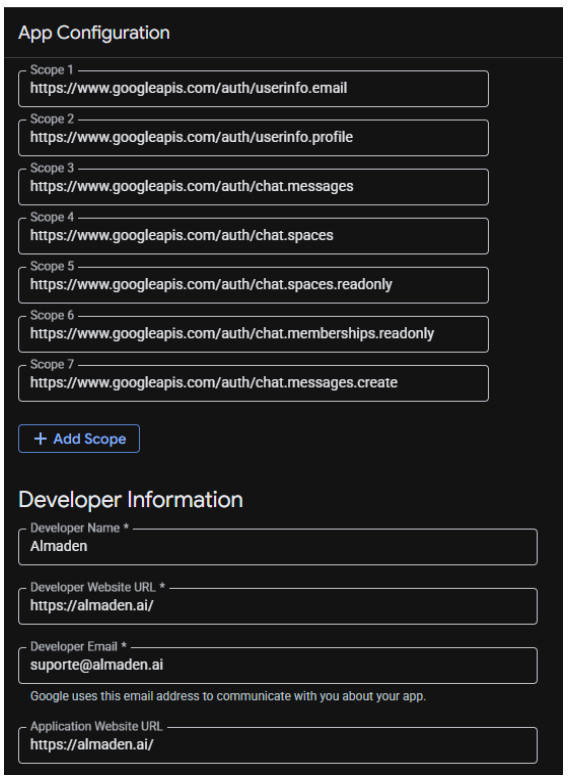
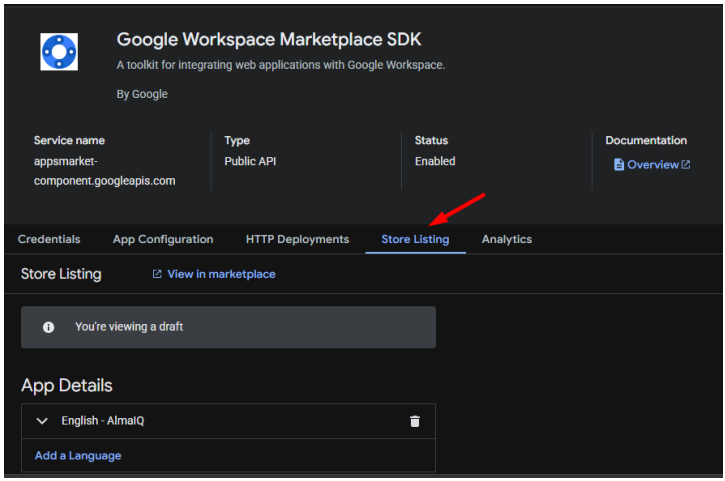
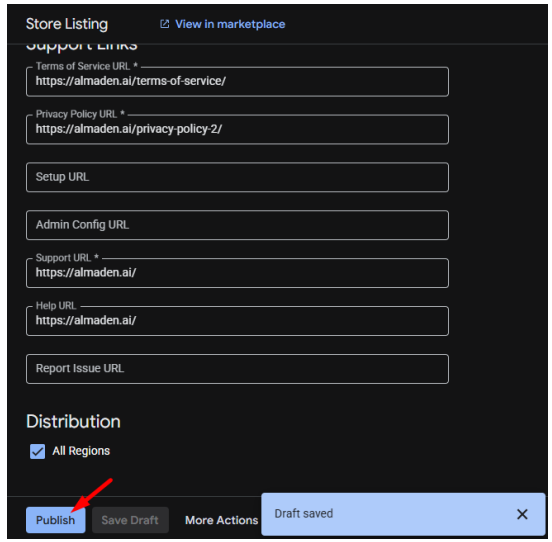
15. Configure the Store Listing
Fill in the fields as follows:
App Details
- App Name: AlmaIQ
- Short Description: AlmaIQ automates your communication
- Detailed Description:
AlmaIQ is an advanced chatbot platform designed to streamline and enhance conversational experiences for businesses across various industries.
App Icons & Media
- 32×32 Icon URL:
https://lh3.googleusercontent.com/XghM2uO79553TvBVtPY1RF9AgMN8kYf7f8lr0cDMoSTOLJYodfCI - 128×128 Icon URL:
https://lh3.googleusercontent.com/uDxCILU1SXsqFpqvgqSLOB7_Rfi1RfnzJcUZRSSrig2gcKRH4vBL - Banner (220×140):
https://lh3.googleusercontent.com/3upRWEfx4GBEcz-4_Rg6X-W_2oF2AgSFqg1mjFunZUTxXssRMACN
Screenshot:

Legal & Support URLs
- Terms of Service: https://almaden.ai/terms-of-service/
- Privacy Policy: https://almaden.ai/privacy-policy-2/
- Support URL: https://almaden.ai/
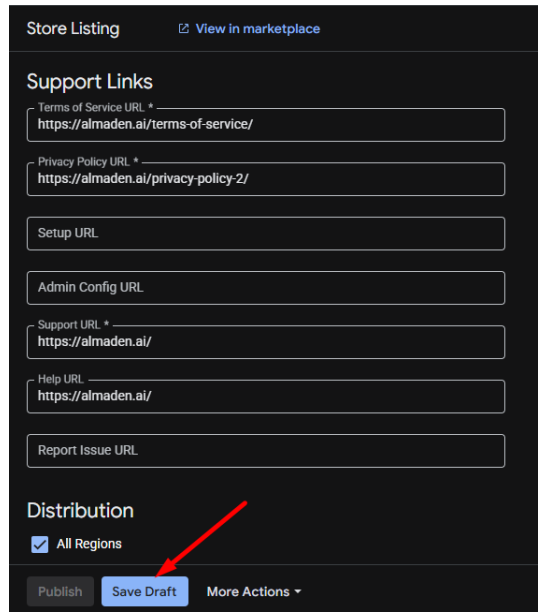
16. Publish the App
After completing all required fields, click Publish.
This will make AlmaIQ available within your organization’s Google Workspace.
Using AlmaIQ in Google Chat
AlmaIQ Overview
- Open Google Chat
- Search for AlmaIQ
- Add the application
- Start a conversation
AlmaIQ will be available as a chat contact for interaction.
AlmaIQ + AlmaKnowledge
Technical knowledge in the hands of employees
On top of Collective IQ® DEX, AlmaIQ can be enhanced with AlmaKnowledge.
In AlmaKnowledge, you can:
- Add articles, procedures, FAQs, and manuals
- Upload documents (PDFs, guides, presentations)
- Register URLs (internal wikis, support pages)
AlmaIQ will then:
- Query real device data (DEX)
- Cross-reference with organizational knowledge
- Deliver enriched responses such as:
- Step-by-step troubleshooting
- IT procedures
- Company policies
- Best practices
Who can use AlmaIQ?
Access is controlled to ensure data security and privacy.
- The employee must be registered in Collective IQ® DEX
- A device must be associated with the user
If integrated with Google Workspace:
- The system automatically identifies the user and associated device when interacting via Google Chat
This ensures each employee only accesses their own device data, following organizational security policies.
Setup Complete
Your AlmaIQ integration with Google Cloud is now configured.
The application will be available to users via Google Chat.
If you encounter issues:
AlmaIQ Support: https://almaden.ai/
Google Cloud Console: https://console.cloud.google.com/
Google Admin Console: https://admin.google.com/
