
AlmaIQ Integration Azure AD
AlmaIQ Overview
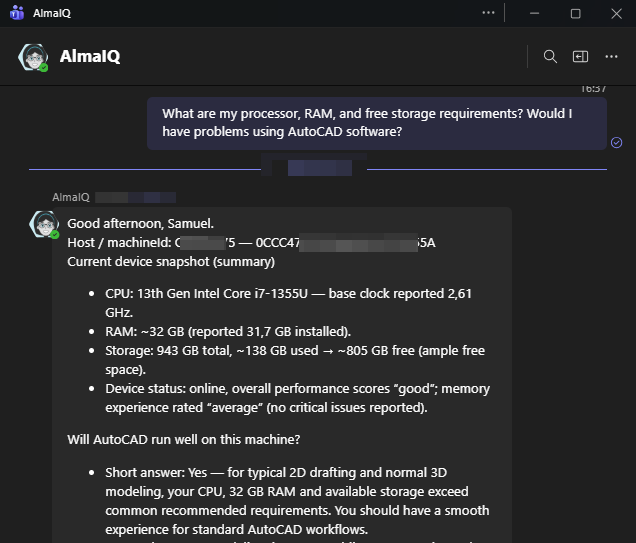
AlmaIQ is an intelligent virtual concierge designed to live where employees already work: inside Microsoft Teams.
It is an artificial intelligence layer built on top of the Collective IQ® DEX (Digital Employee Experience) data platform, allowing employees and IT teams to talk directly to environment data using natural language.
Through a simple chat conversation, AlmaIQ can:
- Understand questions about the hardware of the device (performance, capacity, health, bottlenecks)
- Check installed software and versions
- Provide insights about business applications (status, usage, incidents, dependencies)
- Analyze aspects of collaboration (usage and quality of tools such as Microsoft Teams)
- Present and explain DEX scores (digital employee experience indicators and trends)
Beyond raw data, AlmaIQ combines:
- Device and experience data from Collective IQ DEX®
- Organizational knowledge from AlmaKnowledge, where IT teams can add articles, procedures, documents, and URLs
AlmaIQ has a clear focus on operational and contextual support:
helping employees understand their devices, applications, and processes, and guiding them toward the best way to solve problems or use other tools when appropriate.
It can enhance simpler answers with extra details, perform translations, and answer in the requester’s language, always grounded in the organization’s data and knowledge.
Integration Prerequisites
To use AlmaIQ in Microsoft Teams, the following requirements must be met:
- An Azure AD (Entra ID) administrator must perform the integration
- The AlmaAI® integration must be configured in Collective IQ® DEX
📍 CIQ DEX navigation path:
Collective IQ DEX > Administrative Settings > Integrations > AlmaAI®

AlmaIQ Integration in Azure Portal
1. Access Azure Portal
Log in to the Azure Portal using an administrative account:
https://portal.azure.com
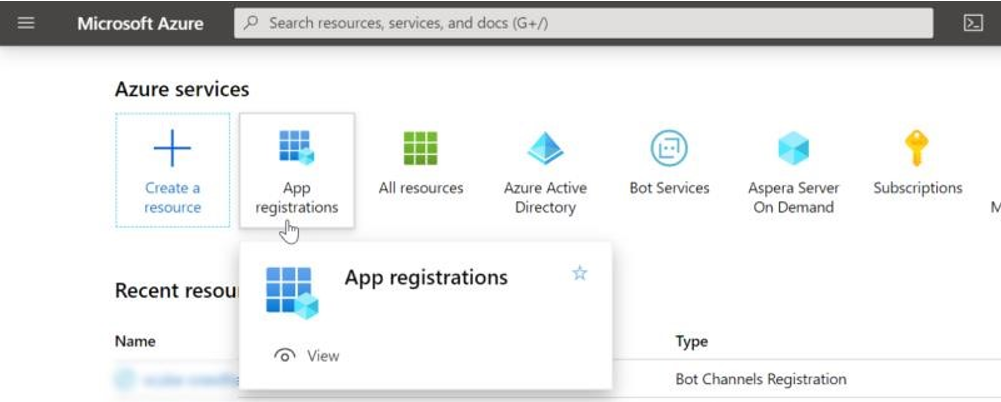
2. Open App Registrations
From Azure Services, select App registrations.
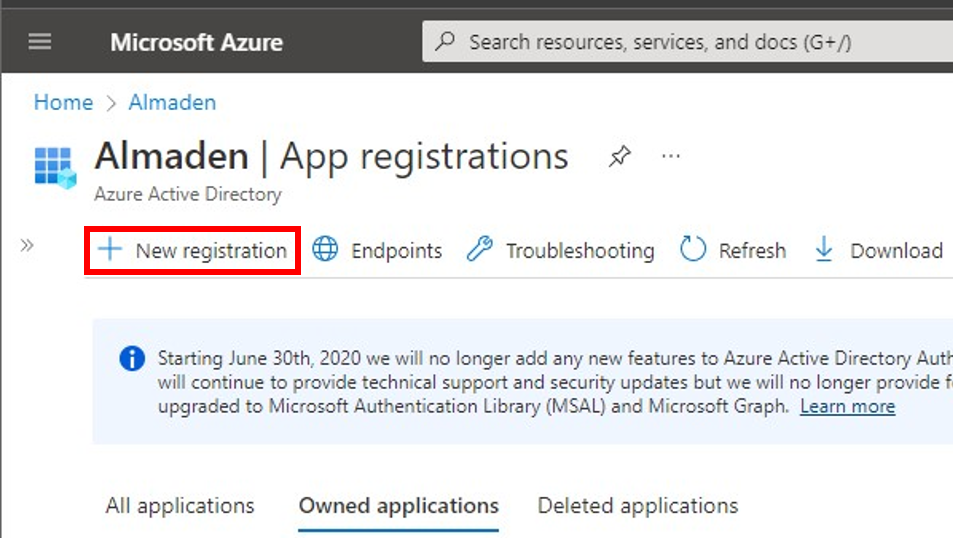
3. Create a new application registration
In the top menu, click + New registration.
4. Register the AlmaIQ application
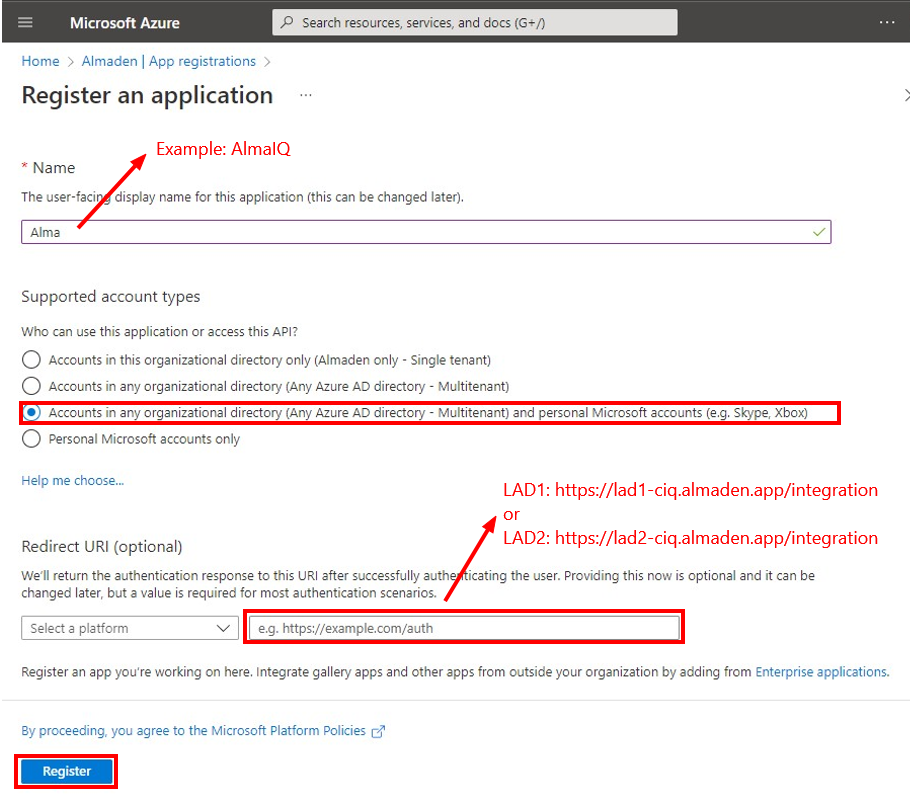
On the Register an application screen, configure the following:
- Name: AlmaIQ
- Supported account types:
Accounts in any organizational directory (Any Azure AD directory – Multitenant) and personal Microsoft accounts (e.g. Skype, Xbox) - Redirect URI (Web):
LAD1:
https://lad1-ciq.almaden.app/integration

LAD2:
https://lad2-ciq.almaden.app/integration
Click Register to complete the process.
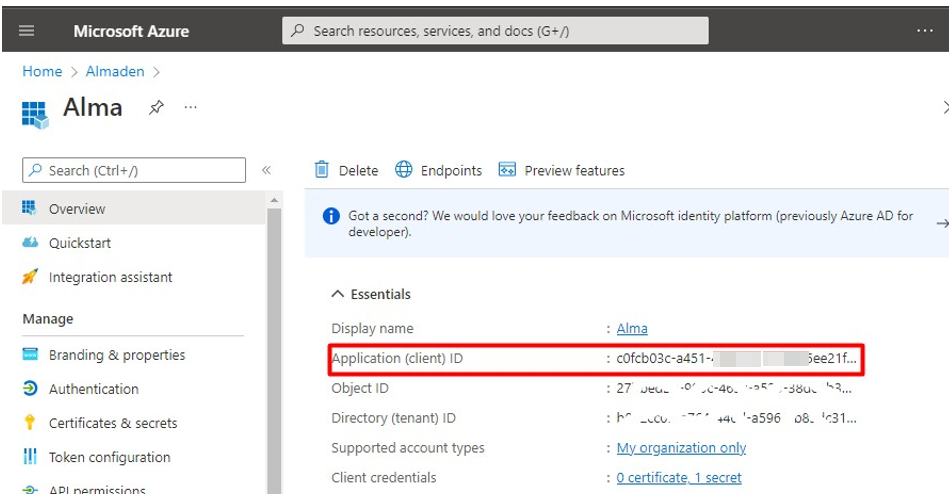
5. Copy the Application (Client) ID
After the application is created, copy the Application (client) ID shown on the application overview page.
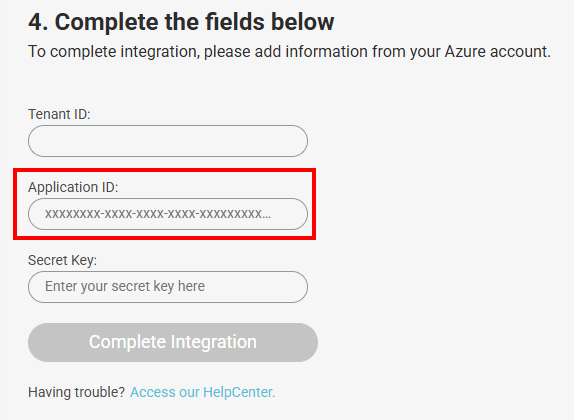
Paste this value into:
CIQ > Administrative Settings > Integrations > AlmaAI®
6. Create the Client Secret
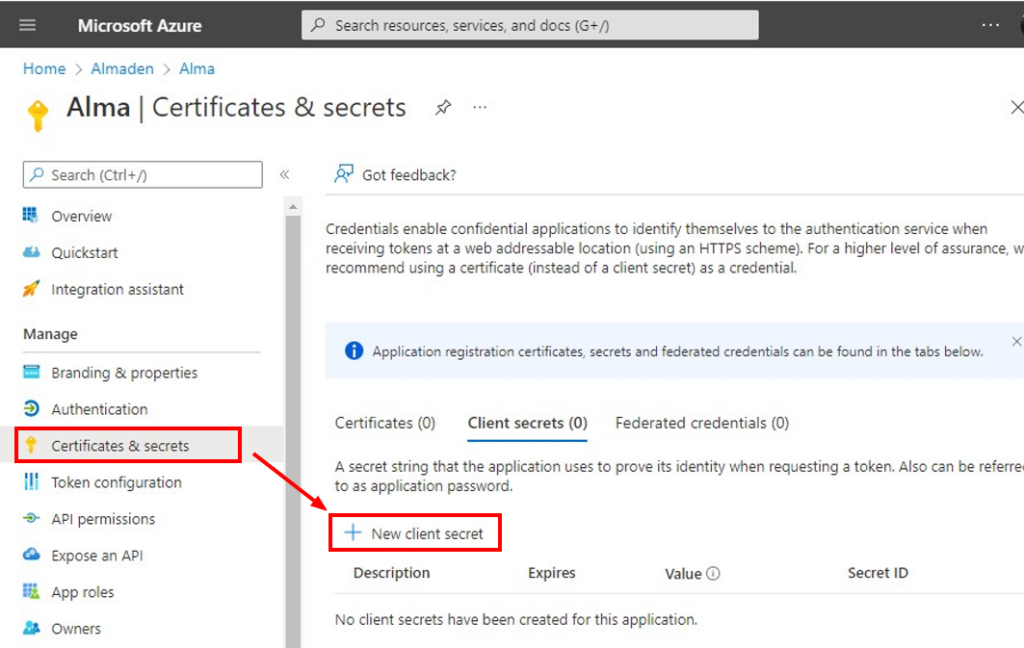
- In the application’s left menu, click Certificates & secrets
- Click + New client secret
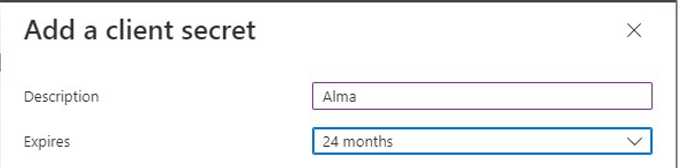
- Fill in:
- Description: Alma
- Expires: 24 months
- Click Add
- Immediately copy the value displayed in the Value field
⚠️ The secret value cannot be viewed again after leaving the page.
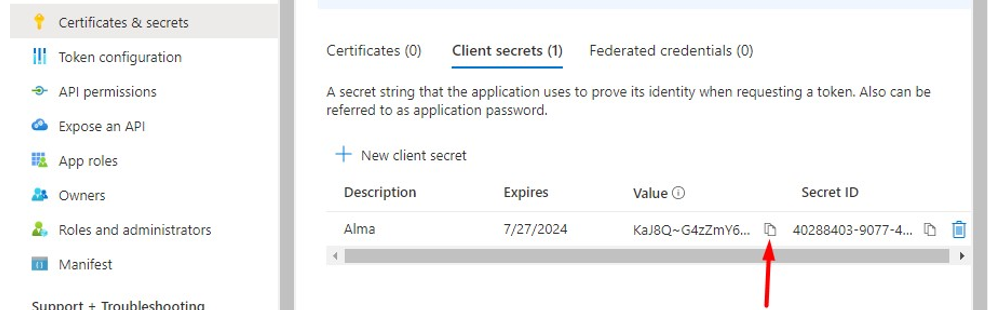
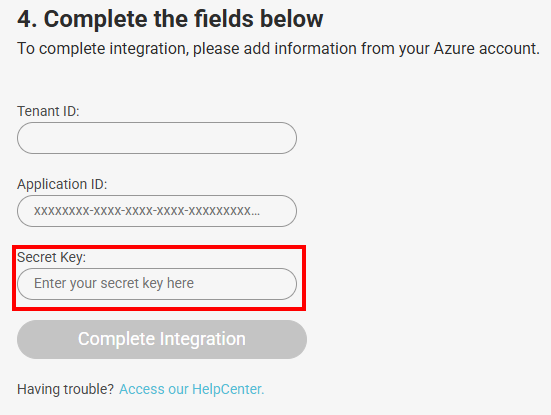
Paste the secret into:
CIQ > Administrative Settings > Integrations > AlmaAI®
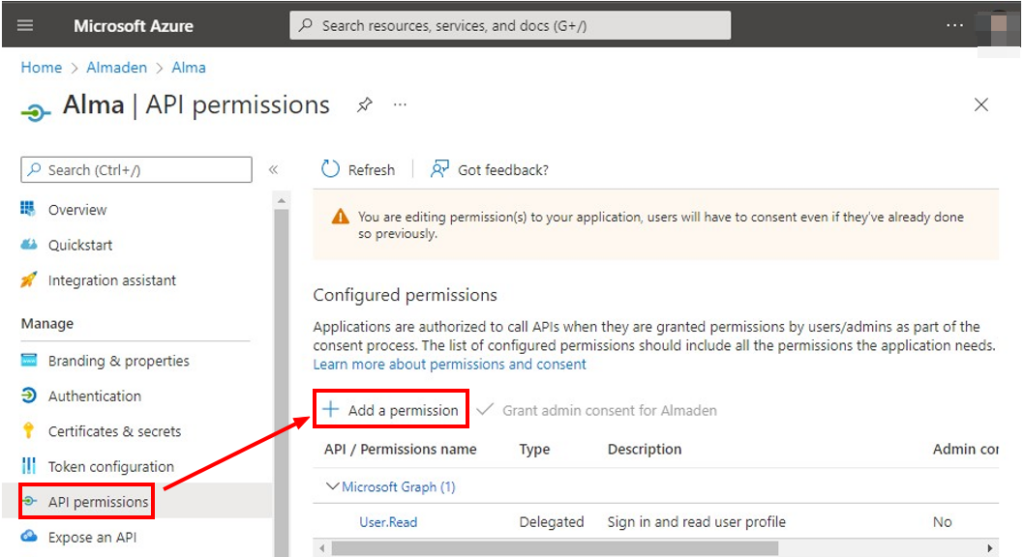
7. Configure API permissions (Microsoft Graph)
- In the left menu, click API permissions
- Click + Add a permission
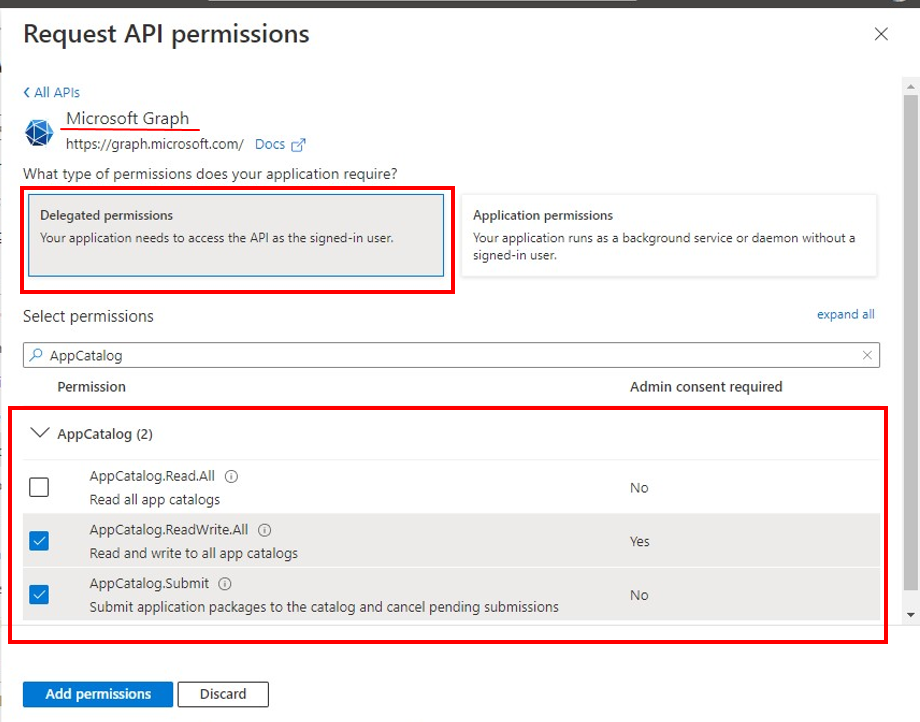
- Select Microsoft Graph
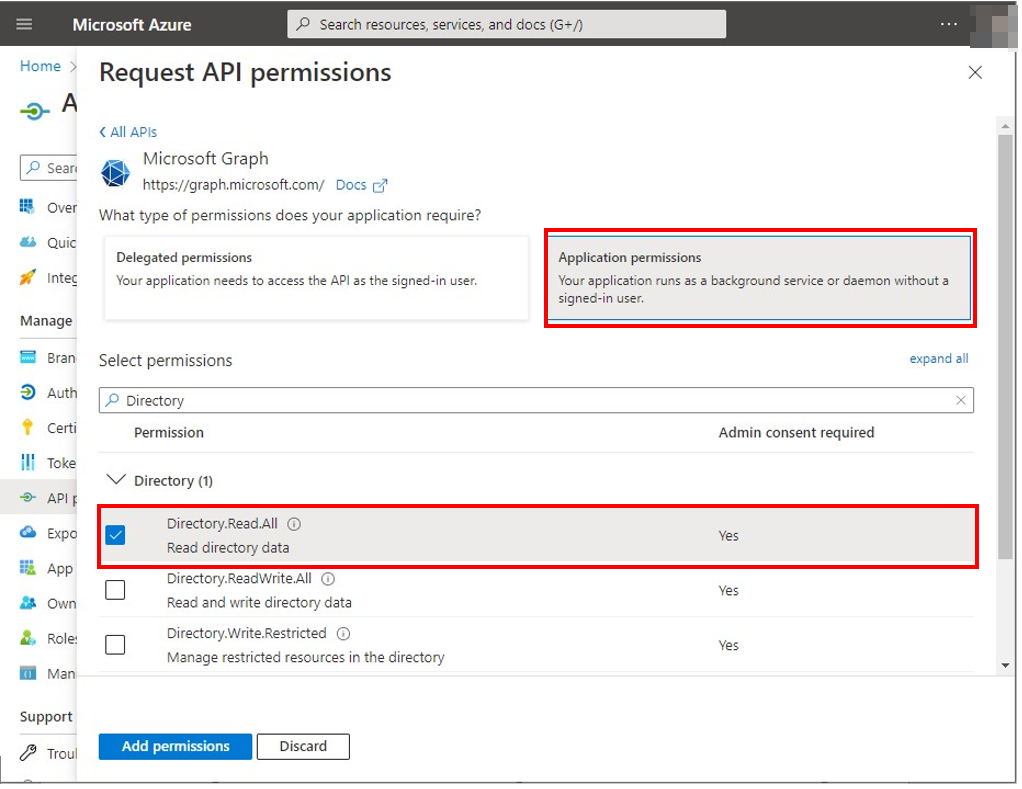
- Choose Delegated permissions
Add the following permissions:
AppCatalog
- AppCatalog.ReadWrite.All
- AppCatalog.Submit
AccessReview / Directory
- AccessReview.Read.All
- Directory.Read.All
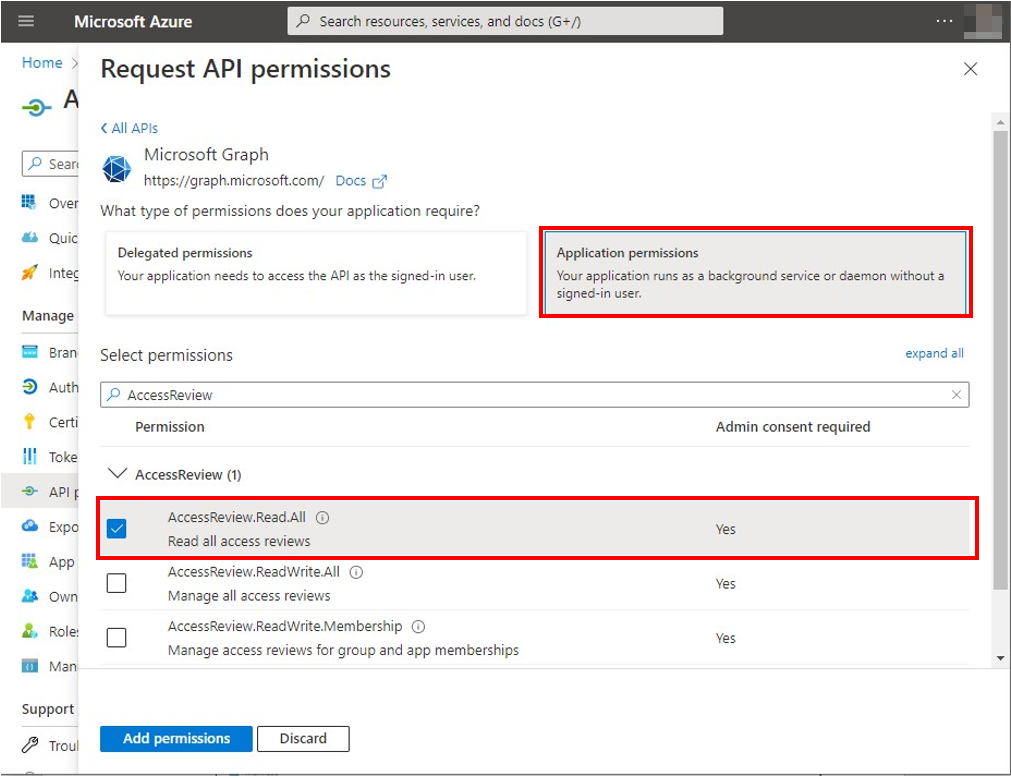
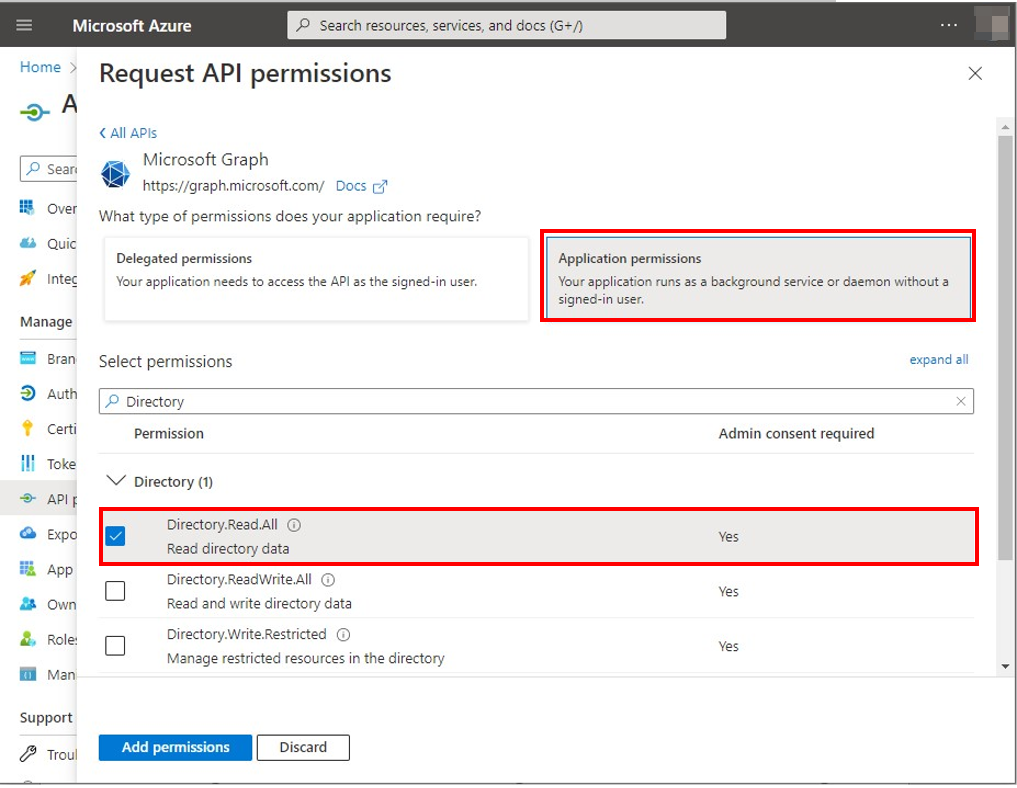
Files
- Files.ReadWrite.All
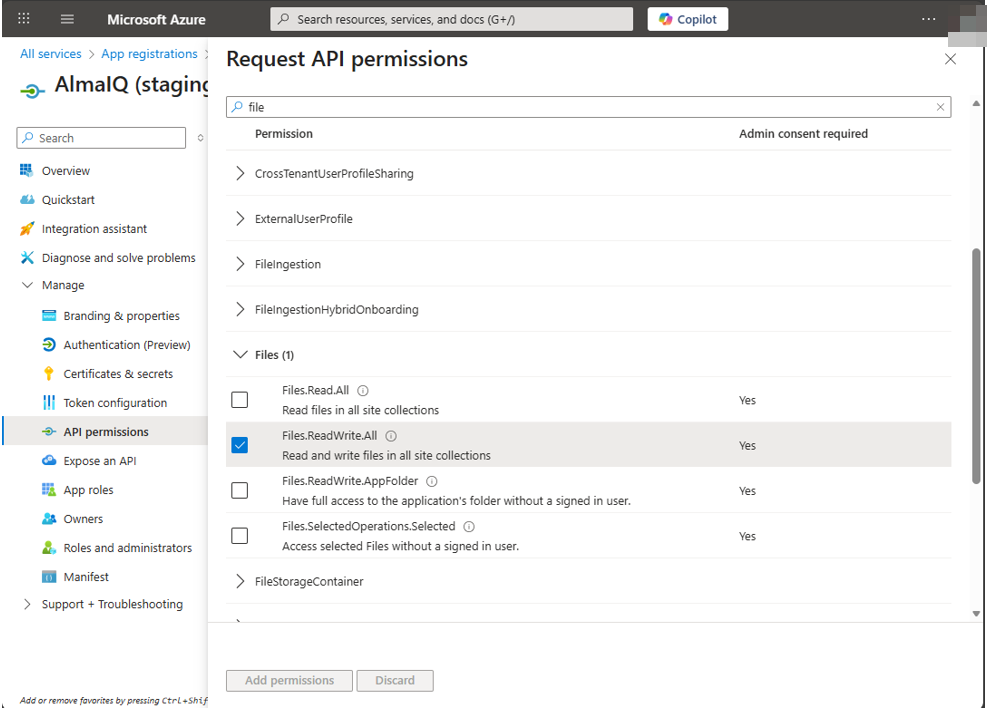
User
- User.Read.All
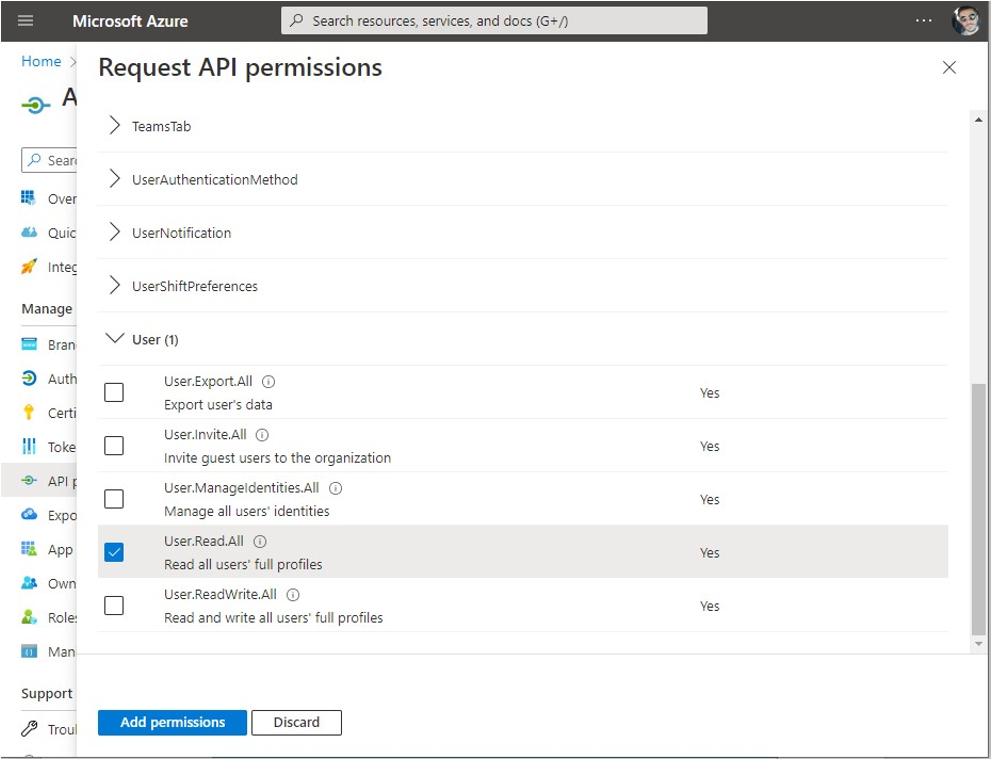
Look for “Directory” and select the “Directory” permission “Read.All”.
8. Configure App Studio for Microsoft Teams permissions
Under API permissions, click APIs my organization uses
Search for App Studio for Microsoft Teams
Select Delegated permissions
Enable:
- AppDefinitions.ReadWrite
- Cards.ReadWrite
9. Grant administrator consent
After all permissions are added:
- Click Grant admin consent
- Confirm by clicking Yes
- Wait for the message “Grant consent successful”
This message confirms that all required permissions have been successfully applied.
📷 Insert image – Grant admin consent
Using AlmaIQ in Microsoft Teams
1. Microsoft Teams
Add a new app.
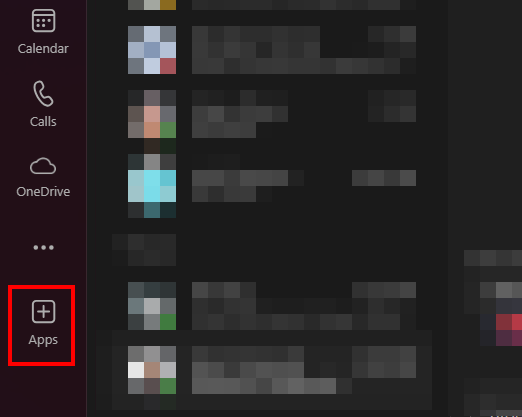
Microsoft Teams> + Apps
2. Search “AlmaIQ”
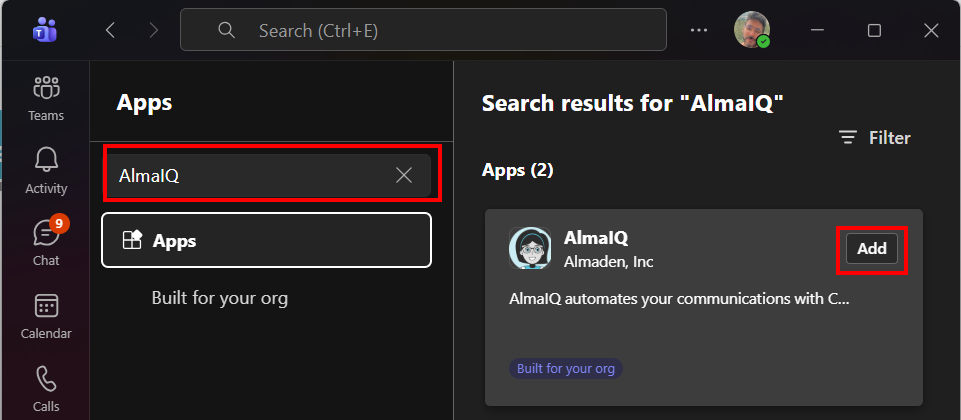
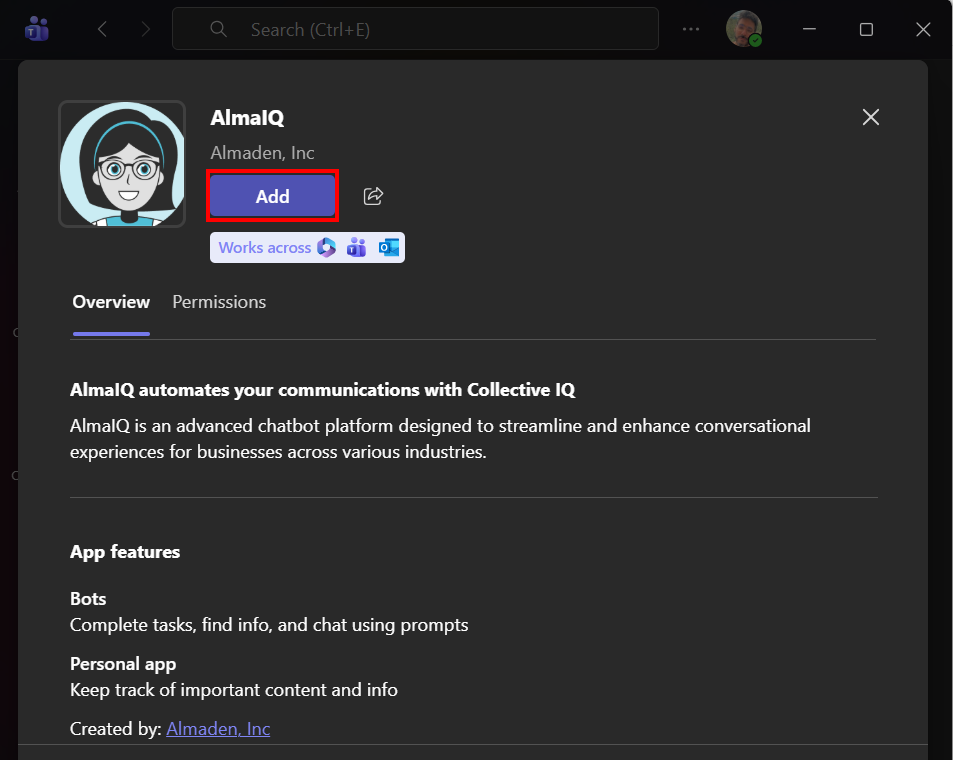
Search for “AlmaIQ” and add the app.
3. Start a chat with AlmaIQ
AlmaIQ will be listed as a contact; start interacting with it!

AlmaIQ + AlmaKnowledge
Technical knowledge in the hands of employees
On top of Collective IQ® DEX, AlmaIQ can be enhanced with AlmaKnowledge, the organization’s knowledge management platform.
In AlmaKnowledge, you can:
- Add text-based knowledge (articles, procedures, FAQs, internal manuals)
- Upload files (PDFs, technical documents, guides, presentations)
- Register URLs (internal wikis, knowledge bases, support pages)
AlmaIQ then starts to:
- Query real device information (via Collective IQ® DEX)
- Cross-check it with the AlmaKnowledge base
- Deliver richer answers, such as:
- Step-by-step troubleshooting
- IT-recommended procedures
- Company policies
- Best-practice guidelines
The result: the employee receives an answer that understands the technical context of their device and follows the organization’s official support standards.
Who can use AlmaIQ?
Access to AlmaIQ is designed to protect data while keeping the experience simple for the employee.
- The employee must be registered as an Employee in Collective IQ® DEX, with a device associated to their user.
- If the company uses the Teams Data Collector integration, this association does not need to be done manually:
- When the employee sends a message to AlmaIQ in Microsoft Teams,
the system automatically identifies the device linked to that user.
- When the employee sends a message to AlmaIQ in Microsoft Teams,
This ensures each employee only sees information related to their own device, following the organization’s security and privacy rules.
